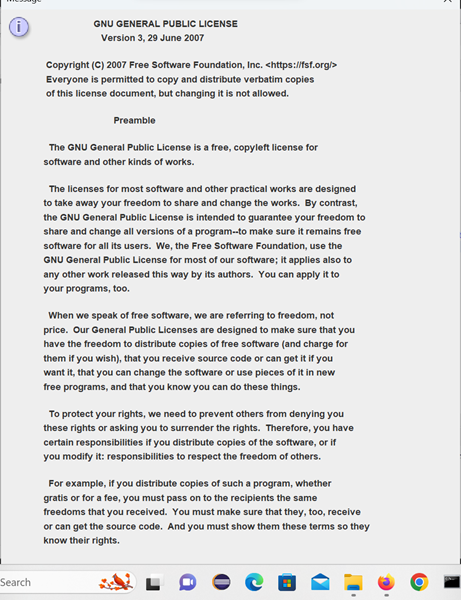
As we approach implementation of our menu bar, I realize we have a need for a dialog to display messages; at the very least, we’re going to want to display our about page, and the text of our license. My first thought was to use the JOptionPane to do this, for example, JOptionPane.showMessageDialog. Unfortunately JOptionPane isn’t very good for long-ish messages; for one thing you can’t embed a scroll pane in a JOptionPane dialog, and the dialog takes on some unhelpful geometries, such as a narrow window that takes up the full width of the screen, or a very long dialog that winds up with text and the close button below the bottom of the screen… and, another problem with JOptionPane dialogs, the operator can’t resize them to make them readable. To see how this can be a problem execute application JOptionPaneDialogDemo in the project sandbox.
So we’re going to make our own message dialog. And as long as we’re going to the trouble of doing so, we might as well learn something new along the way. The basis of our dialog will be a JEditorPane; it will support HTML and CSS, and be able to follow links to web pages and other documents.
See also:
- HTML Tutorial, from W3Schools
- HTML Elements, from W3Schools
- CSS Tutorial, from W3Schools
- CSS Reference, from W3Schools
- Using Text Components, in the Oracle Java Tutorial
- How to Use Editor Panes and Text Panes, in the Oracle Java Tutorial
GitHub repository: Cartesian Plane Part 16
Previous lesson: Cartesian Plane Lesson 16 Page 13: Developing the Graph Properties Panel GUI
About JEditorPane
⏹ Our work with JEditorPane requires knowledge of three components:
🟦class StyleSheet, package javax.swing.text.html
A StyleSheet object encapsulates a Cascading Style Sheet (CSS). Most of CSS version 3 is supported, but there are limitations: see class CSS in package javax.swing.text.html. I’ve had good luck with this class, with some minor annoyances dealing with named colors and font families. There are several ways to obtain a StyleSheet, including the class’s default constructor, which provides you with an empty style sheet. You can also get a StyleSheet from an HTMLEditorKit, which we’ll discuss below. Once you have a style sheet you can populate it with rules using the addRule(String) method: StyleSheet styleSheet = new StyleSheet();
styleSheet.addRule( "p{ color: #ff00ff;" );
You can also populate a style sheet by loading it from a CSS file using the loadRules(Reader, URL) method (note that, in our sample code, we use null for the URL). Here’s an example of how we’ll be doing that in the MessagePane class (see StyleSheetFromResourceDemo in the project sandbox):
public static void main(String[] args)
{
    StyleSheet  styleSheet  =
        getStyleSheetFromResource( "SandboxDocs/Jabberwocky.css" );
    System.out.println( styleSheet );
}

private static StyleSheet getStyleSheetFromResource( String resource )
{
    StyleSheet  styleSheet  = new StyleSheet();
    try (
        InputStream inStream = getResourceAsStream( resource );
        InputStreamReader inReader = new InputStreamReader( inStream );
    )
    {
        styleSheet.loadRules( inReader, null );
    }
    catch ( IOException exc )
    {
        exc.printStackTrace();
        System.exit( 1 );
    }
    return styleSheet;
}

private static InputStream getResourceAsStream( String resource )
{
    ClassLoader loader      = PropertyManager.class.getClassLoader();
    InputStream inStream    = loader.getResourceAsStream( resource );
    // ...
    return inStream;
}
One way we’re going to populate a style sheet in our MessagePane class is from a string containing multiple rules. The StyleSheet class doesn’t provide a method for this, but we can make a ByteArrayInputStream out of a string; then we can turn the ByteArrayInputStream into a Reader, and use that to load the rules from the string; see StyleSheetFromStringDemo in the project sandbox. Here’s the relevant code.
private static StyleSheet getStyleSheetFromString( String cssString )
{
    StyleSheet  styleSheet  = new StyleSheet();

    byte[]  buffer  = cssString.getBytes();
    try (
        ByteArrayInputStream inStream =
            new ByteArrayInputStream( buffer );
        InputStreamReader inReader = new InputStreamReader( inStream );
    )
    {
        styleSheet.loadRules( inReader, null );
    }
    catch ( IOException exc )
    {
        exc.printStackTrace();
        System.exit( 1 );
    }
    return styleSheet;
}
You can import a StyleSheet from a URL; see excerpt, below, from styleSheetFromURLDemo in the project sandbox.
private static final String urlStr  =
    "https://judahstutorials.com/raw-pages/main.css";
private static StyleSheet getStyleSheetFromURL( String urlStr )
{
    StyleSheet  styleSheet  = new StyleSheet();
    try
    {
        URL         url         = new URL( urlStr );
        styleSheet.importStyleSheet( url );
    }
    catch ( MalformedURLException exc )
    {
        exc.printStackTrace();
        System.exit( 1 );
    }
    return styleSheet;
}
Other ways to populate a style sheet:
- Combine the rules from two StyleSheets:
StyleSheet.addStyleSheet(StyleSheet ss) - Get the default style sheet from an HTMLEditorKit (see also below):
HTMLEditorKit.getStyleSheet().
🟦class HTMLEditorKit, package javax.swing.text.html
To integrate a CSS with an HTML document you need an HTMLEditorKit. To this you can:
◼ Instantiate an editor kit, then add a StyleSheet to it:
StyleSheet styleSheet = new StyleSheet();
styleSheet.addRule( "body{color:{background-color:#ff0000;}" );
HTMLEditorKit editorKit = new HTMLEditorKit();
editorKit.setStyleSheet( styleSheet );
◼ Get the default StyleSheet from an editor kit, then add rules to it
HTMLEditorKit editorKit = new HTMLEditorKit();
StyleSheet styleSheet = getStyleSheet();
styleSheet.addRule( "body{color:{background-color:#ff0000;}" );
Caveat 1: If you set a style sheet in an HTMLEditorKit, that style sheet will become the default for the next HTMLEditorKit you instantiate.
Caveat 2: If two HTMLEditorKits use the same default StyleSheet, changing the rules for one editor kit’s style sheet will change the rules for the other editor kit.
🟦 class JEditorPane
This is a flexible class that is able to handle three different types of content: “text/plain”, “text/html” and “text/rtf”. We only care about plain text and html text. The content type can be set when instantiating a JEditorPane, or changed on the fly using the setContentType(String type) method: JEditorPane editorPane = new JEditorPane( "text/html", text );
editorPane.setContentType( "text/plain" );
For this project, when we create a JEditorPane we will always:
- Create a style sheet;
- Create an HTMLEditorKit;
- Set the style sheet in the editor kit; and
- Set the editor kit in the JEditorPane.
Two more things about JEditorPane:
- Our message pane is purely for the display of information, so we will make it non-editable:
jEditorPane.setEditable( false ); - The dialog produced by the MessagePane class will have a Close button, and we will want to make that the dialog’s default button (i.e., the button that is selected when the dialog has focus and the operator presses the enter key; see Cartesian Plane 12: Responding to the enter Key). However JEditorPane has a habit of consuming (or “eating”) the enter key press before it ever has a chance to get to the default button. The solution to this is to make sure our JEditorPane is “non-focusable”:
jEditorPane.setFocusable( false );
MessagePane Look and Feel
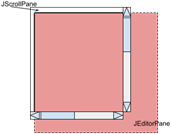
The MessagePane consists of two main components: a JScrollPane and a JEditorPane. The user is able to obtain the JEditorPane alone (MessagePane.getEditorPane()), or the JScrollPane with the JEditorPane as its viewport view (MessagePane.getScrollPane()). The user may obtain a JDialog containing the scroll pane/editor pane pair, and a Close button at the bottom of the dialog (MessagePane.getDialog()). The Close button will be the dialog’s default button, so pressing the enter key when the dialog has focus will dismiss the dialog. The dialog’s content pane consists of a JPanel with a BorderLayout. The content pane’s center region contains the scroll bar, and its southern region contains a JPanel with a FlowLayout and the Close button.
As part of our implementation strategy, we take care to avoid fixing the containment hierarchy whenever possible. Consequently, immediately after instantiation, the user can get the JEditorPane and make it a child of another component; or the user can get the JScrollPane and make it a child of another component. However, once getScrollPane is called, the JEditorPane becomes the scroll pane’s viewport view, so the user must not add it to another container. Once getDialog is called, the JScrollPane/JEditorPane pair will belong to the dialog’s containment hierarchy, and must not be included elsewhere in the GUI.
🟦 Hyperlinks
Our MessagePane is not going to try to look like a web page. For example, there is no hyperlink stack (no back ⇦ or forward ⇨ buttons), and no scripting is allowed. We will, however, provide basic link processing. This occurs in two contexts:
- The user can provide a link to a website. In this case we will attempt to open the web page in the system’s default browser. The link address must begin with http.
- The user can provide a link to a text or html page in the project resources folder. In this case we will attempt to open the page in the current MessagePane; the current text of the message pane will be overwritten.
As mentioned, there will be no hyperlink stack. However, the user can optionally provide basic backtracking by include a backward hyperlink to the previous page. For example:
| SandboxDocs/StartPage.html | SandboxDocs/HTMLLink.html |
|---|---|
|
<html> <body> <h2>Start Page</h2> <p> This is a link to <a href=”SandboxDocs/TextLink.txt”> a sample text file. </a> This is a link to <a href=”SandboxDocs/HTMLLink.html”> a sample HTML file. </a> < This is a link to <a href=”https://www.mathsisfun.com/”> a Website. </a> </p> … </body> </html> |
<html> <body> <p> <a href=”SandboxDocs/StartPage.html”> <strong>↩</strong> Back to Start </a> </p> <h2>Wynken, Blynken, and Nod</h2> <p style=”font-style: italic;”> Wynken, Blynken, and Nod one night<br> Sailed off in a wooden shoe,—<br> Sailed on a river of crystal light<br> Into a sea of dew.<br> </body> </html> |
You can see the the effect of the above html by executing application MessagePaneDemo3 in the project sandbox.
🟦 Exception Processing
Except during link processing I/O errors encountered during operation are converted to ComponentExceptions; all such operations are associated with resource processing (see Managing Resources, below). This would happen, for example, when the user (the programmer) asks us to instantiate a MessagePane object, or change the text of the JEditorPane. The reasons for this are:
- Almost all such errors are unrecoverable programming errors, and should be caught during testing.
- IOException is a checked exception and must be caught or declared to be thrown; ComponentException is an unchecked exception and does not have to be declared or thrown. By converting the IOException to a ComponentException we’re relieving the programmers of the need to catch an exception that they don’t know what to do with anyway.
- If programmers are prepared to process an IOException they can just catch the ComponentException, instead.
Here’s an example of converting an IOException to a ComponentException:
    try ( InputStream inStream  = getResourceAsStream( resource ) )
    {
        styleSheet = getStyleSheet( inStream );
    }
    catch ( IOException exc )
    {
        exc.printStackTrace();
        throw new ComponentException( exc );
    }
If an I/O error occurs during link processing it is usually nothing more than an annoyance to the operator, and we don’t want to just crash the whole program. Instead we record the error, display an error message and allow the program to continue executing normally. Following is an example of how we deal with errors during link processing.
    try
    {
        desktop.browse( url.toURI() );
    }
    catch ( IOException | URISyntaxException exc )
    {
        exc.printStackTrace();
        JOptionPane.showMessageDialog(
            null,
            exc.getMessage(),
            "Link Error",
            JOptionPane.ERROR_MESSAGE,
            null
        );
    }
Implementation Details
⏹ MessagePane Fields
Here’s a quick overview of the fields in our MessagePane class; annotations follow.
1 2 3 4 5 6 7 8 9 10 11 | public static final String HTML_TYPE = "text/html"; public static final String PLAIN_TYPE = "text/plain"; private static final String newLine = System.lineSeparator(); private final JEditorPane editorPane; private final HTMLEditorKit editorKit = new HTMLEditorKit(); private final JScrollPane scrollPane; private JDialog dialog; private final HyperlinkListener defaultHyperlinkListener = this::hyperlinkUpdate; |
- Lines 1,2: The two types of text that we support, made public for the convenience of the user.
- Line 4: The line separator for the local platform.
- Line 5: The JEditorPane used by an object of this class.
- Line 6: The editor kit used by an object of this class.
- Line 7: The JScrollPane used by an object of this class. Note that, if used, the scroll pane will incorporate the editor pane as its viewport view; however the incorporation does not occur until the getScrollPane method is called
- Line 8: The JDialog used by an object of this class; note that the dialog is not instantiated unless and until the user invokes the getDialog method.
- Lines 10,11: The default HyperlinkListener for processing hyperlinks. It’s declared as a field because, after adding it, we may have to remove it, and making it a field makes that possible. See Hyperlink Processing, below.
⏹ Instantiating MessagePane
Our class is going to have a private constructor, so an instance can only be obtained by invoking an instance-of method (commonly abbreviated of). We’ll give the user a lot of options, among them:
- Create a text/plain message (here, plain means not html). There will be two options for this:
- Specify the text of the message as a string: of( String text ).
- Specify the text of a message as a resource, where resource is the path to a file in the project’s resource directory (see Lesson 7 page 1, Loading the Application Properties File), ofResource( String resource ), and the name of the file does not end in html.
- Create a text/html message, with or without a style sheet:
- Specify the message text and CSS as strings: of( String text, String css )
- Specify the message text as a string and CSS as a StyleSheet: of(String text, StyleSheet styleSheet)
- Specify the text of a message as a resource, where resource is a file in the project’s resource directory whose name ends in html: ofResource( String resource ).
- Specify the text and CSS of a message as resources in the project’s resource directory: ofResource(String textRes, String cssRes)
The above list takes care of most of the various options for instantiating message panes of different types. The text, CSS and type can also be changed after the fact using one of the convenience methods listed below:
- Explicitly set the content-type: setContentType(String type)
- Explicitly set the CSS from a string: setStyleSheet(String css)
- Explicitly set the CSS from a StyleSheet: setStyleSheet(StyleSheet styleSheet)
- Explicitly set the CSS from a resource: setStyleSheetFromResource(String resource)
- Set the text from a string: setText(String text)
- Set the text from a resource: setTextFromResource( String resource )
We will have one constructor: private MessagePane( String text, String type, StyleSheet styleSheet ) where:
- text is the text of the message (may be null);
- type is the type of the message, must be either text/plain or text/html; and
- styleSheet contains the necessary CSS; it may be null, in which case the encapsulated JEditorPane will inherit the default style sheet from the HTMLEdiorKit.
To make implementation of the instance-of and convenience methods a bit easier we have three helper methods, getStyleSheetFromCSS( String css ), getResourceAsStream( String resource ) and getText( InputStream inStream ).
Method getStyleSheetFromCSS( String css ) creates a new StyleSheet and loads it from the given string. As noted above (see class StyleSheet) we can’t load the style sheet directly from a String, but we can make a Reader out of the String and load the style sheet from that. The code follows.
private static StyleSheet getStyleSheetFromCSS( String css )
{
    StyleSheet styleSheet  = null;
    try ( ByteArrayInputStream inStream    =
        new ByteArrayInputStream( css.getBytes() )
    )
    {
        styleSheet = getStyleSheet( inStream );
    }
    catch ( IOException exc )
    {
        exc.printStackTrace();
        throw new ComponentException( exc );
    }
    return styleSheet;
}
The logic for getResourceAsStream will be recognized from Lesson 7 with one exception: if the given resource cannot be loaded it will throw a ComponentException. Here’s the code.
private static InputStream getResourceAsStream( String resource )
{
    ClassLoader loader      = PropertyManager.class.getClassLoader();
    InputStream inStream    = loader.getResourceAsStream( resource );
    if ( inStream == null )
    {
        String  msg = "Resource file \""
            + resource + "\" not found";
        System.err.println( msg );
        throw new ComponentException( msg );
    }
    return inStream;
}
To get the text from a resource file we read the file one line at a time, and concatenate all the lines using a StringBuilder. The wrinkle is that when a line is read from a file Java will discard the line separator. If we’re displaying html that’s not an issue, but if we’re displaying plain text it is, so our logic has to add the line separator back in. The code for getText( InputStream inStream ), then, looks like this; note that, if an error occurs, we throw a ComponentException:
private static String getText( InputStream inStream )
{
    String       text        = null;
    try (
        InputStreamReader reader = new InputStreamReader( inStream );
        BufferedReader bufReader = new BufferedReader( reader );
    )
    {
        StringBuilder    bldr    = new StringBuilder();
        bufReader.lines()
            .map( bldr::append )
            .forEach( b -> b.append( newLine ) );
        text = bldr.toString();
    }
    catch ( IOException exc )
    {
        exc.printStackTrace();
        throw new ComponentException( exc );
    }
    return text;
}
Given the above helper methods, our instance-of and convenience methods are short and fairly easy to write. Note that some of these methods will check to see if the encapsulated dialog has been created; if so, the dialog must packed. Here’s a sampling of the methods; the complete code can be found in the GitHub repository.
A note about determining the text type: our assumptions will be that if text is provided without any other context, we will choose text/plain; if a resource is provided for the text, without any CSS, its type will depend on whether or not its name ends in .html; any time CSS is provided the type will default to text/html.
public static MessagePane of( String text, StyleSheet styleSheet )
{
    MessagePane    panel   =
        new MessagePane( text, HTML_TYPE, styleSheet );
    return panel;
}

public static MessagePane of( String text, String css )
{
    StyleSheet      style   = getStyleSheetFromCSS( css );
    MessagePane    panel   =
        new MessagePane( text, HTML_TYPE, style );
    return panel;
}

public static MessagePane of( String text )
{
    MessagePane    panel   =
        new MessagePane( text, PLAIN_TYPE, null );
    return panel;
}

public static MessagePane ofResource( String textRes, String cssRes )
{ /* See Managing Resources, below. */ }

public void setStyleSheetFromResource( String resource )
{ /* See Managing Resources, below. */ }

public static MessagePane ofResource( String textRes, String cssRes )
{ /* See Managing Resources, below. */ }

public void setTextFromResource( String resource )
{ /* See Managing Resources, below. */ }

public void setContentType( String type )
{ /* See Basic Setters and Getters below. */ }

public void setStyleSheet( StyleSheet sheet )
{ /* See Basic Setters and Getters below. */ }

public void setStyleSheet( String css )
{ /* See Basic Setters and Getters below. */ }

public void setText( String text )
{ /* See Basic Setters and Getters below. */
🟦 Constructor
To finish up our discussion of instantiation, here’s the annotated code for our constructor.
1 2 3 4 5 6 7 8 9 10 11 12 13 14 15 16 17 18 | private MessagePane( String text, String type, StyleSheet styleSheet ) { if( styleSheet != null ) editorKit.setStyleSheet( styleSheet ); editorPane = new JEditorPane( type, text ); editorPane.setEditorKit( editorKit ); editorPane.setContentType( type ); editorPane.setText( text ); editorPane.setFocusable( false ); editorPane.setEditable( false ); editorPane.addHyperlinkListener( defaultHyperlinkListener ); scrollPane = new JScrollPane(); Dimension dim = new Dimension( 500, 300 ); scrollPane.setPreferredSize( dim ); editorPane.setCaretPosition( 0 ); } |
- Lines 3,4: If the given style sheet is non-null, set it in the editor kit (recall that editorKit is an instance variable which is initialized in its declaration; see MessagePane Fields, above).
- Line 6: Instantiates the encapsulated JEditorPane using the text-type and the text.
- Line 7: Sets the editor kit in the editor pane.
- Line 8: Sets the content-type. Important: we have to do this after we set the editor kit, because setting the editor kit automatically sets the content-type to text/html.
- Line 9: Sets the editor pane text. This may seem like a redundant operation (see line 6), but in order for html text to be processed using the rules of the given style sheet, the text has to be set after setting the editor kit.
- Line 10: Makes the editor pane non-focusable. Recall that this is necessary if we want the dialog the editor pane lives in to have a default button (see Two more things about JEditorPane, above).
- Line 11: Makes the editor pane non-editable.
- Line 12: Adds a HyperlinkListener to the editor pane. This is the listener that will be activated if the operator selects a hyperlink in the editor pane (see Hyper Link Processing, below).
- Lines 14-16: Creates the encapsulated JScrollPane and gives it a reasonable size.
- Line 17: Sets the editor pane’s caret position to 0; after the JEditorPane is made the viewport/view, this will cause the ScrollPane to display the upper left portion of the JEditorPane (the horizontal scroll bar, if any, will be flush with the left side of the scroll pane; and the vertical scroll bar, if any, will be flush with the top of the scroll pane).
⏹ Managing Resources
We’ve already discussed, above, the helper methods for locating and reading resources. All we really want to do here is emphasize that normal file processing procedures need to be followed. Specifically, after opening an InputStream to a resource, we need to make sure that the stream gets closed when we’re done with it. As we have many times before, when can easily deal with this issue using a try-with-resources block. Here’s an example.
public void setTextFromResource( String resource )
{
    try ( InputStream inStream = getResourceAsStream( resource ) )
    {
        String  text = getText( inStream );
        setText( text );
    }
    catch ( IOException exc )
    {
        exc.printStackTrace();
        throw new ComponentException();
    }
}
⏹ Basic Setters and Getters
Before we get to hyperlinks, let’s finish up the basic getters and setters; there are one of each for the style sheet, text and content type properties.
∎ getStyleSheet(), getText(), getContentType()
These getters are very straightforward. They return the current StyleSheet from the editor kit, and the current content type and text from the editor pane: return editorKit.getStyleSheet();
return editorPane.getContentType()(); return editorPane.getText();
∎ setStyleSheet( StyleSheet ), setText( String ), setContentType()
These methods are also pretty straightforward, but there are two twists:
- We have to make sure that the CSS contained in the style sheet is applied to the text, so we have to call the setText method, even if the text hasn’t changed.
- If we have created a dialog, the dialog may need to be reconfigured (packed) so that, if necessary, it can resize itself to accommodate the change.
Here’s the complete code for these methods. If you follow the logic for any of them, you’ll see that they all end in calling setText, which handles the two issues above.
public void setText( String text )
{
    editorPane.setText( text );
    editorPane.setCaretPosition( 0 );

    if ( dialog != null )
        dialog.pack();
}
public void setContentType( String type )
{
    editorPane.setContentType( type );
    setText( editorPane.getText() );
}
public void setStyleSheet( StyleSheet sheet )
{
    editorKit.setStyleSheet( sheet );
    setText( editorPane.getText() );
}
⏹ Method getDialog
The user may optionally obtain a modal JDialog containing the MessagePane object’s JScrollPane plus a JButton to close the dialog. Because the dialog incorporates the JScrollPane/JEditorPane pair, the user must not attempt to obtain a dialog if the scroll pane or editor pane are to be part of another component’s containment hierarchy. To obtain the dialog, invoke getDialog( Window parent, String title ), where parent is the parent of the dialog and title is its title; either argument may be null. The first time getDialog is called the dialog is created. In subsequent calls to getDialog the arguments will be ignored, and the previously created dialog will be returned.
The dialog’s content pane is a JPanel with a BorderLayout. The MessagePane’s JScrollPane is added to the content pane’s center region. An additional JPanel containing the Close button is added to the content pane’s south region. To see what the dialog looks like, execute any of the MessagePaneDemox applications in the project sandbox. The complete code for the getDialog method and its helper is shown below. See also Constructor, line 10 where the JEditorPane is made non-focusable; this is necessary in order to add a functioning default button to the JDialog (line 22, below).
1 2 3 4 5 6 7 8 9 10 11 12 13 14 15 16 17 18 19 20 21 22 23 24 | public JDialog getDialog( Window parent, String title ) { if ( dialog == null ) createDialog( parent, title ); return dialog; } private void createDialog( Window parent, String title ) { dialog = new JDialog( parent, title ); JPanel cPane = new JPanel( new BorderLayout() ); cPane.add( getScrollPane(), BorderLayout.CENTER ); JPanel controls = new JPanel(); JButton close = new JButton( "Close" ); close.addActionListener( e -> dialog.setVisible( false ) ); controls.add( close ); cPane.add( controls, BorderLayout.SOUTH ); dialog.setModal( true ); dialog.setContentPane( cPane ); dialog.getRootPane().setDefaultButton( close ); dialog.pack(); } |
⏹ Hyperlink Processing
In order to be able to follow hyperlinks in a JEditorPane object, you have to give it a HyperlinkListener. Our MessagePane has a facility that takes care of this in method hyperlinkUpdate. The HyperlinkListener is invoked under three circumstances:
- The mouse moves over a hyperlink (HyperlinkEvent.EventType.ENTERED)
- The mouse moves off a hyperlink (HyperlinkEvent.EventType.
EXITED) - The mouse is clicked on a hyperlink (HyperlinkEvent.EventType.
ACTIVATED)
We only care about the ACTIVATED event. The listener is passed a HyperlinkEvent object which can be used to determine the type of the event. The HyperlinkEvent object also contains a description and a URL. If the link is a complete URL (e.g., https://kcls.org/) the URL property will contain the address of a resource on the web (typically a web page). If the link is not a complete URL (e.g., SandboxDocs/Jabberwocky.html) the URL property will be null, and the address of the file that we’re linking to will be in the the description property. Any time we link to a file, we assume that the file can be found in the resources directory.
If the link is to a resource file (the URL property of the event object is null) mainly what we do is call setTextFromResource; in addition we have to catch any I/O error that occurs and display an error message.
If the link is a full web address, we need the assistance of the Desktop class. We convert the URL to a URI, call the class method Desktop.browse and catch any error that occurs (for a discussion of the difference between a URL and a URI see What is the Difference Between a URI, a URL, and a URN?, on Stack Overflow).
Here are our hyperlinkUpdate method and its two helper methods.
// ...
private final HyperlinkListener defaultHyperlinkListener    =
    this::hyperlinkUpdate;
// ...
private MessagePane( String text, String type, StyleSheet styleSheet )
{
    // ...
    editorPane.addHyperlinkListener( defaultHyperlinkListener );
    // ...
}
private void hyperlinkUpdate( HyperlinkEvent evt )
{
    HyperlinkEvent.EventType  type    = evt.getEventType();
    if ( type == HyperlinkEvent.EventType.ACTIVATED )
    {
        URL url = evt.getURL();
        if ( url != null )
            activateLink( url );
        else
            activateLink( evt.getDescription() );
    }
}
private void activateLink( URL url )
{
    Desktop desktop = Desktop.getDesktop();
    try
    {
        desktop.browse( url.toURI() );
    }
    catch ( IOException | URISyntaxException exc )
    {
        exc.printStackTrace();
        JOptionPane.showMessageDialog(
            null,
            exc.getMessage(),
            "Link Error",
            JOptionPane.ERROR_MESSAGE,
            null
        );
    }
}
private void activateLink( String resource )
{
    try
    {
        setTextFromResource( resource );
    }
    catch ( ComponentException exc )
    {
        exc.printStackTrace();
        JOptionPane.showMessageDialog(
            null,
            exc.getMessage(),
            "Link Error",
            JOptionPane.ERROR_MESSAGE,
            null
        );
    }
}
Our MessagePane class allow the users to add and remove their own HyperlinkListeners:
public void addHyperlinkListener( HyperlinkListener listener )
{
    editorPane.addHyperlinkListener( listener );
}
public void removeHyperLinkListener( HyperlinkListener listener )
{
    editorPane.removeHyperlinkListener( listener );
}
In the event that the user wishes to be the sole manager of hyperlinks, the default HyperlinkListener can be removed.
public void removeDefaultHyperlinkListener()
{
    editorPane.removeHyperlinkListener( defaultHyperlinkListener );
}
Testing
⏹ Challenges
Testing the MessagePane class poses several challenges, some of which we’re familiar with, one of which is new. Let’s list them below.
🟦 There’s a lot of stuff to test.
Just for starters, there are five instance-of methods. Some of these have to be tested with multiple configurations, such as ofResource( String resource ) which has to be tested with a resource name ending in html, and a resource name not ending in html. Method ofResource( String textRes, String cssRes ) has to be tested when cssRes is non-null, and again when cssRes is null. To test error paths, we have to test it twice more, when textRes refers to a non-existent resource, and when cssRes refers to a non-existent resource.
Digression: It was very nice of us to make this class as flexible as we did, but consider:
-
- With each feature we added, we increased the amount of work needed to write the code…
- … and we increased the amount of work needed to test the code.
- With each new feature we increased the complexity of the code, making it more likely to be buggy. That means more time finding and squashing bugs for us, not to mention the bugs that slip past us, increasing the amount of time required by a maintenance programmer, and increasing the difficulty of building the next release of our product.
Before starting a project like this one we might consider whether all the effort is worth it. Is the world really going to stop spinning if we eliminate a feature? Is a potential customer really going to pass on our project because a particular feature is missing? On the flip side, if a product is full featured but riddled with errors, are our customers going to abandon us?
🟦 We have to spend a lot of time worrying about the EDT.
Every time we instantiate a MessagePane, every time we get or set its text, or its content type or its style sheet, we have to make sure the operation is executed on the Event Dispatch Thread. As we’ve done before we will try to separate, as much as possible, the main testing logic from the EDT operations. To that end we’ve made a number of helper methods.
∎ getMessagePane( Supplier<MessagePane> supplier )
This method instantiates a MessagePane by invoking an instance-of method on the EDT. It knows which instance-of method to use via a Supplier<MessagePane> provided by the caller:
    private void getMessagePane( Supplier<MessagePane> supplier )
    {
        GUIUtils.schedEDTAndWait( () -> {
            messagePane = supplier.get();
            editorPane = messagePane.getEditorPane();
        });
    }
For convenience, after instantiation instance variables are set to point to the MessagePane object, and the object’s constituent JEditorPane. This facility is used by all of the test methods, for example, from testOfString(): String testString = "test string: testOfString";
getMessagePane( () -> MessagePane.of( testString ) );
∎ getString( Supplier<String> supplier )
This method uses a supplier passed by the caller to obtain a String. The supplier is invoked on the EDT:
    private String getString( Supplier<String> supplier )
    {
        GUIUtils.schedEDTAndWait( () ->
            adHocString1 = supplier.get()
        );
        return adHocString1;
    }
In the above code adHocString1 is an instance variable (recall that you can’t modify a local variable in an anonymous class). Examples of the method’s use can be found anywhere we need to obtain a string as part of a test: String actType = getString( messagePane::getContentType ); String actText = getString( editorPane::getText );
∎ setString( Consumer<String> consumer )
With this method, the user passes a consumer that can be used to invoke any method that requires a String argument:
    private void setString( String str, Consumer<String> consumer )
    {
        GUIUtils.schedEDTAndWait( () -> consumer.accept( str ) );
    }
We will use this, for example, when we have to set a MessagePane’s content-type, or pass CSS to be converted to a StyleSheet: setString( MessagePane.HTML_TYPE, messagePane::setContentType ); String ruleName = "body.test"; String rule = ruleName + " { font-size: 10; }"; setString( rule, messagePane::setStyleSheet );
∎ getStyleSheet( Supplier<StyleSheet> supplier )
This method uses a supplier to obtain a StyleSheet property. We’ll use it, for example, in the test methods to validate MessagePane.of(String, StyleSheet) and MessagePane.getStyleSheet(): getMessagePane( () -> MessagePane.of( testString, styleSheet ) ); StyleSheet actStyleSheet = getStyleSheet( messagePane::getStyleSheet ); // verify that getStyleSheet returns styleSheet
∎ setStyleSheet( StyleSheet styleSheet, Consumer<StyleSheet> supplier )
This message employs a consumer, and can be used any time we want to set a StyleSheet, like when we’re testing MessagePane.setStyleSheet: setStyleSheet( styleSheet, messagePane::setStyleSheet );
∎ addHyperlinkListener( HyperlinkListener listener )
∎ removeHyperlinkListener( HyperlinkListener listener )
∎ removeDefaultHyperlinkListener()
These methods invoke the add- and removeHyperlinkListener methods, and the removeDefaultHyperlinkListener() method in the context of the EDT.
∎ getObject( Supplier<Object> )
This method uses a supplier to get just about anything that we haven’t already discussed, above. One place we use it is in the test method for MessagePane.getScrollPane: Object spObject = getObject( messagePane::getScrollPane ); assertTrue( spObject instanceof JScrollPane );
🟦 Following hyperlinks
(Refer to application ModelToView2DDemo in the project sandbox.) As we said earlier, our ability to process hyperlinks will be limited to another document in our resources directory, or to an address on the World Wide Web. To test a hyperlink, we need to:
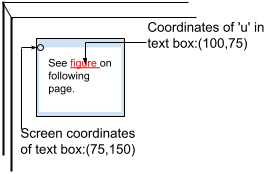
- Find the (x,y) coordinates of a link in a text box. As we’ll discuss below, such coordinates are relative to the top left corner of the text box;
- Map the text box coordinates to screen coordinates;
- Move the mouse to the calculated screen coordinates; and
- Click the mouse.
∎ Coordinates of Text
The coordinates of a character in a text box are obtained using the modelToView2D( int position ) of the JTextComponent class (note that JEditorPane is a subclass of JTextComponent). The coordinates of a component on the screen are given by the getLocationOnScreen() method of the Component class (also a superclass of JEditorPane). So if ePane is a JEditorPane the screen coordinates (x,y) of a text position can be calculated using:
    Rectangle2D rect        = ePane.modelToView2D( textPosition );
    Point       screenPos   = ePane.getLocationOnScreen();
    int         xco         = (int)rect.getX() + screenPos.x;
    int         yco         = (int)rect.getY() + screenPos.y;
∎ Moving and Clicking the Mouse
This operation can be performed using the Robot class, which we’ve seen before. To move the mouse we just feed screen coordinates to a Robot object. Clicking the mouse is a combination of two events, mouse press and mouse release. For both these events we specify mouse button 1 (usually the left mouse button) using the constant InputEvent.BUTTON1_DOWN_MASK. So if robot is an object of the Robot class, moving and clicking the mouse comes down to this:
    robot.mouseMove( xco, yco );
    robot.mousePress( InputEvent.BUTTON1_DOWN_MASK );
    robot.mouseRelease( InputEvent.BUTTON1_DOWN_MASK );
Following is an abbreviated, annotated listing of application ModelToView2DDemo in the project sandbox.
1 2 3 4 5 6 7 8 9 10 11 12 13 14 15 16 17 18 19 20 21 22 23 24 25 26 27 28 29 30 31 32 33 34 35 36 37 38 39 40 41 42 43 44 45 46 47 48 49 50 51 52 53 54 55 56 57 58 59 | public class ModelToView2DDemo { private static final String linkResource = "SandboxDocs/ModelToView2DDemo/TestLinkResource.html"; private static JEditorPane ePane; private static JDialog dialog; private static Robot robot = getRobot(); private static Robot getRobot() { // ... robot = new Robot(); //... } private static void makeGUI() { // ... } private static void showDialog() { Thread thread = new Thread( () -> { dialog.setVisible( true ); System.exit( 0 ); }); thread.start(); } private static void positionMouse( int textPosition ) { try { Rectangle2D rect = ePane.modelToView2D( textPosition ); Point screenPos = ePane.getLocationOnScreen(); int xco = (int)rect.getX() + screenPos.x; int yco = (int)rect.getY() + screenPos.y; robot.mouseMove( xco, yco ); } catch ( BadLocationException exc ) { exc.printStackTrace(); } } public static void main(String[] args) throws IOException { GUIUtils.schedEDTAndWait( () -> makeGUI() ); SwingUtilities.invokeLater( () -> showDialog() ); SandboxUtils.pause( 2000 ); System.out.println( ePane.getText() ); GUIUtils.schedEDTAndWait( () -> positionMouse( 5 ) ); SandboxUtils.pause( 2000 ); robot.mousePress( InputEvent.BUTTON1_DOWN_MASK ); robot.mouseRelease( InputEvent.BUTTON1_DOWN_MASK ); } } |
- Lines 3,4: The path to a file in the resources directory that will be displayed in a MessagePane. It contains the following text:
    <a href="SandboxDocs/ModelToView2DDemo/PlainResource.txt">
        Link to Plain Text
    </a>
“…/PlainResource.txt” is the path to another file in the resources directory that contains this text:This is a text/plain resource. - Lines 6,7: The MessagePane and JDialog components used in this demo.
- Lines 8-15: Creates the Robot used in this demo. The purpose of the getRobot method is purely to handle the AWTException potentially thrown by new Robot().
- Lines 17-20: Creates the application GUI. It just instantiates MessagePane and gets the dialog from it.
- Lines 22-29: Makes the dialog visible. This is done in a separate thread because the call to setVisible blocks.
- Lines 31-45: Positions the mouse. Note that modelToView2D potentially throws BadLocationException.
- Lines 47-58: Main method. The pauses are so that you can observe the mouse being moved.
⏹ The JUnit Test: class MessagePaneTest
🟦 Resource Files
A great deal of our testing is going to require resource files. These will reside in the test/resources directory, subdirectory MessagePaneTest. There will be six files.
∎ CSSResource.css
This file contains a simple rule declaration: body.test
{
background-color: #9FE2BF;
margin: 2em 2em 2em 2em;
font-family: tahoma, sans-serif;
}
This file will be used in tests where a style sheet is specified via a resource, for example, for testing ofResource( String textRes, String cssRes ) and setStyleSheetFromResource( String resource ). To validate that the resource was correctly utilized by MessagePane we will get the style sheet from the MessagePane and/or the MessagePane’s editor kit, and verify that it contains the rule body.test. In the test for MessagePane it is not necessary to verify that the rule specifies the given background-color, margin and font-family; MessagePane is responsible for loading the correct file, not for making sure that the loading facility (StyleSheet.loadRules) works correctly.
∎ HTMLResource.html
∎ PlainResource.txt
These files contain text/html and text/plain text for verifying that, for example, of( String text ) and setText( String text ) correctly distinguish between html and plain text files. Their contents are: This is a text/html resource.
This is a text/plain resource.
∎ TestLinkResource.html
This file contains a hyperlink that can be used to make sure we are following links to plain text files correctly. It contains this text; note that it is a link to PlainResource.txt: <a href="MessagePaneTest/PlainResource.txt"> Link To Plain Text</a> </a>
∎ LinkToResourceA.html
∎ LinkToResourceB.html
These are text/html files that link to each other: <a href="MessagePaneTest/LinkToResourceB.html"> Link To Resource B </a> --- <a href="MessagePaneTest/LinkToResourceA.html"> Link To Resource A </a>
They are helpful in two scenarios:
- removeHyperlinkListener( HyperlinkListener listener )
- Display one of the files. Add two hyperlink listeners and click the link to the other file; verify that both listeners fire.
- Remove one of the hyperlink listeners and click the link to the original fire; verify that the removed listener does not fire.
- removeDefaultHyperlinkListener()
- Display one of the files. Add a hyperlink listener and click the link to the other file; verify that the test hyperlink fires and the expected text is loaded into the JEditorPane (this verifies that the default hyperlink fired).
- Remove the default hyperlink listener and click the link back to the original file. Verify that the test listener fires, but the text does no revert to the original file, verifying that the default hyperlink listener did not fire.
🟦 Class and Instance Fields
Following is an annotated list of the class and instance fields we will use in our JUnit test.
1 2 3 4 5 6 7 8 9 10 11 12 13 14 15 16 17 18 19 20 21 22 23 24 25 26 27 28 29 30 31 32 33 34 35 36 37 | private static final String resourceDir = "MessagePaneTest"; private static final String plainResource = resourceDir + "/" + "PlainResource.txt"; private static final String expPlainText = "This is a text/plain resource."; private static final String htmlResource = resourceDir + "/" + "HTMLResource.html"; private static final String expHTMLText = "This is a text/html resource."; private static final String cssResource = resourceDir + "/" + "CSSResource.css"; private static final String expCSSRule = "body.test"; private static final String linkResource = resourceDir + "/" + "TestLinkResource.html"; private static final String expLinkText = "Link To Plain Text"; private static final String linkAResource = resourceDir + "/" + "LinkToResourceA.html"; private static final String expLinkAText = "Link To Resource B"; private static final String expLinkBText = "Link To Resource A"; private static final int numCSSRules = 4; private static final StyleSheet styleSheet = new StyleSheet(); private static final Robot robot = getRobot(); private MessagePane messagePane = null; private JEditorPane editorPane = null; private boolean adHocBoolean1; private boolean adHocBoolean2; private String adHocString1; private Object adHocObject1; |
- Line 1: The name of the test/resources subdirectory that contain files for this test.
- Lines 2-5: The path to the text/plain file, and its expected contents.
- Lines 7-10: The path to the text/html file, and its expected contents.
- Lines 12,13: The path to the resource file containing a style sheet rule.
- Line 14: The name of the style sheet rule in CSSResource.css (line 12).
- Lines 16-19: The name of the resource file containing a hyperlink, and its expected content.
- Lines 21-26: Paths to the LinkToResourceA.html and LinkToResourceB.html files and their expected content.
- Line 28: Number of rules in our test StyleSheet (line 29).
- Line 29: Test StyleSheet. This will be used for testing methods such as of(String,Stylesheet) and setStyleSheet(StyleSheet). It is initialized in the beforeAll method and never changed thereafter.
- Line 30: The Robot to be used for positioning the mouse cursor and clicking hyperlinks.
- Line 32: The MessagePane object currently under test. It is initialized as needed in method getMessagePane().
- Line 32: The JEditorPane object in the MessagePane object currently under test. It is initialized in method getMessagePane().
- Lines 34-37: Instance fields for brief, temporary use as needed in various methods. Typically they serve as targets of assignment in lambdas (recall that you can’t modify a local variable in a lambda). They are initialized to null in the beforeEach method.
- Lines 34,35: Instance variables used to create HyperlinkListeners, for example addHyperlinkListener( e -> adHocBoolean1 = true ).
- Line 36: Instance variable used when a string is needed in a limited context, in the getString method, for example.
- Line 37: Instance variable used when an object is needed in a limited context, in the getObject and getStyleSheet methods, for example.
🟦 Remaining Helper Methods
We saw many of the helper methods for this class when we discussed EDT issues (see above). The remaining methods are listed below.
∎ validateMessagePaneType(String expType )
This method verifies that the MessagePane object under test (recall that it is stored in an instance field) has the expected type (text/html or text/plain): String actType = getString( messagePane::getContentType ); assertEquals( expType, actType );
∎ validateMessagePaneText(String expText )
This method verifies that the MessagePane object under test contains the expected text. This is a little tricky for two reasons; 1) The text for text/html content includes HTML tags, <html>, <body>, etc. (see for example SandboxDocs/StartPage.html, above); and 2) Issues with indentation and line breaks in any kind of file. So when comparing expected text to actual text, we will only identify a part of the text, and text for contains instead of equals: String actText = getString( editorPane::getText ); assertTrue( actText.contains( expText ) );
∎ selectLink( int textPos )
Positions the mouse cursor at a given position in the text of the JEditorPane and clicks the mouse (presumably selecting a hyperlink beneath the cursor). For a general idea of how this works, see Moving and Clicking the Mouse, above. For the actual code, see the GitHub repository.
∎ showDialog()
Creates a thread that starts the MessagePane’s dialog on the EDT. After starting the thread it waits for a few milliseconds to give the dialog time to appear on the screen, then returns the Thread object (see below).
∎ closeDialog()
Locates the close button in the MessagePane’s dialog on the EDT and clicks it. Typically this method is used in conjunction with showDialog to display the dialog; perform an operation; close the dialog; and wait for the startDialog thread to terminate: Thread thread = showDialog(); selectLink( "Go to nextPage".length() / 2 ); closeDialog(); Utils.join( thread );
We’ve seen this logic before. The code for showDialog and closeDialog follows.
private Thread showDialog()
{
    JDialog dialog  = messagePane.getDialog( null, "MessagePane Test" );
    Thread  thread  = new Thread( () ->
        GUIUtils.schedEDTAndWait( () -> dialog.setVisible( true ) )
    );
    thread.start();
    Utils.pause( 125 );
    return thread;
}

private void closeDialog()
{
    GUIUtils.schedEDTAndWait( () -> {
        Predicate<JComponent>   pred    =
            ComponentFinder.getButtonPredicate( "Close" );
        JDialog     dialog  = messagePane.getDialog( null, "" );
        JComponent  comp    = ComponentFinder.find( dialog, pred );
        assertNotNull( comp );
        assertTrue( comp instanceof AbstractButton );
        ((AbstractButton)comp).doClick();
    });
}
∎ getRobot()
This method instantiates a Robot. If the instantiation throws an exception, the exception is caught and the current test is failed.
∎ Before-All Method
The @BeforeAll method creates a StyleSheet containing the following rules: body.a { background-color: #000000; font-size: 10; } body.b { background-color: #000001; font-size: 11; } body.c { background-color: #000002; font-size: 12; } body.d { background-color: #000003; font-size: 13; }
The code that creates it is more complicated than necessary. You can find it in the GitHub repository if you’re interested. I’ll leave it as an exercise for the student to substitute something simpler.
∎ Before-Each Method
∎ After-Each Method
Our @BeforeEach method does nothing more than re-initialize some of the class’s instance fields, and the @AfterEach method just calls ComponentFinder.disposeAll() in order to clean up any dialogs that we left lying around. You can find the code for these methods in the GitHub repository.
🟦 Test Methods
There are now many @Test methods to write, but given all of the facilities prepared in advance (most of the above) they are quite uncomplicated and, for the most part, fairly short. Here are two of them in some detail:
1 2 3 4 5 6 7 8 9 10 11 12 13 14 15 16 17 18 19 20 21 22 23 24 25 26 27 28 29 | @Test public void testOfStringStyleSheet() { String testString = "test string: testOfStringStyleSheet"; getMessagePane( () -> MessagePane.of( testString, styleSheet ) ); StyleSheet actStyleSheet = getStyleSheet( messagePane::getStyleSheet ); validateMessagePaneText( testString ); validateMessagePaneType( MessagePane.HTML_TYPE ); assertEquals( styleSheet, actStyleSheet ); } @Test public void testOfStringString() { String ruleName = "body.test"; String rule = ruleName + " { font-size: 10; }"; String testString = "test string: testOfStringString"; getMessagePane( () -> MessagePane.of( testString, rule ) ); validateMessagePaneText( testString ); validateMessagePaneType( MessagePane.HTML_TYPE ); StyleSheet actSheet = getStyleSheet( messagePane::getStyleSheet ); Style actRule = actSheet.getRule( ruleName ); assertNotNull( actRule ); } |
- Line 2: Test for method of( String text, StyleSheet styleSheet ), where text is the text to display, and StyleSheet is the style sheet to add to the MessagePane’s HTMLEditorKit.
- Lines 4,5: Text to display in the MessagePane.
- Line 6: Instantiates the MessagePane to test. Note that a) method getMessagePane initializes the instance variable messagePane, and b) styleSheet is an instance variable.
- Lines 7,8: Gets the style sheet used by the MessagePane.
- Line 9: Verifies that the text of the MessagePane is correct.
- Line 10: Verifies that the type of the MessagePane is correct.
- Line 11: Verifies that the MessagePane’s style sheet is correct.
- Line 15: Test for method of( String text, String css ), where text is the text to display, and css contains the rules to add to the MessagePane’s style sheet.
- Line 17: The name of the rule to add to the MessagePane’s style sheet.
- Lines 18,19: The rule to add to the MessagePane’s style sheet.
- Line 20: Text to display in the MessagePane.
- Line 21: Instantiates the MessagePane.
- Line 22: Verifies the MessagePane’s text.
- Line 23: Verifies the MessagePane’s type.
- Line 25,26: Gets the MessagePane’s style sheet.
- Line 27: Looks for the rule that should have been added to the style sheet.
- Line 28: Verifies that the rule is a part of the style sheet.
Following is a list and brief description of the remaining test methods. Their implementation is left as an exercise for the student; the solution can be found in the GitHub repository.
- testOfString()
Test for method of( String text ) where text is the plain text for the MessagePane. - testOfResourceStringPlain()
Test for method ofResource( String resource ) where resource is the name of a text/plain resource file. - testOfResourceStringHTML()
Test for method ofResource( String resource ) where resource is the name of a text/html resource file. - testOfResourceStringString()
Test for method ofResource( String textRes, String cssRes ) where textRes is the name of a text/html resource file, and cssRes is the name of a resource file containing CSS rules. - testOfResourceStringString2()
Test for method ofResource( String textRes, String cssRes ) where textRes is the name of a text/html resource file, and cssRes is null. - testSetStyleSheetStyleSheet()
Test for method setStyleSheet( StyleSheet sheet ) where sheet is a style sheet. - testSetStyleSheetFromResource()
Test for method setStyleSheetFromResource( String resource ) where resource is the name of a resource file containing CSS rules. - testGetStyleSheet()
Test for method getStyleSheet(). - testSetText()
Test for method setText( String text ) where text is the text to display in the MessagePane. - testGetText()
Test for method getText(). - testSetContentType()
Test for method setContentType(). - testGetContentType()
Test for method getContentType(). - testAddHyperlinkListener()
Test for method addHyperlinkListener( HyperlinkListener listener ). - testRemoveHyperlinkListener()
Test for method removeHyperlinkListener( HyperlinkListener listener ). - testRemoveDefaultHyperlinkListener()
Test for method removeDefaultHyperlinkListener(). - testGetEditorPane()
Test for method getEditorPane(). - testGetScrollPane()
Test for method getScrollPane(). - testGetDialog()
Test for method getDialog(). - ofTextResourceGoWrong()
Test for method ofResource( String resource ) when resource is invalid. - testFromResourceGoWrong()
Test for method setTextFrom( String resource ) when resource is invalid. - ofCSSResourceGoWrong()
Test for method ofResource( String textRes, String cssRes ) when cssRes is invalid. - cssFromResourceGoWrong()
Test for method setStyleSheetFromResource( String resource ) when resource is invalid.
Summary
On this page we looked at a facility for displaying messages in a modal dialog, where the messages can optionally contain HTML and hyperlinks. On the next page we’ll use this facility to encapsulate an About dialog.