For this lesson, we are adding a couple of new properties to the Equation facility and three new properties to CPConstants. The PropertyManager class will manage the properties in CPConstants. Additions to the Equation facility will have to be worked into other classes, notably InputParser and FileManager. We’ll start with changes to the Equation facility.
GitHub repository: Cartesian Plane Part 17
Previous lesson: Cartesian Plane Lesson 17 Page 2: Refactoring
Updating the Equation Facility
We’ve added two properties to the Equation facility, precision and plot, and made a simple modification to the way we handle the name property. The new properties require setters and getters and simple revisions to the way we process operator commands, and read and write files. Here’s an example of a file that encapsulates an equation containing the new and revised properties.
    /* Hyperbola.txt */
    equation hyperbola
    start 0
    end 2pi
    step .001
    set a=1,b=1,h=0,k=0
    x= a sec(t) + h
    y= b tan(t) + k
    prec 4
    plot xyplot
New and Revised Properties
See also Equation Facility on page 2.
Here is a summary of the changes made to the Equation facility. A detailed description follows.
public interface Equation
{
    // ...
        String getParam();
        void setParam(String param);
    String getParamName();
    void setParamName(String param);
    // ...
        void setRange(double start, double end, double step);
        void setRangeStart(double rangeStart);
        void setRangeEnd(double rangeEnd);
        void setRangeStep(double rangeStep);
    Result setRangeStart(String rangeStart);
    Result setRangeEnd(String rangeEnd);
    Result setRangeStep( String expr );
    String getRangeStartExpr();
    String getRangeEndExpr();
    String getRangeStepExpr();
    // ...
    void setPlot( String plot );
    String getPlot();
    void setPrecision( int precision );
    int getPrecision();
    // ...
    boolean isValidExpression( String expr );
        boolean isValidName( String name );
    default boolean isValidName( String name )
    {
        // ...
    }
        boolean isValidValue( String valStr );( String name );
    default boolean isValidValue(String valStr)
    {
        // ...
    }
    private static boolean isAlpha( char ccc )
    {
        // ...
    }
    private static boolean isAlphanumeric( int ccc )
    {
        // ...
    }
    // ...
}
⏹ The Name Property
The only change we made here is to give the equation name property a more helpful default value, “New Equation.” It requires the declarations of the name instance variable in the Exp4jEquation and JEPEquation classes to be changed to this: private String name = "New Equation";
⏹ The Precision Property
This property only affects the way variables are displayed in the GUI. It determines the number of places after the decimal point that are formatted when displaying variable values. To support this property, we have a new instance variable in the Exp4jEquation and JEPEquation classes: private int precision = 3;
and we have two new abstract methods in the Equation interface: void setPrecision( int precision ); int getPrecision();
The implementations in Exp4jEquation and JEPEquation constitute a simple getter and setter, as shown below.
public class Exp4jEquation implements Equation
{
    // ...
    private int precision   = 3;
    // ...
    public void setPrecision( int precision )
    {
        this.precision = precision;
    }
    public int getPrecision()
    {
        return precision;
    }
    // ...
}
⏹ The Plot Property
This property records the default type of plot for an equation. It requires abstract getter and setter methods in the Equation interface and a new instance variable, setter, and getter in the Exp4jEquation and JEPEquation classes.
public interface Equation
{
    // ...
    void setPlot( String plot );
    String getPlot();
    // ...
}
public class Exp4jEquation implements Equation
{
    // ...
    private String plot = "YPlot";
    // ...
    public void setPlot( String plot )
    {
        this.plot = plot;
    }
    public String getPlot()
    {
        return plot;
    }
    // ...
}
The plot property is represented as a string, but it is intended to conform to one of the plot types in the Command enum (capitalization is ignored):
- YPLOT (equations of the form y = f(x);
- XYPLOT (parameterized equations of the form (x,y) = f(t);
- RPLOT (polar equations of the type r = f(t)); or
- TPLOT (polar equations of the type t = f(r).
In an equation, the plot property always reflects the most recently performed plot. Therefore, the methods that perform plots in Exp4jEquation and JEPEquation must be updated. Here’s an example from Exp4jEquation; the complete code can be found in the GitHub repository.
public Stream<Point2D> yPlot()
{
    plot = "YPlot";
    yExpr.setVariables( vars );
    ValidationResult    result    = yExpr.validate( true );
    if ( result != ValidationResult.SUCCESS )
    {
        String  message = "Unexpected expression validation failure.";
        throw new ValidationException( message );
    }
    Stream<Point2D> stream  =
        DoubleStream.iterate( rStart, x -> x <= rEnd, x -> x += rStep )
            .peek( d -> yExpr.setVariable( "x", d ) )
            .mapToObj( d -> new Point2D.Double( d, yExpr.evaluate() ) );
    return stream;
}

public Stream<Point2D> xyPlot()
{
    plot = "XYPlot";
    // ...
    return stream;
}
⏹ Range Properties
We currently allow the range start and range end properties to be expressions, such as 2pi or 2π. We do not allow the range step property to be an expression, and I think we should change that so we can have, for example, a step of π/16. The other change we want to make is how we store and represent the range properties. Presently, expressions like 2π eventually turn into their decimal equivalents, such as 6.283185307… Internally, of course, we expect 2π to evaluate to 6.283185307…, but any time we display the expression, it should still look like 2π.
To this end, we will have to tweak the Equation interface and the concrete classes that implement it. For starters, we will need setters that take Strings as input:
- Result setRangeStart( String expr );
- Result setRangeEnd( String expr );
- Result setRangeStep( String expr );
In each case, expr is an expression that must be validated. If valid, it must be evaluated. The value returned by the methods will indicate whether the expression is valid. That raises the question: do we still need the original methods, void setRangeXXX(double val)? It turns out the only place we were using the original double setters was in Equation.setRange(double start, double end, double step), and the only place we referred to setRange was in the test classes. Since the setRange method was most useful for the command line interface, which we are currently replacing, I decided that the best course of action was to:
- Eliminate setRange(double start, double end, double step); and
- Replace the void setRangeXXX(double val) methods with the roughly equivalent Result setRangeXXX( String expr ) methods.
In addition, it would be very inconvenient to remove the double getRangeXXX() methods, so I decided to add three new methods that returned the expressions as Strings:
- String getRangeStartExpr();
- String getRangeEndExpr();
- String getRangeStepExpr();
The code to implement the changes in Exp4jEquation and JEPEquation is identical; we added three instance variables:
public class Exp4jEquation implements Equation
{
    private final Map<String,Double>    vars        = new HashMap<>();
    private String                      name        = "New Equation";
    private double                      rStart      = -1;
    private double                      rEnd        = 1;
    private double                      rStep       = .05;
    private String                      rStartExpr  = "1";
    private String                      rEndExpr    = "1";
    private String                      rStepExpr   = "1";
    // ...
}
We added the three String getters:
public String getRangeStartExpr(){ return rStartExpr }
public String getRangeEndExpr(){ return rEndExpr }
public String getRangeStepExpr(){ return rStepExpr }
We replaced the double setters with String setters plus one helper method. The annotated code for the setRangeStart( String exprStr ) and the helper method follow; the complete code can be found in the GitHub repository.
1 2 3 4 5 6 7 8 9 10 11 12 13 14 15 16 17 18 19 20 21 22 23 24 25 26 27 28 29 30 | public Result setRangeStart( String exprStr ) { Result result = setExpr( exprStr, d -> rStart = d, s -> rStartExpr = s ); return result; } private Result setExpr( String exprStr, DoubleConsumer valSetter, Consumer<String> strSetter ) { Result result = null; String str = exprStr.trim(); Optional<Double> dVal = evaluate( str ); if ( dVal.isPresent() ) { valSetter.accept( dVal.get() ); strSetter.accept( str ); result = new Result( true ); } else { String invExpr = "Invalid expression: \"" + str + "\""; result = new Result( false, List.of( invExpr ) ); } return result; } |
- Line 1: The exprStr parameter is the expression to parse, for example, 2pi or 2π.
- Lines 3-5: Calls the helper method and returns the result. The first argument passed to the helper method is the expression to parse, the second is a lambda that sets the value of the double instance variable rStart, and the third is a lambda that sets the value of the String instance variable rStartExpr. The equivalent code for setRangeEnd and setRangeStep are:
- setExpr( exprStr, d -> rEnd = d, s -> rEndExpr = s ) and
- setExpr( exprStr, d -> rStep = d, s -> rStepExpr = s )
- Line 9: This helper method parameter is the expression to parse.
- Line 10: Assuming exprStr is valid, this consumer will set a double instance variable with the value that exprStr evaluates to.
- Line 11: Assuming exprStr is valid, this consumer will set a String instance variable with the value of exprStr.
- Line 14: Declare the result that will be returned to the caller.
- Line 15: Create a trimmed copy of the input string.
- Line 16: Evaluate the expression.
- Line 17: Determines whether the parse operation was successful. If it was:
- Line 19: Sets the double instance variable.
- Line 20: Sets the String instance variable.
- Line 21: Instantiates a successful Result object.
- Lines 25-27: If the parse operation at line 16 was not successful, instantiates a failure Result with an error message.
As noted, these changes to the Equation facility require minor changes to the InputParser and FileManager classes. These classes are discussed in more detail below, but a summary of the changes due to modifying the range properties can be found in the following tables.
| InputParser Class, parseInput(Command,String) Method | |
|---|---|
| Before | After |
switch ( command )
{
// ...
case START:
    parseExpression( equation::setRangeStart, equation::getRangeStart );
    break;
case END:
    parseExpression( equation::setRangeEnd, equation::getRangeEnd );
    break;
case STEP:
    parseExpression( equation::setRangeStep, equation::getRangeStep );
    break;
// ...
}
|
switch ( command )
{
// ...
case START:
    parseArg( equation::setRangeStart, equation::getRangeStartExpr );
    break;
case END:
    parseArg( equation::setRangeEnd, equation::getRangeEndExpr );
    break;
case STEP:
    parseArg( equation::setRangeStep, equation::getRangeStepExpr );
    break;
// ...
}
|
| FileManager Class, writeRange( Equation equation ) Method | |
|---|---|
| Before | After |
private static void writeRange( Equation equation )
{
    lines.add( "start " + equation.getRangeStart() );
    lines.add( "end " + equation.getRangeEnd() );
    lines.add( "step " + equation.getRangeStep() );
}
|
private static void writeRange( Equation equation )
{
    lines.add( "start " + equation.getRangeStartExpr() );
    lines.add( "end " + equation.getRangeEndExpr() );
    lines.add( "step " + equation.getRangeStepExpr() );
}
|
⏹ Reading and Writing Equations
The FileManager class handles equation reading and writing. It’s based on commands for configuring equations from the Command enum, so we first have to add enums for precision and plot to Command. This, in turn, requires changes to the InputParser class. Here are our new enums.
public enum Command
{
    // ...
    RADIUS( "Describes the name... equation" ),
    PREC( "For display purposes only: number of decimal points..." ),
    PLOT( "Last recorded plot type: YPLOT, XYPLOT, RPLOT or TPLOT" ),
    YPLOT( "Generates a plot of the form (x,y) = f(x)" ),
    // ...
}
🟦 The InputParser Class
Support for the new commands has to be added to InputParser. For the plot command that amounts to:
- A class variable describing the valid values that can be applied to the plot property;
- Updating the switch statement in the parseInput method to include the new commands and
- Adding a new method to handle the plot command.
⬛ Plot Command Valid Values
This list of valid values for the plot commands looks like this:
public class InputParser
{
    private static final List<Command>  validPlots  =
        Arrays.asList(
            Command.YPLOT,
            Command.XYPLOT,
            Command.TPLOT,
            Command.RPLOT
        );
    // ...
}
⬛ Processing the plot Command
Processing any command in this class consists of writing a helper method to parse the command and invoking the helper method from the switch statement in the parseInput method. Here’s the code for processing the plot command:
public Result parseInput( Command command, String argString )
{
    // ...
    this.command = command;
    this.argString = argString;
    switch ( command )
    {
    // ...
    case PLOT:
        parsePlot();
        break;
    // ...
    }
    // ...
}
// ...
private void parsePlot()
{
    if ( argString.isEmpty() )
        System.out.println( equation.getPlot() );
    else
    {
        Command cmd = Command.valueOf( argString.toUpperCase() );
        if ( validPlots.contains( cmd ) )
            equation.setPlot( argString );
        else
            formatError( argString, "is not a valid plot" );
    }
}
⬛ Parsing the Precision Command (PREC)
Once again, to handle the PREC command, we have to write a helper method and call it from the switch statement in the parseInput method. The helper method for processing this command follows another pattern we use in this class (see, for example, the setName and parseArg methods): private void
parseInteger( IntConsumer setter, Supplier<Object> getter )
where setter is a consumer used to set a field in an Equation object, and getter is used to read a field from an Equation object. If an argument string accompanies the command (see the parseInput method), the setter is invoked; if the command is not attached to an argument, the getter is invoked, and the current value of the field is printed to stdout. Here’s the code; recall that argString is an instance variable initialized in the parseInput method.
    private void
    parseInteger( IntConsumer setter, Supplier<Object> getter )
{
if ( argString.isEmpty() )
System.out.println( getter.get() );
else
{
try
{
int iVal = Integer.parseInt( argString );
setter.accept( iVal );
}
catch ( NumberFormatException exc )
{
formatError( argString, "is not a valid integer" );
}
}
}The connection to parseInteger from the parseInput method looks like this:
public Result parseInput( Command command, String argString )
{
    // ...
    this.command = command;
    this.argString = argString;
    switch ( command )
    {
    // ...
    case PREC:
        parseInteger( equation::setPrecision, equation::getPrecision );
        break;
    // ...
    }
    // ...
}
🟦 The FileManager Class
See also Class FileManager on page 2.
🔳Saving the New Properties to a File
To handle writing the two new properties to a file, we added a helper method and called it from the save(PrintWriter, Equation) method in the FileManager class. Here’s the relevant code:
public static void save( PrintWriter pWriter, Equation equation )
    throws IOException
{
    lines.clear();
    lines.add( Command.EQUATION.toString() + " " + equation.getName() );
    writeRange( equation );
    writeVars( equation );
    writeParameterNames( equation );
    writeExpressions( equation );
    writeMiscellaneous( equation );
    lines.forEach( pWriter::println );
}
// ...
private static void writeMiscellaneous( Equation equation )
{
    lines.add( "prec " + equation.getPrecision() );
    lines.add( "plot " + equation.getPlot() );
}
🔳Reading the New Properties From a File
Reading the properties from a file requires no changes to the code. If you look at FileManager.open(BufferedReader bufReader), you’ll see that the changes we made to InputParser automatically take care of the new properties.
New File Menu Items
We’ve added a couple of new menu items to the File menu. We don’t have to discuss them in detail until much later in the lesson, but we refer to them below, so here’s a quick summary:
- New – Start a new equation
- Close – Close the current equation
- Delete – Delete the currently open file
New Global Properties
We’re adding three new Boolean properties to CPConstants that will allow us to control the state of our GUI more closely. They are:
- DM_OPEN_EQUATION_PN
When this property is true, it means that we have an equation open that the operator is currently working on. The initial value of this property is false. It will change to true if the operator executes the New or Open actions from the File menu. - DM_MODIFIED_PN
If this property is true, an equation is open (DM_OPEN_EQUATION_PN is true) and has been modified since the last time it was saved. If no equation is open (DM_OPEN_EQUATION_PN is false), the value of this property must be false. It changes to true when a property in the currently open equation changes. - DM_OPEN_FILE_PN
When true, this property indicates that an equation file is open. Its initial value is false but will change to true if the operator selects the Save As or Open actions from the File menu. The Close and Delete menu operations will change it back to false. If this property is true it necessarily implies that the DM_OPEN_EQUATION_PN property is true.
The declaration of the new properties in CPConstants looks like this:
public class CPConstants
{
    // ...
    public static final String  DM_OPEN_EQUATION_PN     = "openEquation";
    public static final String  DM_OPEN_EQUATION_DV     = "false";
    public static final String  DM_MODIFIED_PN          = "dataModified";
    public static final String  DM_MODIFIED_DV          = "false";
    public static final String  DM_OPEN_FILE_PN         = "fileOpen";
    public static final String  DM_OPEN_FILE_DV         = "false";
    // ...
}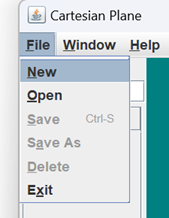
The configuration of these properties controls which of the File menu items can be selected and which portions of the rest of the GUI can be modified. The image at right shows the File menu configuration when the Cartesian plane application is first started. Save As is disabled because no equation is open, and Save and Delete are disabled because no file is open. New and Open are enabled because it is always possible to start a new equation or open an existing equation. Following is a scenario that describes a series of state changes in our application.
| Operator Action |
Global Properties | Application |
|---|---|---|
| Initial State |
|
|
| Select File/New |
|
|
| Select File/Save As |
|
|
| Change value of variable |
|
|
Summary
On this page, we discussed some modifications to our existing code to support new features that we’ll be adding in this lesson. These include supporting the data model operations in our application menu and adding new features to our GUI for entering and configuring equations. On the next page, we’ll introduce topics related to formatting and validating data in a GUI.