In the following discussion, I sometimes write the expression ^P, pronounced “control-P.” It means to type the P key on the keyboard while holding down the control key.
On this page, we’ll figure out how to type the Greek letter π into our expressions. This isn’t strictly necessary because our expression factories recognize the constant “pi.” But displaying 2π in a text field is inarguably cooler than displaying 2pi, so let’s go for it. When we’re finished, the process will be for the operator to type pi^P, after which we will substitute π for pi. To accomplish all this, we need to add a KeyListener to a text field, so we’ll start by discussing the KeyListener interface and its companion class, KeyAdapter.
See Also:
- How to Write a Key Listener, in the Oracle Java tutorial.
GitHub repository: Cartesian Plane Part 17
Previous lesson: Cartesian Plane Lesson 17 Page 4: Formatting and Validating Data; JFormattedTextField
KeyListener Interface
The KeyListener interface provides a means to detect specific keyboard events. The interface has three abstract methods:
- public void keyPressed( KeyEvent evt )
This method is called every time a key is pressed (a key-down event). Its complement is keyReleased, but if your keyboard is set up to repeat a key being held down, you can get many key-pressed events before getting a key-released event. - public void keyReleased( KeyEvent evt )
This method is called every time a key is released (a key-up event). - public void keyTyped( KeyEvent evt )
Every time a key or key combination maps to a Unicode character this method is called.
For this discussion, I will divide the keys on your keyboard into three different groups:
∎ Modifier Keys
These keys can change the precise meaning of other keys. The ‘a’ key alone, for example, maps to the Unicode character for small a, 0x61. If you hold the shift key down while typing the ‘a’ key, you get the Unicode character for upper-case a, 0x41. The control key plus the ‘a’ key maps to the Unicode character with a value of 0x01 (0x01 may not be a printable character, but it is still a valid Unicode character). Pressing alt and then ‘a’ produces a system- and application-dependent result. In Java, the mouse buttons can be treated as modifier keys, so holding down mouse button 2 while typing the ‘a’ key may be meaningful to some applications. The Java control keys and their symbolic names follow; they may not all be present on your keyboard.
| Key | Symbolic Name |
|---|---|
| Alt | KeyEvent.ALT_DOWN_MASK |
| Alt-Graph | KeyEvent.ALT_GRAPH_DOWN_MASK |
| Control | KeyEvent.CTRL_DOWN_MASK |
| Shift | KeyEvent.SHIFT_DOWN_MASK |
| Meta | KeyEvent.META_DOWN_MASK |
| Mouse Button 1 | KeyEvent.BUTTON1_DOWN_MASK |
| Mouse Button 2 | KeyEvent.BUTTON2_DOWN_MASK |
| Mouse Button 3 | KeyEvent.BUTTON3_DOWN_MASK |
∎ Unicode Keys
These are keys that map to Unicode characters: a,b,c,… 0,1,2… %,^,&… etc.
∎ Other Keys
Function keys, Home, End, Insert, etc.
🟦 Writing a KeyListener
To capture key events, you must implement the KeyListener interface, which requires you to write the three methods mentioned above: keyPressed, keyReleased, and keyTyped. Each method has a KeyEvent parameter. If you only care about one of the three methods, which is common, you can subclass KeyAdapter and override just the method you’re interested in. The following discusses some of the properties encapsulated in a KeyEvent object; see the Java documentation for complete details.
∎ Modifiers, KeyEvent.getModifiersEx()
The set of all modifiers is encapsulated in an integer. Each bit in the integer represents a modifier key; if the modifier key is pressed when a KeyEvent is issued, the corresponding bit will be set in the integer. When you process a KeyEvent, you can test for the modifier bit directly; to test for a control-key combination, for example, you could start with: int mods = evt.getModifiersEx(); if ( (mods & KeyEvent.CTRL_DOWN_MASK) != 0 )
// ...
The KeyEvent class also has boolean methods that you can use to obtain similar data: if ( event.isControlDown() )
// ...
∎ Key Code, KeyEvent.getKeyCode()
A key code uniquely identifies a key on your keyboard; every key has a key code. The key codes for each key are identified in the KeyEvent class, with a constant name that begins with VK_, for example, VK_A, VK_F1, VK_HOME, and VK_NUMPAD0 (the ‘0’ key on the numeric keypad).
Note: A key code is not present in the KeyEvent object for key-typed events.
∎ Key Char, KeyEvent.getKeyChar()
A key char is the Unicode character to which a key or key combination maps. Not surprisingly, events for keys that do not map to Unicode characters do not have a key char in the associated KeyEvent object.
🟦 The KeyListenerDemo Application
The KeyListenerDemo application in the project sandbox helps visualize how key events are issued. Its GUI consists of a text field and a log dialog. If you tap a key while the text field is focused, the generated events are logged in the dialog. Here’s a brief sketch of how the application was put together; the complete code is in the GitHub repository:
public class KeyListenerDemo
{
    // ...
    public static void main(String[] args)
    {
        KeyListenerDemo demo    = new KeyListenerDemo();
        SwingUtilities.invokeLater( demo::buildGUI );
    }

    private void buildGUI()
    {
        JFrame      frame   = new JFrame( "PI Demo" );
        frame.setDefaultCloseOperation( JFrame.EXIT_ON_CLOSE );
        JPanel      pane    = new JPanel( new BorderLayout() );
        JTextField  field   = new JTextField( 10 );
        field.addKeyListener( new KEListener() );
        // ...
    }

    private class KEListener implements KeyListener
    {
        private static int  allButtons  =
            KeyEvent.BUTTON1_DOWN_MASK |
            KeyEvent.BUTTON2_DOWN_MASK |
            KeyEvent.BUTTON3_DOWN_MASK;

        private int     keyCode;
        private char    keyChar;
        private boolean hasCtrl;
        private boolean hasShift;
        private boolean hasAlt;
        private boolean hasButton;

        private void decodeEvent( KeyEvent evt )
        {
            int mods    = evt.getModifiersEx();
            keyCode = evt.getKeyCode();
            keyChar = evt.getKeyChar();
            hasCtrl = (mods & KeyEvent.CTRL_DOWN_MASK) != 0;
            hasShift = (mods & KeyEvent.SHIFT_DOWN_MASK) != 0;
            hasAlt = (mods & KeyEvent.ALT_DOWN_MASK) != 0;
            hasButton = (mods & allButtons) != 0;
        }

        private void logEvent( String event, String color )
        {
            // ...
        }

        @Override
        public void keyPressed( KeyEvent evt )
        {
            decodeEvent( evt );
            logEvent( "Pressed: ", "red " );
        }

        @Override
        public void keyReleased( KeyEvent evt )
        {
            decodeEvent( evt );
            logEvent( "Released: ", "green " );
        }

        @Override
        public void keyTyped( KeyEvent evt )
        {
            decodeEvent( evt );
            logEvent( "Typed: ", "black " );
        }
    }
}
Try running the application and typing the ‘a’ key. You will get, in order:
- A key-pressed event specifying a key code, a key char (‘a’), and indicating that no modifiers were held down.
- A key-typed event specifying a key char (‘a’) and the state of the modifier keys, but no key code.
- A key-released event specifying a key code, a key char (‘a’), and the state of the modifier keys
If key-repeat is enabled on your keyboard, and you hold down the ‘a’ key for a few seconds before releasing it, you will get many pairs of key-pressed and key-typed events, followed by a single key-release event.
If you tap the control key, you will get two events, key-pressed and key-released, with a key code but no meaningful key char.
Hold down the control key, tap the ‘a’ key, and release the control key. Assuming you didn’t hold a key down long enough for it to repeat, you will get five events:
- Key-pressed, showing a key code (for the control key), no meaningful key char and the control modifier held down.
- Key-pressed, showing a different key code (for the ‘a’ key), a key char with a Unicode value of ‘0x01’, and the control modifier held down.
- Key-typed, with no meaningful key code, a key char with a Unicode value of ‘0x01’, and the control modifier held down.
- Key-released, showing the key code for the ‘a’ key, a key char with a Unicode value of ‘0x01’, and the control modifier held down.
- Key-released, showing the key code for the control key, no meaningful key char, and no modifiers held down.
PiListener
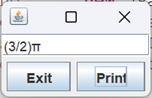
Now, we’ll work on the PiListener class. This will be a KeyListener (specifically, a subclass of KeyAdapter) that overrides the keyPressed method. You’ll see how it works if you run the application PIListenerDemo in the project sandbox. Type “(3/2)pi” in the text field, then type ^P. PIListener will capture the key-pressed event and look at the characters in front of the cursor in the text field. If they are “pi,” the listener will replace pi with the Greek letter π. Here is the annotated listing of the PIListener class.
1 2 3 4 5 6 7 8 9 10 11 12 13 14 15 16 17 18 19 20 21 22 23 24 25 26 27 28 29 30 31 32 33 34 | public class PIListener extends KeyAdapter { private static final int keyCodeP = KeyEvent.VK_P; private static final char pii = '\u03c0'; @Override public void keyPressed( KeyEvent evt ) { int keyCode = evt.getKeyCode(); Object src = evt.getSource(); boolean isCtrl = evt.isControlDown(); boolean isText = src instanceof JTextComponent; if ( isText && isCtrl && keyCode == keyCodeP ) { JTextField field = (JTextField)src; String text = field.getText(); int caret = field.getCaretPosition(); if ( caret > 1 ) { int backPos = caret - 2; String prev2 = text.substring( backPos, caret ); if ( prev2.toLowerCase().equals( "pi" ) ) { String newText = text.substring( 0, backPos ) + pii + text.substring( caret ); field.setText( newText ); } } } } } |
- Line 1: Declares PIListener to be a subclass of KeyAdapter. KeyAdapter implements KeyListener, making PIListener also a KeyListener.
- Line 3: This is a constant corresponding to the key code for the p key.
- Line 4: Unicode for the Greek letter π.
- Line 7: Overrides the keyPressed method in KeyAdapter. We’re interested in only this method.
- Lines 9-12: These variables mainly simplify the if statement in line 14:
- Line 9: Gets the key code from the event object.
- Line 10: Gets the source of the event; we expect its type to be JTextComponent (the superclass of JTextField and JFormattedTextField).
- Line 11: Tests to see if the control modifier key is being held down.
- Line 12: Tests whether the source of the event is a JTextComponent.
- Line 14: Asks if a) the source of the event is a JTextComponent, b) the control key is being held down, and c) the P key has been pressed.
- Lines 16-18: This casts the source of the event to JTextComponent, gets the text from the source, and locates the cursor position within the text.
- Line 19: Asks if there are at least two characters before the current cursor position.
- Line 21: Calculates the index of the character two positions before the cursor.
- Line 22: Gets the substring consisting of the two characters before the cursor.
- Line 23: Asks if the substring is equal to “pi.”
- Lines 25-28: Create a new string that is a concatenation of:
- Line 26: The characters in the text before pi;
- Line 27: The Greek letter π; and
- Line 28: The characters in the text after pi.
- Line 29: Sets the text of the JTextComponent to the new string.
PIListener Unit Test
To test PIListener, we have one test class containing one test method, which is parameterized so that it runs several times. The test class puts up a dialog with a text field, adds a PIListener to the text field, and then uses Robot to iterate over several tests that follow this pattern:
- Type pi^P in the text field; verify that the “pi” is replaced by “π.”
- Type api^P in the text field; verify that the “pi” is replaced by “π.”
- Type aapi^P in the text field; verify that the “pi” is replaced by “π.”
- Type aapia in the text field, then position the text field’s cursor after “pi”; verify that “pi” is replaced by “π.”
- Type aapiaa in the text field…, etc.
An annotated list of the test class’s class and instance variables follows below.
1 2 3 4 5 6 7 8 9 10 11 | class PIListenerTest { private static final char testChar = 'a'; private static final int testCharKeyCode = KeyEvent.VK_A; private static final char pii = '\u03c0'; private static JDialog testDialog; private static JTextField textField; private static Robot robot; // ... } |
- Line 3: The character that will be typed in the text field, as needed, before and after “pi.”
- Line 4: This is the virtual key code for the test character. Robot uses it to type the test character into the text field.
- Line 5: Unicode for the Greek letter π.
- Line 7: The dialog containing the text field for testing.
- Line 8: The text field for testing.
- Line 9: The Robot object used to simulate mouse and keyboard events.
The class has a BeforeAll method to initialize robot and set up the test dialog and an AfterAll method to dispose of the dialog. They are shown below.
@BeforeAll
static void setUpBeforeClass() throws Exception
{
    try
    {
        robot = new Robot();
        robot.setAutoDelay( 100 );
    }
    catch ( AWTException exc )
    {
        exc.printStackTrace();
        System.exit( 1 );
    }
    GUIUtils.schedEDTAndWait( () -> showDialog() );
}

@AfterAll
static void tearDownAfterClass() throws Exception
{
    GUIUtils.schedEDTAndWait( () -> {
        testDialog.setVisible( false );
        testDialog.dispose();
    });
}
The helper method showDialog creates and makes visible the test dialog. Using robot, it points the mouse at the text field and clicks it. Here is the annotated code.
1 2 3 4 5 6 7 8 9 10 11 12 13 14 15 16 17 18 19 | private static void showDialog() { testDialog = new JDialog(); textField = new JTextField( 10 ); textField.addKeyListener( new PIListener() ); JPanel contentPane = new JPanel( new BorderLayout() ); contentPane.add( textField, BorderLayout.CENTER ); testDialog.setContentPane( contentPane ); testDialog.pack(); testDialog.setVisible( true ); Point pos = textField.getLocationOnScreen(); Dimension size = textField.getSize(); pos.x += size.width / 2; pos.y += size.height / 2; robot.mouseMove( pos.x, pos.y ); robot.mousePress( InputEvent.BUTTON1_DOWN_MASK ); robot.mouseRelease( InputEvent.BUTTON1_DOWN_MASK ); } |
- Lines 3,4: Instantiate the dialog and the text field.
- Line 5: Add an instance of PIListener to the text field as a KeyListener.
- Lines 6-10: Complete building the dialog.
- Line 12: Gets the position of the text field on the screen.
- Lines 13-15: Calculate the screen position of the center of the text field.
- Line 16: Move the mouse to the center of the text field.
- Lines 17,18: Click the mouse.
The helper method type(int vkCode) simulates tapping the key with the given key code. Tapping consists of generating a key-press event followed by a key-release event. The typeCtrlP() helper method generates the four events necessary to simulate typing ^P. The code for the helper methods is shown below.
private void type( int vkCode )
{
    robot.keyPress( vkCode );
    robot.keyRelease( vkCode );
}
private void typeCtrlP()
{
    robot.keyPress( KeyEvent.VK_CONTROL );
    robot.keyPress( KeyEvent.VK_P );
    robot.keyRelease( KeyEvent.VK_P );
    robot.keyRelease( KeyEvent.VK_CONTROL );
}
The last helper method, enterText(int before, int after), works as follows:
- Types ‘a’ into the text field before times.
- Types ‘p’ and ‘i’ into the text field.
- Types ‘a’ into the text field after times.
- Positions the text field’s cursor immediately after “pi.”
- Types ‘^P.’
- Verifies that pi was replaced with π.
Here is the annotated code for enterText.
1 2 3 4 5 6 7 8 9 10 11 12 13 14 15 16 17 18 19 | private void enterText( int before, int after ) { textField.setText( "" ); StringBuilder expText = new StringBuilder(); IntStream.range( 0, before ) .peek( i -> expText.append( testChar ) ) .forEach( i -> type( testCharKeyCode ) ); type( KeyEvent.VK_P ); type( KeyEvent.VK_I ); expText.append( pii ); IntStream.range( 0, after ) .peek( i -> expText.append( testChar ) ) .forEach( i -> type( testCharKeyCode ) ); textField.setCaretPosition( before + 2 ); typeCtrlP(); assertEquals( expText.toString(), textField.getText() ); } |
- Line 3: Empties the text field.
- Line 5: Instantiates a StringBuilder for assembling the string expected to be found in the text field after the process completes.
- Line 6: Iterates before times:
- Line 7: Appends the test character to the expected text.
- Line 8: Types the test character into the text field.
- Lines 9,10: Types pi into the text field.
- Line 11: Appends π to the expected text.
- Line 12: Iterates after times:
- Line 13: Appends the test character to the expected text.
- Line 14: Types the test character into the text field.
- Line 15: Positions the cursor in the text field immediately after pi.
- Line 16: Types ^P.
- Line 18: Compares the expected text to the actual text.
Finally, here’s the test method. It executes four times, each time executing three test cases for a total of twelve test cases.
@ParameterizedTest
@ValueSource(ints = {0, 1, 2, 3})
public void testKeyPressedKeyEventLong( int before )
{
    enterText( before, 0 );
    enterText( before, 1 );
    enterText( before, 2 );
}
Summary
On this page, we discussed:
- The KeyListener interface, which has three abstract methods for monitoring key events.
- The KeyAdapter class, which implements KeyListener. The methods in KeyAdapter don’t do anything; they are empty methods that satisfy the requirements of implementing KeyListener.
- The PIListener class. This is a subclass of KeyAdapter that we wrote to make it easy for the operator to enter the Greek letter π into a text field.