We already have a test for the application menubar, CPMenuBarTest. In this lesson, we will develop another test class to test the data management features we completed on the last page. As we’ll see, there will also be a third, very small class to test the case in which the menubar is encapsulated in a window that is not a CPFrame.
That will give us three different test classes for CPMenuBar, and if we want to see the full code coverage we’ve achieved, we have to run all three in tandem. Unfortunately, in Eclipse, our best options are “run this one test” and “run all the tests in this package”; there’s no good way (in Eclipse) to run just three of the tests in a package. JUnit, however, allows us to create test suites to specify a list of JUnit tests to run in a single context.
We already have several classes for which we have multiple JUnit test classes. For example, LinePropertiesPanel has two test classes: GraphPropertiesPanelFuncTest for functional testing and GraphPropertiesPanelVisualTest for confirming the sanity of the panel layout. We’ll begin by showing you how to combine the tests for LinePropertiesPanel into a test suite.
See Also:
- JUnit Platform Suite Engine, in the JUnit 5 User Guide
- JUnit – Suite Test, on the Tutorials Point website
GitHub repository: Cartesian Plane Part 17
Previous lesson: Cartesian Plane Lesson 17 Page 15
LinePropertiesPanel Test Suite
⏹ Declaration
To create a test suite in JUnit, create a class and declare it to be a Suite: @Suite
Optionally declare a display name for the test suite: @SuiteDisplayName( "LinePropertiesPanel Test Suite" )
Declare the test classes you wish to execute in the context of the suite: @SelectClasses({
LinePropertiesPanelVisualTest.class,
LinePropertiesPanelFuncTest.class
})
and provide a minimal class declaration: class LinePropertiesPanelTestSuite
{
}
Here’s the complete declaration of the LinePropertiesPanelTestSuite:
@Suite
@SuiteDisplayName( "LinePropertiesPanel Test Suite" )
    @SelectClasses({
        LinePropertiesPanelVisualTest.class,
        LinePropertiesPanelFuncTest.class
    })
    class LinePropertiesPanelTestSuite
    {
}Note: In LinePanelPropertiesTestSuite, you must run LinePropertiesPanelVisualTest before running LinePropertiesPanelFuncTest. Otherwise, changes to the properties during the execution of the functional test will not be reset before executing the visual test, and the visual test will fail. This is a problem that needs to be fixed in the future.
⏹ Location
I have been putting my test suites in a dedicated package. Occasionally, you will want to right-click on a test package name in Eclipse and run all the tests in that package. It can take quite a long time for a test like this to complete, and if your test suites are in the same package, some of your tests will be executed twice. Putting the test suites in a separate package will eliminate duplicate processing. For the LinePropertiesPanel and CPMenuBar test suites, I use the package com.acmemail.judah.cartesian_plane.test_suites.
Package Explorer
Cartesian Plane Part 17
> src/main/java
> src/main/resources
> src/test/java
> com.acmemail.judah.cartesian_plane
> com.acmemail.judah.cartesian_plane.components
> AboutDialogTest
> ColorEditorTest
…
> LinePropertiesPanelFuncTest
> LinePropertiesPanelVisualTest
…
> com.acmemail.judah.cartesian_plane.test_suites
> CPMenuBarTestSuite
> LinePropertiesPanelTestSuite
…
Note: If you let Eclipse generate the shell for your unit tests, your classes will have an access level of package-private. That means you won’t be able to access them from another package, so you need to change them to public.
CPMenuBar Data Management Test Utilities
In addition to having a separate class to provide GUI and EDT support (CPMenuBarTestDialog) we have a class that provides additional support utilities, CPMenuBarDMTestUtils. It’s responsible for locating and interacting with the File menu buttons and elements of the test GUI that are needed to validate data management operations (notably the text field associated with the equation name property). It is responsible for facilitating operations that require interaction with auxiliary dialogs, such as the open and save-as operations that interact with the file-chooser dialog.
Below, we will discuss the instance and class variables used by this class and its constructor, helper methods, and public methods.
⏹ Fields
Below, find an annotated listing of the CPMenuBarDMTestUtils class’s fields.
1 2 3 4 5 6 7 8 9 10 11 12 13 14 15 16 17 18 19 20 21 22 23 24 25 | public class CPMenuBarDMTestUtils { private final CPFrame cpFrame; private JDialog chooserDialog; private JButton chooserSaveButton; private JButton chooserOpenButton; private JButton chooserCancelButton; private JTextField chooserTextField; private final JFormattedTextField eqNameField; private final JMenu fileMenu; private final JMenuItem newItem; private final JMenuItem openItem; private final JMenuItem saveItem; private final JMenuItem saveAsItem; private final JMenuItem closeItem; private final JMenuItem deleteItem; private static CPMenuBarDMTestUtils utils; private String adHocString1; // ... } |
- Line 3: This is the application frame that contains the menubar.
- Lines 5-9: The file-chooser dialog and the pushbuttons and text field it contains.
- Line 11: The text field from the application NamePanel.
- Lines 13-19: The File menu and those items from the File menu that the operator uses to execute data management operations.
- Line 21: The singleton that encapsulates the CPMenuBarDMTestUtils class.
- Line 23: Variable for temporary use in lambdas.
⏹ Helper Methods
The CPMenuBarDMTestUtils class utilizes the following helper methods.
🟦 private JMenu getFileMenu()
This method finds and returns the JMenu representing the File menu. It utilizes ComponentFinder.find(Window, Predicate<JComponent>), with a predicate that evaluates to true if a JComponent is a JMenu with the text File. The code is in the GitHub repository.
🟦 private JMenuItem getMenuItem( String text )
This method searches the File menu for the JMenuItem with the given text. The code is in the GitHub repository.
🟦 private JFormattedTextField getEquationNameField()
This method finds the text field in the NamePanel used to edit the equation name. First, it searches the application frame for the NamePanel, then it searches the NamePanel for an instance of a JFormattedTextField. Here’s the code.
private JFormattedTextField getEquationNameField()
{
    // Get the panel that contains the name field.
    Predicate<JComponent>   panelPred   =
        c -> (c instanceof NamePanel);
    JComponent              panel       =
        ComponentFinder.find( cpFrame, panelPred );
    assertNotNull( panel );

    // Find the text field in the NamePanel
    Predicate<JComponent>   pred        =
        c -> (c instanceof JFormattedTextField);
    JComponent              comp        =
        ComponentFinder.find( panel, pred );
    assertNotNull( comp );
    assertTrue( comp instanceof JFormattedTextField);
    JFormattedTextField     textField   = (JFormattedTextField)comp;
    return textField;
}
🟦 private JDialog getChooserDialog()
🟦 private JTextField getChooserTextField()
🟦 private JButton getChooserButton( String text )
These methods:
- Find the FileChooser dialog.
- Find within the FileChooser dialog the JTextField used for operator keyboard input.
- Find a JButton with the given text within the FileChooser dialog. The text should be one of Open, Save, or Cancel.
What’s special about these three methods is when they can be invoked. For example, we can’t call getChooserDialog from the CPMenuBarDMTestUtils constructor because the dialog likely doesn’t exist yet. The invocation of the getChooserDialog method is deferred until the test class calls showFileChooser (see below) and the FileChooser dialog is opened. Once the FileChooser dialog is opened we can obtain the text field and the Cancel button. However, at this time it is not yet clear whether the Open and/or Save buttons have been created. So we don’t look for the Open button until the test class calls the Open method, and we look for the Save button only when the test class calls the SaveAs method (see open and saveAs below).

Here’s the code for these three methods.
private JDialog getChooserDialog()
{
    Predicate<Window>   pred    = w -> (w instanceof JDialog);
    // can be dialog = true, can be frame = false,
    // must be visible = false
    ComponentFinder     finder  =
        new ComponentFinder( true, false, true );
    Window              window  = finder.findWindow( pred );
    assertNotNull( window );
    assertTrue( window instanceof JDialog);
    JDialog             dialog  = (JDialog)window;
    return dialog;
}
private JTextField getChooserTextField()
{
    Predicate<JComponent>   pred    = c -> (c instanceof JTextField);
    JComponent              comp    =
        ComponentFinder.find( chooserDialog, pred );
    assertNotNull( comp );
    assertTrue( comp instanceof JTextField );
    JTextField  textField   = (JTextField)comp;
    return textField;
}
private JButton getChooserButton( String text )
{
    Predicate<JComponent>   pred    =
        ComponentFinder.getButtonPredicate( text );
    JComponent              comp    =
        ComponentFinder.find( chooserDialog, pred );
    assertNotNull( comp );
    assertTrue( comp instanceof JButton );
    JButton button  = (JButton)comp;
    return button;
}
🟦 private Thread showFileChooser( AbstractButton button )
This method is similar to many that we’ve seen in the past. It starts a new thread, which starts a modal dialog and pauses to give the dialog a chance to post. It returns the thread ID to the caller, and then the caller interacts with the dialog. The last thing the caller does is push a button that terminates the dialog and waits for the thread that started it to complete. One thing we do differently this time is, after waiting for the dialog to post, we identify references to the dialog and the dialog’s text field and Cancel button components. See also the open and saveAs methods below. The code for this method follows.
private JDialog getChooserDialog()
{
    Predicate<Window>   pred    = w -> (w instanceof JDialog);
    // can be dialog = true, can be frame = false,
    // must be visible = false
    ComponentFinder     finder  =
        new ComponentFinder( true, false, true );
    Window              window  = finder.findWindow( pred );
    assertNotNull( window );
    assertTrue( window instanceof JDialog);
    JDialog             dialog  = (JDialog)window;
    return dialog;
}
private JTextField getChooserTextField()
{
    Predicate<JComponent>   pred    = c -> (c instanceof JTextField);
    JComponent              comp    =
        ComponentFinder.find( chooserDialog, pred );
    assertNotNull( comp );
    assertTrue( comp instanceof JTextField );
    JTextField  textField   = (JTextField)comp;
    return textField;
}
private JButton getChooserButton( String text )
{
    Predicate<JComponent>   pred    =
        ComponentFinder.getButtonPredicate( text );
    JComponent              comp    =
        ComponentFinder.find( chooserDialog, pred );
    assertNotNull( comp );
    assertTrue( comp instanceof JButton );
    JButton button  = (JButton)comp;
    return button;
}
⏹ Public Methods
Following is a discussion of the public facilities in CPMenuBarDMTestUtils.
🟦 public static CPMenuBarDMTestUtils getUtils()
This method returns the singleton representing this class, creating it if necessary. It guarantees that the constructor is invoked in the context of the EDT. The code looks like this:
public static CPMenuBarDMTestUtils getUtils()
{
    if ( utils == null )
    {
        if ( SwingUtilities.isEventDispatchThread() )
            utils = new CPMenuBarDMTestUtils();
        else
            GUIUtils.schedEDTAndWait( () ->
                utils = new CPMenuBarDMTestUtils() );
    }
    return utils;
}
🟦 public void setRelativePath( File path )
Sets the path to the directory containing test data files for this test. Note that the path is forwarded to the FileChooser. Here’s the code.
public void setRelativePath( File path )
{
    FileManager.chooser.setCurrentDirectory( path );
}
🟦 public void doClick( AbstractButton button )
This method invokes the doClick method of the given button in the context of the EDT. Here’s the code.
public void doClick( AbstractButton button )
{
    GUIUtils.schedEDTAndWait( () -> button.doClick() );
}
🟦 public void testEnablement(…)
This method tests the enabled property of the File menu items against the caller’s expectations, raising an assertion if they differ. Note that it verifies that the New and Open menu items are always enabled. The expected values for the Save, Save As, Close, and Delete menu items are passed as arguments.
When I first wrote this method, I enclosed a list of assertions in a schedEDTAndWait invocation: GUIUtils.schedEDTAndWait( () -> {
assertTrue( newItem.isEnabled() );
assertTrue( openItem.isEnabled() ); ...
But if an assertion fails in the context of the EDT, it throws an InvaocationTargetException. This gives us a long stack trace and we have to search through it to find the source of the problem.
So, I rewrote the code to collect the values of the enabled properties in the context of the EDT, then executed the assertions after the schedEDTAndWait returned. Note that I used a class declared directly in the scope of the method to collect the property values.
The code looks like this:
public void testEnablement(
    boolean expSave,
    boolean expSaveAs,
    boolean expClose,
    boolean expDelete
)
{
    class State
    {
        boolean newItem;
        boolean openItem;
        boolean saveItem;
        boolean saveAsItem;
        boolean closeItem;
        boolean deleteItem;
    }
    State   state   = new State();

    GUIUtils.schedEDTAndWait( () -> {
        state.newItem =  newItem.isEnabled();
        state.openItem =  openItem.isEnabled();
        state.saveItem =  saveItem.isEnabled();
        state.saveAsItem = saveAsItem.isEnabled();
        state.closeItem = closeItem.isEnabled();
        state.deleteItem = deleteItem.isEnabled();
    });
    assertTrue( state.newItem );
    assertTrue( state.openItem );
    assertEquals( expSave, state.saveItem );
    assertEquals( expSaveAs, state.saveAsItem );
    assertEquals( expClose, state.closeItem );
    assertEquals( expDelete, state.deleteItem );
}
🟦 public void setEquationName( String name )
This method sets the given name as the text of the NamePanel’s JFormattedTextField and commits it. The code is prepared to handle a ParseException associated with the commit operation; a ParseException should never be thrown, but it’s a checked exception, so we have to be prepared for it anyway. A listing of this method follows.
public void setEquationName( String name )
{
    GUIUtils.schedEDTAndWait( () -> {
        try
        {
            eqNameField.setText( name );
            eqNameField.commitEdit();
        }
        catch ( ParseException exc )
        {
            fail( exc );
        }
    });
}
🟦 public String getEquationName()
This method obtains the text of the equation-name field, being careful to do so in the context of the EDT. Find the code below.
public String getEquationName()
{
    GUIUtils.schedEDTAndWait( () ->
        adHocString1 = eqNameField.getText()
    );
    return adHocString1;
}
🟦 public void save()
🟦 public void close()
🟦 public void delete()
These methods simulate clicking the Save, Close and Delete menu items. The code for the save method follows; the code for all the methods can be found in the GitHub repository.
public void save()
{
    doClick( saveItem );
}
🟦 public void saveAs( File path, boolean save )
This method executes a Save As operation. The caller specifies the path to a file and indicates whether the operation should be completed by activating the Save or Cancel button in the file chooser. Here’s an annotated listing of this method.
1 2 3 4 5 6 7 8 9 10 11 12 | public void saveAs( File path, boolean save ) { Thread thread = showFileChooser( saveAsItem ); GUIUtils.schedEDTAndWait( () -> { chooserTextField.setText( path.getName() ); chooserSaveButton = getChooserButton( "Save" ); }); JButton terminator = save ? chooserSaveButton : chooserCancelButton; doClick( terminator ); Utils.join( thread ); } |
- Line 1: Method declaration. The path parameter contains the name to type into the FileChooser’s text box, and save indicates whether the operation should be completed by pushing the file chooser’s Save or Cancel button.
- Line 3: Calls the method to post the FileChooser dialog in a dedicated thread. The dialog will be posted by pushing the Save As menu item. The ID of the thread the dialog is running in is returned. See showFileChooser above.
- Line 5: In the context of the EDT, sets the name of the target file in the FileChooser’s text field.
- Line 6: In the context of the EDT, obtain a reference to the FileChooser dialog’s Save button; see showFileChooser et al. above.
- Lines 8,9: Determine whether to complete the operation by pushing the Save or Cancel button.
- Line 10: Complete the operation.
- Line 11: Wait for the thread running the FileChooser dialog to terminate.
🟦 public void open( File path, boolean open )
This method executes an Open operation. The caller specifies the path to a file and indicates whether the operation should be completed by activating the Open or Cancel button. Here’s a listing of this method; its similar enough to saveAs that I don’t think we need any more detail.
public void open( File path, boolean open )
{
    Thread  thread  = showFileChooser( openItem );
    GUIUtils.schedEDTAndWait( () -> {
        chooserTextField.setText( path.getName() );
        chooserOpenButton = getChooserButton( "Open" );
    });
    JButton terminator  = open ?
        chooserOpenButton : chooserCancelButton;
    doClick( terminator );
    Utils.join( thread );
}
🟦 public void close()
🟦 public void delete()
The methods activate the Close and Delete menu items. The code follows.
public void close()
{
    doClick( closeItem );
}
public void delete()
{
    doClick( deleteItem );
}
🟦 public void dispose()
As we will see, our utilities must be instantiated and initialized from scratch before executing each principal test method. As a result, a certain amount of clean-up has to be performed after each test method is completed. This method performs the clean-up. Here’s a listing.
public void dispose()
{
    utils = null;
    cpFrame.setVisible( false );
    cpFrame.dispose();
}
Class CPMenuBarDMTest
This JUnit test class exercises the application menubar’s data management features: New, Open, Save, Save As, Close, and Delete. Let’s start by discussing the class’s infrastructure and then proceed to its principal test methods.
⏹ Infrastructure
Following is a discussion of this class’s fields, helper methods, and before- and after-methods.
🟦 Fields
Here is an annotated listing of the CPMenuBarDMTest class’s fields.
1 2 3 4 5 6 7 8 9 10 11 12 13 14 15 16 17 18 19 20 21 22 23 24 | public class CPMenuBarDMTest { private static final PropertyManager pmgr = PropertyManager.INSTANCE; private static final File testFileDir = new File( "equationsTestData/CPMenuBar" ); private static final File saveAsApproveTestFile = new File( testFileDir, "saveAsApproveTestFile.txt" ); private static final File saveAsCancelTestFile = new File( testFileDir, "saveAsCancelTestFile.txt" ); private static final File saveTestFile = new File( testFileDir, "saveTestFile.txt" ); private static final File openApproveTestFile = new File( testFileDir, "openApproveTestFile.txt" ); private static final File openCancelTestFile = new File( testFileDir, "openCancelTestFile.txt" ); private static final File deleteTestFile = new File( testFileDir, "deleteTestFile.txt" ); private static final File miscTestFile = new File( testFileDir, "miscTestFile.txt" ); private CPMenuBarDMTestUtils tester; // ... } |
- Line 3: Link to the PropertyManager singleton to save typing PropertyManager.Instance all the time
- Lines 4,5: Directory containing the test data for the encapsulated tests.
- Lines 8-21: The names of the test data files for use in various test cases:
- saveAsApprove is used for the saveAs operation test case that terminates when the operator presses Save. This file is created as part of the test case and should not exist before test execution. If necessary, it is deleted in the before-each method.
- saveAsCancel is used for the saveAs operation test case that terminates when the operator presses Cancel. This file is created as part of the test case and should not exist before test execution. If necessary, it is deleted in the before-each method.
- saveTestFile is used for the Save operation test. This file must exist before the associated test case is executed. It is created in the before-all method.
- openApprove is used for the open operation test case that terminates when the operator presses Open. This file must exist before the associated test case is executed. It is created in the before-all method.
- openCancel is used for the open operation test case that terminates when the operator presses Cancel. This file must exist before the associated test case is executed. It is created in the before-all method.
- deleteTestFile is used for the Delete operation test. This file must exist before the associated test case is executed. It is created in the before-all method.
- miscTestFile is used as needed in various tests, including the test for the Close operation. This file must exist before the associated test case is executed. It is created in the before-all method.
- Line 23: This is the test GUI object. This object has to be instantiated before every test and disposed of after every test.
🟦 Before-all Method
If necessary, this method creates the test data directory and initializes the files expected to exist before test execution. For example, the file used to exercise the Open operation must be present before executing the test case. See also createTestData below. The code for this method follows.
@BeforeAll
public static void beforeAll()
{
    if ( !testFileDir.exists() )
        testFileDir.mkdirs();
    assertTrue( testFileDir.exists() );

    createTestData( saveTestFile, "Save Test");
    createTestData( openApproveTestFile, "Open Approve Test");
    createTestData( openCancelTestFile, "Open Cancel Test");
    createTestData( deleteTestFile, "Delete Test");
    createTestData( miscTestFile, "Misc Test");
}
🟦 Before-each Method
This method instantiates the test GUI before each test case is executed. It also makes sure that certain test files do not exist. For example, the file used to exercise the Save As operation must not be present before executing the test case. See also deleteTestData below. The code for this method follows.
@BeforeEach
public void beforeEach()
{
    tester = CPMenuBarDMTestUtils.getUtils();
    tester.setRelativePath( testFileDir );
    deleteTestData( saveAsApproveTestFile );
    deleteTestData( saveAsCancelTestFile );
    setProperty( CPConstants.DM_MODIFIED_PN, false );
    setProperty( CPConstants.DM_OPEN_FILE_PN, false );
    setProperty( CPConstants.DM_OPEN_EQUATION_PN, false );
}
🟦 After-each Method
This method disposes the test GUI after each test case is executed. Here’s the code.
@AfterEach
void afterEach() throws Exception
{
    tester.dispose();
    tester = null;
}
🟦 private void testProperty( String propName, boolean expValue )
🟦 private void setProperty( String propName, boolean value )
The testProperty method verifies that the given boolean property has the given value; setProperty sets the given boolean property to the given value. The methods are used to test/configure the properties DM_MODIFIED_PN, DM_OPEN_FILE_PN, and DM_OPEN_EQUATION_PN. The code looks like this.
private void testProperty( String propName, boolean expValue )
{
    boolean actValue    = pmgr.asBoolean( propName );
    assertEquals( expValue, actValue );
}

private void setProperty( String propName, boolean value )
{
    pmgr.setProperty( propName, value );
}
🟦 private static void createTestData( File path, String name )
This method creates a test file with the given path. The test data consists of an Exp4jEquation in which all properties have default values except for the name property, which is set to the given value. Here’s the code.
private static void createTestData( File path, String name )
{
    if ( path.exists() )
        path.delete();
    Equation    equation    = new Exp4jEquation();
    equation.setName( name );
    FileManager.save( path, equation );

    // Sanity check
    assertTrue( path.exists() );
    Equation    test    = FileManager.open( path );
    assertNotNull( test );
    assertEquals( name, test.getName() );
}
🟦 private void deleteTestData( File path )
Tests to see if the file identified by the given path exists, and, if it does, deletes it. The code looks like this.
private void deleteTestData( File path )
{
    if ( path.exists() )
        path.delete();
}
⏹ Test Methods
Following is a discussion of the principal test methods for this class.
🟦 public void newTest()
Verify that a New operation creates a new equation, enables/disables File menu items, and appropriately configures the data management properties. An annotated listing follows.
1 2 3 4 5 6 7 8 9 10 11 12 13 | public void newTest() { tester.testEnablement( false, false, false,false ); testProperty( CPConstants.DM_MODIFIED_PN, false ); testProperty( CPConstants.DM_OPEN_FILE_PN, false ); testProperty( CPConstants.DM_OPEN_EQUATION_PN, false ); tester.newEquation(); tester.testEnablement( false, true, true, false ); testProperty( CPConstants.DM_MODIFIED_PN, false ); testProperty( CPConstants.DM_OPEN_FILE_PN, false ); testProperty( CPConstants.DM_OPEN_EQUATION_PN, true ); } |
- Lines 3-6: Verify that we are starting from an initial state. No file is open, no equation is open or modified. The Save, Save As, Close, and Delete menu items should be disabled.
- Line 8: Click the New menu item on the File menu.
- Line 9: An equation is now open but has not been modified, and no file is open, so:
- Verify that the Save As and Close menu items are enabled and the Save and Delete menu items are disabled.
- Lines 10-12: Validate the state of the data management properties.
🟦 public void saveTest()
The saveTest()method opens an existing file, modifies it, saves it, and verifies that the modification has been saved. At each step, it verifies the state of the application properties and the enabled properties of the menu items. Here’s the annotated code.
1 2 3 4 5 6 7 8 9 10 11 12 13 14 15 16 17 18 19 20 21 22 23 24 25 26 27 28 29 30 31 32 | public void saveTest() { String testEquationName = "Save Test Equation Name"; assertTrue( saveTestFile.exists() ); tester.testEnablement( false, false, false, false ); testProperty( CPConstants.DM_MODIFIED_PN, false ); testProperty( CPConstants.DM_OPEN_FILE_PN, false ); testProperty( CPConstants.DM_OPEN_EQUATION_PN, false ); tester.open( saveTestFile, true ); tester.testEnablement( false, true, true, true ); testProperty( CPConstants.DM_MODIFIED_PN, false ); testProperty( CPConstants.DM_OPEN_FILE_PN, true ); testProperty( CPConstants.DM_OPEN_EQUATION_PN, true ); assertNotNull( tester.getEquation() ); tester.setEquationName( testEquationName ); tester.testEnablement( true, true, true, true ); testProperty( CPConstants.DM_MODIFIED_PN, true ); testProperty( CPConstants.DM_OPEN_FILE_PN, true ); testProperty( CPConstants.DM_OPEN_EQUATION_PN, true ); tester.save(); testProperty( CPConstants.DM_MODIFIED_PN, false ); testProperty( CPConstants.DM_OPEN_FILE_PN, true ); testProperty( CPConstants.DM_OPEN_EQUATION_PN, true ); tester.testEnablement( false, true, true, true ); Equation equation = FileManager.open( saveTestFile ); assertEquals( testEquationName, equation.getName() ); } |
- Line 3: This will be the new name of the equation after we open and modify it.
- Line 4: Sanity check: ensure the file we want to open exists.
- Lines 6-9: Verify that the menu items and data management properties are in the expected state.
- Line 11: Pushes the Open button on the File menu. This will start a FileChooser dialog. The test GUI will enter the name contained in the saveTestFile object into the dialog’s text field. Because the second argument is true, it will push the dialog’s Open button.
- Lines 12-15: Verify the menu items’ enabled property and the data management properties in the PropertyManager. The ProperytyManager should tell us that an equation and a file are open, but the equation has not been modified. All the menu items should be enabled except the Save item.
- Line 16: Verify that the CPFrame object encapsulated in the test GUI has been informed that an equation is now open.
- Line 18: Enter and commit the new equation name into the NamePanel’s text field.
- Lines 19-22: Verify that the application state has changed appropriately. In particular, the File menu’s Save button should now be enabled, and the PropertyManager should recognize that the current equation has been modified.
- Line 24: Push the File menu’s Save button.
- Lines 25-28: Verify the application’s state. The DM_MODIFIED_PN property should now be false, and the Save menu item should be disabled.
- Lines 20,21: Read the data file and verify that the equation name has been successfully updated.
🟦 public void saveAsTestApprove()
Opens an equation and pushes the File menu’s Save As button. When the File Chooser dialog becomes visible, enters the name of the saveAsApproveTestFile into its text field and push the Open button. Following is a summary of how this test is written. Find the complete code in the GitHub repository.
- Verify that the application is in the expected state and the file encapsulated in the saveAsApproveTestFile doesn’t exist.
- Push the File menu’s New button. Verify that a new equation is created and that the application’s state is correct.
- Enter and commit a new equation name in the NamePanel’s text field. Verify that the application state changes correctly.
- Push the File menu’s Save As button:
tester.saveAs( saveAsApproveTestFile, true );
The FileChooser dialog will post, and the test GUI will enter the name from the saveAsApproveTestFile object into the dialog’s text field and push the dialog’s Save button. - Verify that the application state is correct.
- Verify that the file exists. Open it and verify that the name is correct.
- Change the name of the equation again and verify the application state.
- Push the File menu’s Save button and verify the application state.
- Read the file back into memory and verify the equation name was correctly saved.
🟦 public void saveAsTestCancel()
This verifies that the application state doesn’t change when a Save As operation is initiated and canceled. Here’s a summary of how it proceeds; the complete code is in the GitHub repository.
- Verify that the file indicated by miscTestFile exists; verify that the file indicated by saveAsCancelTestFile does not.
- Verify that the application is in the expected state.
- Open miscTestFile and verify the application state.
- Change the name of the currently open equation and verify the application state.
- Push the File menu’s Save As button, causing the File Chooser to post. Enter the file name from the saveAsCancelTestFile object into the File Chooser’s text field, then push the dialog’s Cancel button:
tester.saveAs( saveAsApproveTestFile, false ); - Verify that the application state hasn’t changed.
- Verify that the currently open equation hasn’t changed.
- Verify that the file encapsulated by saveAsCancelTestFile doesn’t exist.
- Push the File menu’s Save button and verify the application state.
- Read miscTestFile and verify that the equation name has been changed.
🟦 public void openTestApprove()
Opens an equation from an existing file, changes it, saves it, and verifies that the existing file is correctly updated. Following is a summary of how this test is written. Find the complete code in the GitHub repository.
- Verify that the openApproveTestFile exists and that the application is in the expected state.
- Push the File menu’s Open button to bring up the file chooser dialog. Enter the file name from the openApproveTestFile into the dialog’s text field and push the Open button:
tester.open( openApproveTestFile, true ); - Verify that the correct file is opened and validate the application state.
- Change the name of the equation and validate the application state.
- Press the File menu’s Save button and validate the application state.
- Read the openApproveTestFile and verify that the equation name was updated.
🟦 public void openTestCancel()
Starting with an open test file, initiate but cancel another open operation. Verify that the application state doesn’t change. You’ll find this test to be very similar to other tests we’ve already looked at. You can find the code in the GitHub repository.
🟦 public void openFromNothingTestCancel()
🟦 public void openFromExistingTestCancel()
The openFromNothingTestCancel method starts with no open equation and no open file, then initiates but cancels an open operation; openFromExistingTestCancel starts with an open file and an open equation, then starts but cancels an open operation. Both verify that, after canceling the operation, the application state doesn’t change. Once again, the code for this test is similar to that of other tests in this class. You can find the code in the GitHub repository.
🟦 public void closeTest()
🟦 public void deleteTest()
The closeTest method opens an equation, closes it, and verifies the application state; deleteTest opens a file, deletes it, and verifies that a) the application state is correct and b) the file no longer exists. The code is in the GitHub repository.
Class CPMenuBarNoCPFrameTest
So now we have two test classes for CPMenuBar. If we want to see the cumulative test coverage, we can put them both into a test suite and execute it using JUnit combined with JaCoCo. Here is the code for our test suite, which we will put into the …test_suite package under the test source path of our project.
@Suite
@SuiteDisplayName( "CPMenuBar Test Suite" )
@SelectClasses({
    CPMenuBarTest.class,
    CPMenuBarDMTest.class
})
public class CPMenuBarTestSuite
{
}
When we execute it, we find that we have 96.7% coverage on CPMenuBar. When we examine the statistics in detail, we see that much of the missing coverage is associated with the cpFrame instance variable. For example, in closeAction, the case cpFrame == null is not tested:
private void closeAction( ActionEvent evt )
{
    if ( cpFrame != null  )
    // ...
}
For this class, 96.7% coverage is probably good enough, and the missing 3.3% doesn’t have much to do with cpFrame == null, but let’s go the extra mile and get a little more coverage anyway.
To do this, we’ll make the test class CPMenuBarNoCPFrameTest. The class will contain a test GUI as a static nested class, and our individual tests come down to something like this:
//  Click a button; the test passes if the application doesn't crash.
click the New menutItem;
click the Open menutItem;
click the Save menutItem;
click the SaveAs menutItem;
click the Delete menutItem;
click the Close menutItem;
🟦 private static class TestFrame extends JFrame
Here’s an annotated listing of the nested class’s infrastructure.
1 2 3 4 5 6 7 8 9 10 11 12 13 14 15 16 17 18 19 20 21 22 23 24 25 26 27 28 29 30 31 32 33 34 35 36 37 38 39 40 41 42 43 | private static class TestFrame extends JFrame { private String[] allLabels = { "New", "Open", "Save As", "Save", "Delete", "Close" }; private List<AbstractButton> allItems = new ArrayList<>(); // ... private void clickButton( AbstractButton button ) { GUIUtils.schedEDTAndWait( () -> { assertTrue( button.isEnabled() ); button.doClick(); }); } private JMenu getFileMenu() { Predicate<JComponent> isMenu = c -> (c instanceof JMenu); Predicate<JComponent> isFileMenu = c -> "File".equals( ((JMenu)c).getText() ); Predicate<JComponent> pred = isMenu.and( isFileMenu ); JComponent comp = ComponentFinder.find( this, pred ); assertNotNull( comp ); assertTrue( comp instanceof JMenu ); JMenu fileMenu = (JMenu)comp; return fileMenu; } private JMenuItem getMenuItem( JMenu fileMenu, String text ) { JMenuItem item = Stream.of( fileMenu.getMenuComponents() ) .filter( c -> (c instanceof JMenuItem) ) .map( c -> (JMenuItem)c ) .filter( i -> text.equalsIgnoreCase( i.getText() ) ) .findFirst() .orElse( null ); assertNotNull( item ); return item; } } |
- Line 3: This is a list of all the labels on the menu items in the File menu.
- Lines 4,5: This list contains all the menu items in the File menu.
- Lines 7-13: Method to click a button (in this case, the button type will always be JMenuItem).
- Line 10: Sanity check; the caller’s responsible for ensuring the button is enabled before it is clicked.
- Lines 15-29: Method to obtain the File menu item from the test GUI.
- Lines 31-41: Method to locate an item on the File menu with the given label.
- Line 34: Stream all the child components of the File menu.
- Line 35: Filter out all components except for menu items.
- Line 36: Cast the component that passes the filter to type JMenuItem.
- Line 37: Filter for the menu item that contains the given label.
- Lines 38,39: Find the first component that passes the filter on line 37; if none return null.
- Line 40: Verify that an item with the given label was found.
🟦 TestFrame Constructor and Public Method
Our test GUI class has a constructor and one public method. They’re self-explanatory. See below.
public TestFrame()
{
    super( "CPMenuBar Negative Testing" );
    setDefaultCloseOperation( JFrame.EXIT_ON_CLOSE );

    JPanel  contentPane = new JPanel( new BorderLayout() );
    contentPane.add( new CPMenuBar( this ), BorderLayout.NORTH );

    setContentPane( contentPane );
    pack();
    setVisible( true );

    JMenu   menu    = getFileMenu();
    Stream.of( allLabels )
        .forEach( s -> allItems.add( getMenuItem( menu, s ) ) );
}

public void activateItems()
{
    allItems.forEach( this::clickButton );
}
🟦 public class CPMenuBarNoCPFrameTest
The main portion of our test class consists of a reference to the PropertyManager singleton, a class variable to reference the test GUI, a before-all method that instantiates the test GUI in the context of the EDT, and a test method that invokes activateItems in the test GUI. The test method sets the DM properties to true so that all the menu items on the File menu will be enabled. Here’s the code.
public class CPMenuBarNoCPFrameTest
{
    private static final PropertyManager    pMgr    =
        PropertyManager.INSTANCE;
    private static TestFrame                frame;

    @BeforeAll
    static void beforeAll()
    {
        GUIUtils.schedEDTAndWait( () -> frame = new TestFrame() );
    }

    @Test
    void test()
    {
        // Set DM properties to ensure all menu items are enabled
        pMgr.setProperty( CPConstants.DM_MODIFIED_PN, true );
        pMgr.setProperty( CPConstants.DM_OPEN_EQUATION_PN, true );
        pMgr.setProperty( CPConstants.DM_OPEN_FILE_PN, true );
        frame.activateItems();
    }
CPMenuBarTestSuite
Now that we have our last JUnit test for CPMenuBar we can complete our test suite.
@Suite
@SuiteDisplayName( "CPMenuBar Test Suite" )
@SelectClasses({
    CPMenuBarTest.class,
    CPMenuBarDMTest.class,
    CPMenuBarNoCPFrameTest.class
})
public class CPMenuBarTestSuite
{
}
Summary
On this page, we wrote two tests for the data management features of the application menubar, CPMenubar. Class CPMenuBarDMTest exercises all the data management features, while CPMenuBarNoCPFrameTest, a much smaller test class, adds test coverage for the case in which CPMenubar is displayed outside of a CPFrame. To support these two test classes, we developed the CPMenuBarDMTestUtils class, which assists by handling interaction with the CPMenubar and performing tasks in the context of the EDT when necessary.
We now have three JUnit test classes. To calculate the cumulative test coverage, we wrote a JUnit 5 test suite, CPMenuBarTestSuite, which we placed in the …cartesian_plane.test_suites in the test source path.
That just about completes our application, though there are a couple of things that I am unhappy with. For one, there’s not a good way for the operator to change the granularity of the graphic. The operator should be able to easily switch between graphing on these two scales:

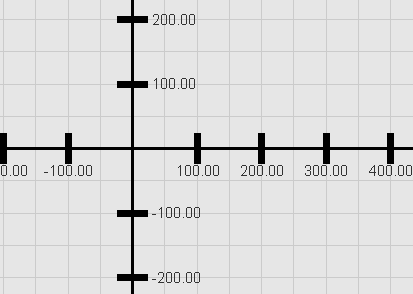
Once a scale has been established, we should be able to save it with an equation.
To address some of the above concerns, let’s consider encapsulating grid-related properties, for example, grid-color, grid-unit, font-name, and major-tic-spacing, in a single class that can be saved to/restored from a file. Then, we can develop an editor that can be used to modify properties and immediately display the effect of the modifications in a feedback window.