On this page, we’ll develop the ProfileEditor class. This class displays and manages controls for editing the values of properties in a Profile object, including:
- The Profile name and grid unit.
- The encapsulated GraphPropertySetMW object: width, color, font attributes, and the boolean value that enables/disables label display.
- The encapsulated LinePropertySet objects: line weight (stroke), length, spacing (lines-per-unit), color, and the boolean value that enables/disables line display.
GitHub repository: Cartesian Plane Lesson 18
Previous lesson: Cartesian Plane Lesson 18 Page 14: The FontEditorDialog JUnit Test

The ProfileEditor Class
We’ll start our discussion of the ProfileEditor with a description of the GUI. To display and interact with the ProfileEditor, run the ShowProfileEditor application in the project’s sandbox.app package.
GUI Composition
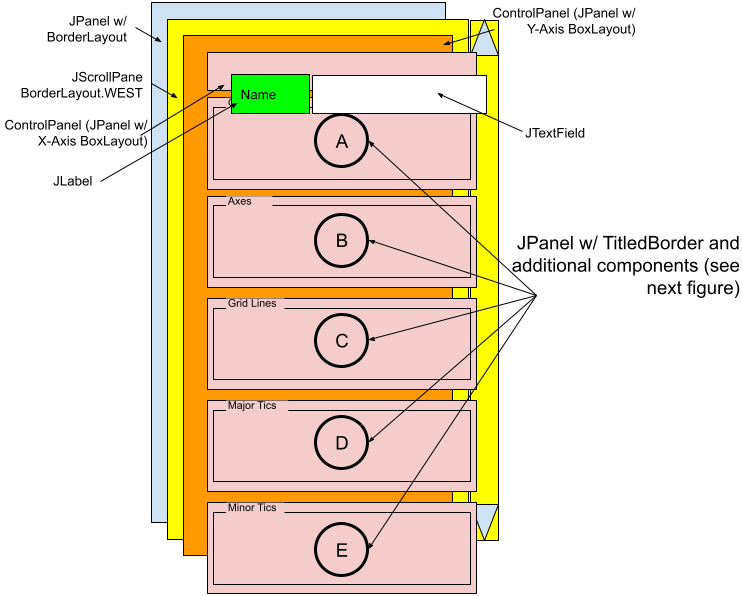
The ProfileEditor’s base is a JPanel with a BorderLayout suitable for inclusion in any JFrame or JDialog. The JPanel has a JScrollPane as its west child. The scroll pane’s viewport is the control panel.
The control panel has a BoxLayout with a vertical orientation. It has six children: the name panel, the grid panel, and four line panels, one for each of the LinePropertySet subclasses.
- Name Panel
The name panel is a JPanel with a horizontal BoxLayout. Its two children are a JLabel (“Name”) and a JTextField for entering the profile name.
- Grid Panel
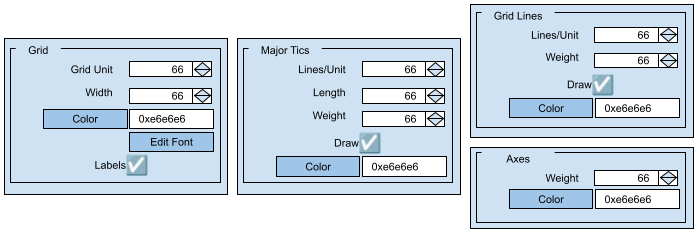
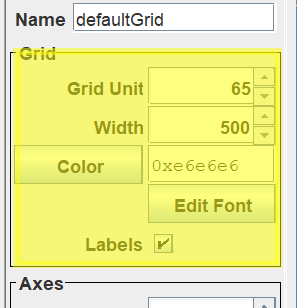
The grid panel is a JPanel with a TitledBorder and a GridLayout(5, 2). Its rows are:- Row 1: a JLabel (“Grid Unit”) and a JSpinner for managing the grid unit.
- Row 2: a JLabel (“Width”) and a JSpinner for managing the grid width.
- Row 3: a JButton (“Color”) and a JTextField for entering the grid color. These two components are borrowed from the ColorEditor, which manages them, so they behave in the manner determined by that class (pushing the Color button posts the ColorSelector; selecting a color changes the integer color value in the text field, etc.).
- Row 4: an invisible placeholder (a JLabel with no text) and a JButton that posts the FontEditorDialog.
- Row 5: a JLabel (“Labels”) and a JCheckBox for managing the Boolean property that determines whether labels will be displayed on the x- and y-axes.
- Tic Major Line Panel
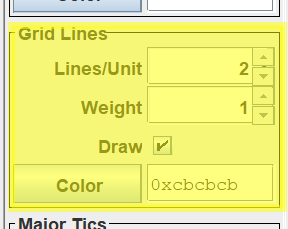
The tic major line panel is a JPanel with a TitledBorder and a GridLayout(5, 2). Its rows are:- Row 1: a JLabel (“Lines/Unit”) and a JSpinner for managing the line spacing.
- Row 2: a JLabel (“Length”) and a JSpinner for managing the line length.
- Row 3: a JLabel (“Weight”) and a JSpinner for managing the line stroke.
- Row 4: a JLabel (“Draw”) and a JCheckBox for managing the Boolean property that determines whether lines of this category are to be drawn.
- Row 5: a JButton (“Color”) and a JTextField for entering the line color. These two components are borrowed from the ColorEditor, which manages them (see also Grid Panel, Row 3 above).
- Tic Minor Line Panel
The tic minor line panel is laid out like the tic major line panel. - Grid Lines Line Panel
This panel is very similar to the tic-major panel. The only difference is that its layout manager is a GridLayout(4,2), and it doesn’t have a row controlling the line length. - Axes Line Panel
This panel is similar to the tic major panel but doesn’t have rows for controlling the line length, lines/unit, or draw properties. Its layout manager is a GridLayout(2,2)
Implementation Strategy
The ProfileEditor is pretty complicated. It manages many properties, some of which are edited via auxiliary dialogs. It can also be challenging to test. To facilitate testing, we will assign component names to individual JComponents that need to be controlled from the JUnit test. Before discussing the implementation details, let’s discuss our naming strategy. We’ll also discuss how we employ the FontEditorDialog and ColorEditor and manage the relationship between individual properties and the GUI components we use to edit them, including through spinner descriptors.
Component Names
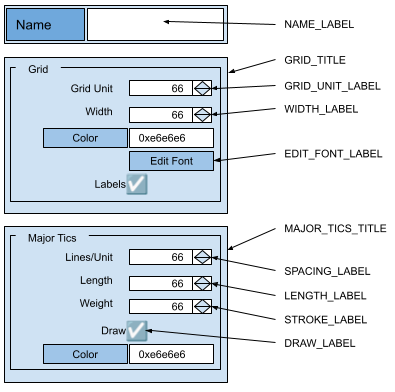
Significant components in the ProfileEditor will be given component names to aid testing. Those components include, for example, the JTextField used to edit the profile name, the JPanel containing the GraphPropertySet controls, the JPanel containing the LinePropertySetAxes controls, and the JSpinner and JTextField in the LinePropertySetAxes JPanel. The name of a JPanel that controls a specific set of properties is the same as its title: Grid, Axes, Grid Lines, Major Tics, or Minor Tics. The name of a component that controls a specific property is the same as the text that labels it, for example, Grid Unit or Stroke. The figure at right lists the names of most of the components in the ProfileEditor. The names of the components for editing colors come from the ColorEditor. See Cartesian Plane Lesson 18 Page 2: Refactoring: ColorEditor Class and FontEditor Class.
Each title and label is given a constant variable to identify it, for example: public static final String MAJOR_TICS_TITLE = "Major Tics";
public static final String STROKE_LABEL = "Weight";
(see Constant Variables below for a complete list). When we configure a JPanel associated with a property set, we use a constant as both its title and its name, such as in the following illustration:
Border lineBorder  = BorderFactory.createLineBorder( Color.BLACK );
Border border      =
    BorderFactory.createTitledBorder( lineBorder, GRID_TITLE );
JPanel panel       = new JPanel( new GridLayout( 5, 2, 3, 0 ) );
panel.setBorder(border);
panel.setName( GRID_TITLE);
When we configure a component associated with a specific property, we use a constant as both its label and its name, for example:
background-panel.add( new JLabel( NAME_LABEL ) );
JTextField  nameField   = new JTextField( 10 );
nameField.setName( NAME_LABEL );
panel.add( nameField );
During testing, if we need to find the JSpinner that controls the length of the grid lines, we first find the JPanel titled Grid Lines. Then, within the panel, we find the component labeled Length, for example:
String          panelName   = ProfileEditor.GRID_LINES_TITLE;
Predicate<JComponent> panelPred   =
    jc -> panelName.equals( jc.getName() );
JComponent      panel       =
    ComponentFinder.find( profileEditor, panelPred );

String        compName = ProfileEditor.LENGTH_LABEL;
Predicate<JComponent> compPred =
    jc -> compName.equals( jc.getName() );
JComponent    comp     =
    ComponentFinder.find( panel, compPred );
Font and Color Properties

The operator presses the Edit Font button to edit font properties, which posts the FontEditorDialog in a modal state. When the dialog becomes visible, its property values will be taken directly from the encapsulated profile. Then:
- If the operator makes changes and presses the cancel button, the changes are discarded, and the dialog will close. If the dialog is posted again, the values from the profile will be seen.
- If the operator makes changes and presses the OK button, the changes are copied to the encapsulated profile, and the dialog will close. If the dialog is reposted, the edited values will be displayed. The profile itself is not applied to the PropertyManager; changes to font properties will be applied to the PropertyManager when the ProfileEditor’s apply operation is executed.
- If the operator makes changes and presses the reset button, the changes are discarded and replaced by those currently residing in the profile. The dialog is not closed.
Apply and Reset Logic
Our ProfileEditor has components for managing many properties: one for the profile name, four in the Grid panel, four in the FontEditor, and up to five each in the panels for axes, grid lines, major tics, and minor tics. In an apply operation, the values of all those components need to be transferred to the encapsulated profile. In a reset operation, the values of all the properties in the profile need to be transferred to the components. To make these processes more manageable, we will maintain the applyList and the resetList: private final List<Runnable> applyList = new ArrayList<>();
private final List<Runnable> resetList = new ArrayList<>();
Each component that controls a property will have a Runnable in both lists, one to execute an apply operation and one to perform a reset operation. During initialization, the lists are updated every time one of these components is added to the GUI, for example:
panel.add( new JLabel( NAME_LABEL ) );
JTextField nameField   = new JTextField( 10 );
nameField.setName( NAME_LABEL );
panel.add( nameField );

Runnable toProfile   = () -> profile.setName( nameField.getText() );
Runnable toComponent = () -> nameField.setText( profile.getName() );
resetList.add( toComponent );
applyList.add( toProfile );
As shown below, performing an apply or reset operation becomes a simple list traversal:
public void apply()
{
    applyList.forEach( i -> i.run() );
    profile.apply();
}
public void reset()
{
    profile.reset();
    resetList.forEach( i -> i.run() );
    repaint();
}
Spinner Descriptors
The ProfileEditor contains eleven JSpinners. Each must be configured with a SpinnerNumberModel, minimum and maximum values and labels. Each must be tied to a specific Profile property via setters and getters. Their labels and text fields must be configured, and ChangeListeners are required.
We have written the SpinnerDesc class to collect the configuration data for the spinners in a central location. Each spinner in the GUI is associated with a SpinnerDesc object. When creating the SpinnerDesc object, we provide the constructor with the specific property set the spinner is associated with (LineProoertySetAxes, LinePropertySetGridLines, etc.) and the descriptive label that identifies the spinner (recall that the label is also the component’s name). From the label, the constructor determines the required setter and getter and stores them in the apply and reset lists. Finally, the descriptor is placed in a map where the key is the name of the component, concatenated, if necessary, with the name of the property set that contains it (LinePropertySetAxes, etc.). Now, for example, if we want to get the descriptor for the spinner used to edit the weight property of LinePropertySetAxes we would use: desc = descMap.get( "LinePropertSetAxes" + "Weight" );
To get the descriptors for the grid unit and grid width spinners, we would use: desc = descMap.get( "Grid Unit" ); desc = descMap.get( "Width" );
ProfileEditor Implementation
We’ll begin our discussion of the ProfileEditor implementation with lists of class and instance variables, including our constant variables. Then, we have an inner class to examine before moving on to helper methods and finishing up with the constructor and public methods.
Constant Variables
We will name many of our components to facilitate testing. External facilities, such as test drivers and utilities, will use the names to identify the components in the GUI hierarchy. We will declare public constants to encapsulate the names in keeping with good programming practices. In Java, constants such as these are declared as constant variables. As much as possible, the name of a component will match the text that identifies the component’s purpose in the GUI; see Component Names above. Here is an annotated list.
1 2 3 4 5 6 7 8 9 10 11 12 13 14 15 16 17 | public static final String NAME_LABEL = "Name"; public static final String STROKE_LABEL = "Weight"; public static final String SPACING_LABEL = "Lines/Unit"; public static final String LENGTH_LABEL = "Length"; public static final String DRAW_LABEL = "Draw"; public static final String DRAW_FONT_LABEL = "Labels"; public static final String GRID_UNIT_LABEL = "Grid Unit"; public static final String EDIT_FONT_LABEL = "Edit Font"; public static final String WIDTH_LABEL = "Width"; public static final String GRID_TITLE = "Grid"; public static final String AXES_TITLE = "Axes"; public static final String MAJOR_TICS_TITLE = "Major Tics"; public static final String MINOR_TICS_TITLE = "Minor Tics"; public static final String GRID_LINES_TITLE = "Grid Lines"; |
- Line 1: The name of the text field for editing the profile name; also used as the label that identifies the field for the operator (see getNamePanel()).
- Lines 3-6: The names of the components for editing properties of a LinePropertySet, also the label used to identify the component to the operator. The names are the same for the four panels that manage different categories of lines. To find a component for a specific property, the test driver must first locate the panel for the target property set and then search the panel for the named component (see Class SpinnerDesc).
- Lines 8-11: The names of the components for editing properties of the GraphPropertySetMW, also the label used to identify the component to the operator (see addFontEditor).
- Lines 13-17: The names of the JPanels that contain components for editing properties specific categories of properties. They are also used in the border titles for the panels (see getGridPanel and getPropertyPanel).
Infrastructure
Below, we’ll discuss the infrastructure underlying the ProfileEditor implementation: private class and instance variables, nested classes, and helper methods.
⏹ Private Class and Instance Variables
An annotated list of our implementation’s private class and instance variables follows.
1 2 3 4 5 6 7 8 9 10 11 12 13 14 15 16 17 18 19 20 21 22 23 | public class ProfileEditor extends JPanel { // ... private static final String axesSet = LinePropertySetAxes.class.getSimpleName(); private static final String ticMajorSet = LinePropertySetTicMajor.class.getSimpleName(); private static final String ticMinorSet = LinePropertySetTicMinor.class.getSimpleName(); private static final String gridLinesSet = LinePropertySetGridLines.class.getSimpleName(); private final ProfileEditorFeedback canvas; private final List<Runnable> resetList = new ArrayList<>(); private final List<Runnable> applyList = new ArrayList<>(); private final Map<String,SpinnerDesc> descMap = new HashMap<>(); private final Profile profile; // ... } |
- Lines 4-11: The simple names of the LinePropertySet concrete subclasses.
- Line 13: This is the feedback window for previewing edits; see the ProfileEditorFeeback Page. The ProfileEditor class creates the feedback window and shares a Profile with it; see Constructor. Methods in this class call the feedback window’s repaint method every time the shared Profile changes; see, for example, the reset() method. The ProfileEditor class does not configure or deploy this window. Another client can obtain the panel to create a GUI that combines the ProfileEditor and ProfileEditorFeedback windows. The ProfileEditorDialog, for example, obtains and deploys the feedback window as shown below.
public ProfileEditorDialog( Window parent, Profile profile )
{
    // ...
    editor = new ProfileEditor( profile );
    canvas = editor.getFeedBack();

    JPanel      contentPane     = new JPanel( new BorderLayout() );
    contentPane.add( BorderLayout.CENTER, canvas );
    contentPane.add( BorderLayout.WEST, editor );
    // ...
}- Lines 15,16: This is the list of Runnables for managing the reset operation; see Apply and Reset Logic.
- Lines 17,18: This is the list of Runnables for managing the apply operation; see Apply and Reset Logic.
- Lines 19,20: Map of component names to spinner descriptors. For LinePropertySets, the component name is concatenated with the simple name of the specific LinePropertySet class. The map is initialized using the getDescMap method. See also Spinner Descriptors and Class SpinnerDesc.
⏹ Class SpinnerDesc
An object of this class describes a JSpinner used in the ProfileEditor (see Spinner Descriptors above). Here is an annotated list of its class and instance variables.
1 2 3 4 5 6 7 8 9 10 | private class SpinnerDesc { private static final float minVal = 0; private static final float maxVal = Integer.MAX_VALUE; public final JSpinner spinner; public final JLabel label; public final DoubleConsumer profileSetter; public final DoubleSupplier profileGetter; // ... } |
- Lines 3,4: The minimum and maximum values of the SpinnerNumberModel underlying a JSpinner.
- Line 5: The JSpinner encapsulated in a SpinnerDesc object.
- Line 6: The label on the JSpinner; also the JSpinner’s component name.
- Line 7: The Consumer that sets the value of a property in the encapsulated Profile.
- Line 8: The Supplier that gets the value of a property from the encapsulated Profile.
The SpinnerDesc class has one constructor and no methods. Below is an annotated listing of the constructor. See also makeSpinnerDesc in the outer class.
1 2 3 4 5 6 7 8 9 10 11 12 13 14 15 16 17 18 19 20 21 22 23 24 25 26 27 28 29 30 31 32 33 34 35 36 37 38 39 40 41 42 43 44 45 46 47 48 49 50 51 52 53 54 55 56 57 58 59 60 61 62 63 64 65 66 | public SpinnerDesc( LinePropertySet propSet, String labelText, double step ) { DoubleConsumer tempSetter = null; DoubleSupplier tempGetter = null; switch ( labelText ) { case STROKE_LABEL: tempSetter = d -> propSet.setStroke( (float)d ); tempGetter = () -> propSet.getStroke(); break; case SPACING_LABEL: tempSetter = d -> propSet.setSpacing( (float)d ); tempGetter = () -> propSet.getSpacing(); break; case LENGTH_LABEL: tempSetter = d -> propSet.setLength( (float)d ); tempGetter = () -> propSet.getLength(); break; case GRID_UNIT_LABEL: tempSetter = d -> profile.setGridUnit( (float)d ); tempGetter = () -> profile.getGridUnit(); break; case WIDTH_LABEL: GraphPropertySet graphSet = profile.getMainWindow(); tempSetter = d -> graphSet.setWidth( (float)d ); tempGetter = () -> graphSet.getWidth(); break; default: throw new ComponentException( "Invalid Label" ); } profileSetter = tempSetter; profileGetter = tempGetter; label = new JLabel( labelText, SwingConstants.RIGHT ); double val = profileGetter.getAsDouble(); SpinnerNumberModel model = new SpinnerNumberModel( val, minVal, maxVal, step ); spinner = new JSpinner( model ); spinner.setName( labelText ); JComponent editor = spinner.getEditor(); if ( !(editor instanceof DefaultEditor) ) throw new ComponentException( "Unexpected editor type" ); JTextField textField = ((DefaultEditor)editor).getTextField(); textField.setColumns( 6 ); model.addChangeListener( e -> { float value = model.getNumber().floatValue(); profileSetter.accept( value ); canvas.repaint(); }); Runnable toComponent = () -> spinner.setValue( profileGetter.getAsDouble() ); Runnable toProfile = () -> profileSetter.accept( getFloat( spinner ) ); resetList.add( toComponent ); applyList.add( toProfile ); } |
- Line 2: If the property the spinner will manage is associated with a LinePropertySet subclass, this must be the object from the encapsulated Profile that contains the property. Otherwise, this parameter is ignored.
- Line 3: The text to put on the JLabel that precedes the spinner in the GUI; this value will also be the component name of the JSpinner.
- Line 4: The step value to use when instantiating the JSpinner’s underlying SpinnerNumberModel.
- Lines 7,8: Temporary variables to hold the profile setter and getter associated with the spinner. They are configured in the switch statement beginning at line 10 and are used to set the profileSetter and profileGetter instance variables at lines 37 and 38 (declared as final, these variables can only be assigned once, so they can’t be used directly in the switch statement).
- Lines 10-35: Switch statement that determines the setter and getter for the property associated with the encapsulated spinner:
- Lines 12-23: Determines the setter and getter for the stroke, spacing, and length properties of the given LinePropertySet (line 2).
- Lines 24-27: Determines the setter and getter for the grid unit property stored directly in the encapsulated Profile.
- Lines 28-32: Determines the setter and getter for the grid width property in the encapsulated Profile’s GraphPropertySet object.
- Lines 33,34: Throws an exception; getting here is an unrecoverable programming error.
- Lines 37,38: Initialize the profile setter and getter instance variables.
- Line 39: Create the JLabel that precedes the spinner in the GUI; force the label’s text to be right-justified.
- Line 41: Obtain the encapsulated spinner’s initial value from the Profile.
- Lines 42,43: Create the SpinnerNumberModel that underlies the encapsulated JSpinner.
- Line 44: Create the target JSpinner.
- Line 45: Set the JSpinner’s component name.
- Line 47: Get the spinner’s editor.
- Line 48,49: Sanity check; verify that the editor component is a DefaultEditor as expected.
- Lines 50,51: Get the JTextField from the DefaultEditor.
- Line 52: Set the number of columns displayed by the JTextField.
- Lines 54-58: Add a change listener to the spinner. When the value of the spinner changes:
- Line 55: Get the spinner’s value (see getFloat below).
- Line 56: Set the value of the associated property in the Profile.
- Line 57: Redraw the feedback window.
- Lines 60,61: Create the Runnable to set the spinner’s value in a reset operation.
- Lines 62,63: Create the Runnable to set the profile’s value in an apply operation.
- Lines 64,65: Add the Runnables (lines 60-63) to the reset and apply lists.
⏹ Private Methods
Following is a discussion of the ProfileEditor class’s helper methods.
🟦 private static float getFloat( JSpinner spinner )
Given a JSpinner with an underlying SpinnerNumberModel, obtain the spinner’s value and return it as type float. Here’s the code for this method.
private static float getFloat( JSpinner spinner )
{
    SpinnerModel    model   = spinner.getModel();
    if ( !(model instanceof SpinnerNumberModel) )
        throw new ComponentException( "Invalid SpinnerModel" );
    Number          number  = ((SpinnerNumberModel)model).getNumber();
    float           val     = number.floatValue();
    return val;
}
🟦 private void showFontDialog( FontEditorDialog dialog )
Display the dialog that allows the operator to edit the encapsulated Profile’s font properties. Note that the FontEditorDialog does the majority of the work. If the operator makes and approves (presses OK) edits in the dialog, the edits will automatically be applied to the encapsulated profile. All we have to do after the dialog closes is, if necessary, update the feedback window. Find the code for this method below.
private void showFontDialog( FontEditorDialog dialog )
{
    int result  = dialog.showDialog();
    if ( result == JOptionPane.OK_OPTION )
    {
        canvas.repaint();
    }
}
🟦 private void makeSpinnerDesc(LinePropertySet propSet, String labelText, double step)
Using the given input, instantiate a SpinnerDesc object and add it to the spinner descriptor map. The input values are:
- propSet
If the property the spinner will manage is associated with a LinePropertySet subclass, this must be the object from the encapsulated Profile that contains the property. This value must be null if the property does not belong to a LinePropertySet subclass. - labelText
The text to place on the label that precedes the spinner in the GUI; also used as the spinner’s component name. - step
The step value to use when instantiating the spinner’s underlying SpinnerNumberModel.
The code for this method follows.
private void makeSpinnerDesc(
    LinePropertySet propSet,
    String labelText,
    double step
)
{
    SpinnerDesc desc        =
        new SpinnerDesc( propSet, labelText, step );

    String      propSetType =
        propSet == null ? "" : propSet.getClass().getSimpleName();
    String      key         = propSetType + labelText;
    descMap.put( key, desc );
}
🟦 private void getDescMap()
This method instantiates a SpinnerDesc for every JSpinner used in the ProfileEditor GUI. See also the SpinnerDesc class constructor and the makeSpinnerDesc method. Here’s the code.
private void getDescMap()
{
    LinePropertySet         propSet = null;

    makeSpinnerDesc( null, GRID_UNIT_LABEL, 1 );
    makeSpinnerDesc( null, WIDTH_LABEL, 1 );

    propSet = profile.getLinePropertySet( axesSet );
    makeSpinnerDesc( propSet, STROKE_LABEL, 1 );

    propSet = profile.getLinePropertySet( gridLinesSet );
    makeSpinnerDesc( propSet, SPACING_LABEL, 1 );
    makeSpinnerDesc( propSet, STROKE_LABEL, 1 );

    propSet = profile.getLinePropertySet( ticMajorSet );
    makeSpinnerDesc( propSet, SPACING_LABEL, .25 );
    makeSpinnerDesc( propSet, STROKE_LABEL, 1 );
    makeSpinnerDesc( propSet, LENGTH_LABEL, 1 );

    propSet = profile.getLinePropertySet( ticMinorSet );
    makeSpinnerDesc( propSet, SPACING_LABEL, .25 );
    makeSpinnerDesc( propSet, STROKE_LABEL, 1 );
    makeSpinnerDesc( propSet, LENGTH_LABEL, 1 );
}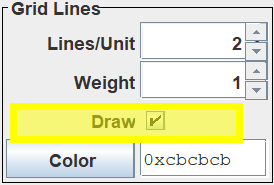
🟦 private void addDraw( LinePropertySet propSet, JPanel panel )
This method adds a JCheckBox with the descriptive label Draw to a given JPanel. The checkbox is connected to the draw property of a given LinePropertySet. The method makes no assumptions about the panel layout; it adds the JLabel and JCheckBox as the panel’s next two children. See also getPropertyPanel. The following is an annotated listing of the method.
1 2 3 4 5 6 7 8 9 10 11 12 13 14 15 16 17 18 19 20 21 | private void addDraw( LinePropertySet propSet, JPanel panel ) { JLabel label = new JLabel( DRAW_LABEL, SwingConstants.RIGHT ); boolean val = propSet.getDraw(); JCheckBox checkBox = new JCheckBox( "", val ); checkBox.setName( DRAW_LABEL ); panel.add( label ); panel.add( checkBox ); checkBox.addItemListener( e -> { propSet.setDraw( checkBox.isSelected() ); canvas.repaint(); }); Runnable toComponent = () -> checkBox.setSelected( propSet.getDraw() ); Runnable toProfile = () -> propSet.setDraw( checkBox.isSelected() ); resetList.add( toComponent ); applyList.add( toProfile ); } |
- Lines 3,4: Make the descriptive label; force the text to be right-justified.
- Line 5: Get the current value of the draw property from the given LinePropertySet.
- Line 6: Make the checkbox without any text and with the initial value taken from the given LinePropertySet.
- Line 7: Set the component name of the JCheckBox.
- Lines 8,9: Add the JLabel and JCheckBox to the given JPanel.
- Lines 10-13: Add an ItemListener to the checkbox. Each time the value of the checkbox changes:
- Line 11: Get the value of the checkbox and use it to set the value of the draw property in the given LinePropertySet.
- Line 12: Redraw the feedback window to reflect the property’s new value.
- Lines 15,16: Compose the Runnable that copies the value of the draw property from the given LinePropertySet to the checkbox.
- Lines 17,18: Compose the Runnable that copies the value of the checkbox to the given LineProperetySet.
- Lines 19,20: Update the reset and apply lists.
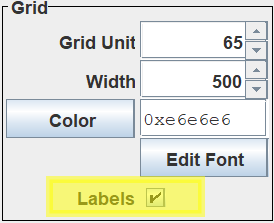
🟦 private void addDraw( GraphPropertySet propSet, JPanel panel )
This method adds a JCheckBox with the descriptive label Draw to a given JPanel. The checkbox is connected to the draw property of the Profile’s GraphPropertySet. The method makes no assumptions about the panel layout; it adds the JLabel and JCheckBox as the panel’s next two children. See also getGridPanel. Implementing this method is an exercise for the student; use addDraw( LinePropertySet, JPanel) as a model. The solution is in the GitHub repository.

🟦 private void addSpinner( String type, String label, JPanel panel )
Use this method to add a JSpinner and descriptive label corresponding to a property to a given JPanel. The details of the JSpinner must be encapsulated in a SpinnerDesc object stored in descMap. If the target panel encapsulates a LinePropertySet, the user passes the simple name of the target property set. Otherwise, the user passes the empty string (“”). The spinner descriptor is obtained by concatenating the given type and label. See also Spinner Descriptors and Class SpinnerDesc. See also getGridPanel and getPropertyPanel. Here’s the code.
private void addSpinner( String type, String label, JPanel panel )
{
    SpinnerDesc desc    = descMap.get( type + label );
    panel.add( desc.label );
    panel.add( desc.spinner );
}
🟦 private void addFontEditor( GraphPropertySet propSet, JPanel panel )
Use this method to link the FontEditor to the ProfileEditor’s grid panel. This entails adding a JButton to a given JPanel. This method is aware that the JPanel uses a GridLayout layout manager and, to keep the columns lined up, it must precede the JButton with a placeholder (a JLabel with the empty string for its text). See also getGridPanel. Here is the annotated code for the addFontEditor method.
1 2 3 4 5 6 7 8 9 10 11 12 13 | private void addFontEditor( GraphPropertySet propSet, JPanel panel ) { FontEditorDialog fontDialog = new FontEditorDialog( null, propSet ); JButton editButton = new JButton( EDIT_FONT_LABEL ); editButton.setName( EDIT_FONT_LABEL ); editButton.addActionListener( e -> showFontDialog( fontDialog ) ); panel.add( new JLabel( "" ) ); panel.add( editButton ); Runnable toComponent = () -> fontDialog.reset(); resetList.add( toComponent ); } |
- Lines 3,4: Create the FontEditorDialog.
- Line 5: Create the JButton
- Line 6: Set the component name of the JButton.
- Line 7: Add an ActionListener to the JButton. When selected, the button will post the FontEditorDialog.
- Lines 8,9: Add to the given JPanel an invisible placeholder and the JButton.
- Lines 11,12: Formulate a Runnable to be activated during a reset operation and add it to the resetList. When invoked, the Runnable will reset the FontEditorDialog. There is no need to connect the button to the apply operation, which the FontEditorDialog handles; also, see Font And Color Properties.
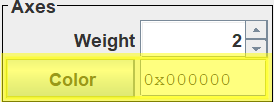
🟦 private void addColorEditor( LinePropertySet propSet, JPanel panel )
This overload of the addColorEditor method links one of the LinePropertySet panels to the ColorEditor; the user passes the LinePropertySet object containing the color property to manage. The components composing the link, a JButton, and a JTextField, are borrowed from the ColorEditor. The method makes no assumptions about the panel layout; it merely adds the JButton and JTextField as the panel’s next two children. The ColorEditor handles posting the ColorSelector as needed and synchronizing the states of the ColorSelector and the text field. See also Font And Color Properties and getPropertyPanel.
The annotated code for this method follows.
1 2 3 4 5 6 7 8 9 10 11 12 13 14 15 16 17 18 19 | private void addColorEditor( LinePropertySet propSet, JPanel panel ) { ColorEditor colorEditor = new ColorEditor(); colorEditor.setColor( propSet.getColor() ); JTextComponent textEditor = colorEditor.getTextEditor(); panel.add( colorEditor.getColorButton() ); panel.add( textEditor ); colorEditor.addActionListener( e -> { propSet.setColor( colorEditor.getColor().orElse( null ) ); canvas.repaint(); }); Runnable toComponent = () -> colorEditor.setColor( propSet.getColor() ); Runnable toProfile = () -> propSet.setColor( colorEditor.getColor().orElse( null ) ); resetList.add( toComponent ); applyList.add( toProfile ); } |
- Lines 3,4: Create the ColorEditor and set its initial value.
- Line 5: Get the JTextField (the ColorEditor’s textEditor) from the ColorEditor.
- Lines 6,7: Add the ColorEditor’s colorButton and textEditor to the given JPanel.
- Lines 8-11: Add an ActionListener to the ColorEditor that, when activated, will:
- Line 9: Update the color property from the ColorEditor’s current value.
- Line 10: Redraw the feedback window.
- Lines 13,14: Formulate the Runnable to transfer the color property’s value from the Profile to the GUI.
- Lines 15,16: Formulate the Runnable to transfer the color property’s value from the GUI to the Profile.
- Lines 17,18: Update the resetList and applyList.
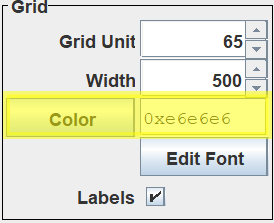
🟦 private void addColorEditor( GraphPropertySet propSet, JPanel panel )
This overload of the addColorEditor method links the Grid panel to the ColorEditor. The components composing the link, a JButton, and a JTextField, are borrowed from the ColorEditor. The method makes no assumptions about the panel layout; it merely adds the JButton and JTextField as the panel’s next two children. The ColorEditor handles posting the ColorSelector as needed and synchronizing the states of the ColorSelector and the text field. See also Font And Color Properties and getGridPanel. The implementation of this method is left as an exercise for the student. The solution is in the GitHub repository.
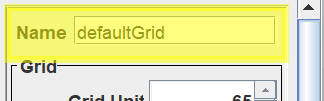
🟦 private JPanel getNamePanel()
Create and configure the JPanel that contains the JTextField to manage the Profile’s name property. Here’s the annotated code.
1 2 3 4 5 6 7 8 9 10 11 12 13 14 15 16 17 18 19 20 21 22 23 24 25 | private JPanel getNamePanel() { Dimension spacer = new Dimension( 5, 0 ); Border border = BorderFactory.createEmptyBorder( 5, 5, 5, 5 ); JPanel panel = new JPanel(); LayoutManager layout = new BoxLayout( panel, BoxLayout.X_AXIS ); panel.setLayout( layout ); panel.setBorder( border ); panel.add( new JLabel( NAME_LABEL ) ); panel.add( Box.createRigidArea( spacer ) ); JTextField nameField = new JTextField( 10 ); panel.add( nameField ); nameField.setName( NAME_LABEL ); nameField.setText( profile.getName() ); Runnable toProfile = () -> profile.setName( nameField.getText() ); Runnable toComponent = () -> nameField.setText( profile.getName() ); resetList.add( toComponent ); applyList.add( toProfile ); return panel; } |
- Line 3: Create a spacer to be added to the panel for aesthetic reasons. See line 11.
- Lines 4,5: Create an empty border for the panel.
- Line 6: Make the JPanel.
- Line 7: Make a horizontal BoxLayout for the JPanel.
- Lines 8,9: Set the panel’s border and layout manager.
- Lines 10-13: Add a descriptive label, the spacer (line 3), and a text field to the panel.
- Line 14: Set the JTextField’s component name.
- Line 15: Set the JTextField’s value to the name in the encapsulated Profile.
- Lines 17,18: Formulate the Runnable to transfer the name property’s value from the Profile to the GUI.
- Lines 19,20: Formulate the Runnable to transfer the name property’s value from the GUI to the Profile.
- Lines 21,22: Update the resetList and applyList.
- Line 24: Return the JPanel.
🟦 private JPanel getGridPanel()
This method will create and configure a JPanel to manage the encapsulated Profile’s grid unit and the properties of its constituent GraphPropertSetMW object: grid width, grid color, font properties, and draw (which determines whether or not labels are to be displayed on the grid’s x- and y-axes). Here is an annotated listing of the getGridPanel() method.
1 2 3 4 5 6 7 8 9 10 11 12 13 14 15 16 17 18 19 20 21 22 | private JPanel getGridPanel() { GraphPropertySet propSet = profile.getMainWindow(); JPanel panel = new JPanel( new GridLayout( 5, 2, 3, 0 ) ); SpinnerDesc gUnit = descMap.get( GRID_UNIT_LABEL ); SpinnerDesc width = descMap.get( WIDTH_LABEL ); panel.setName( GRID_TITLE ); panel.add( gUnit.label ); panel.add( gUnit.spinner ); panel.add( width.label ); panel.add( width.spinner ); addColorEditor( propSet, panel ); addFontEditor( propSet, panel ); addDraw( propSet, panel ); Border lineBorder = BorderFactory.createLineBorder( Color.BLACK ); Border border = BorderFactory.createTitledBorder( lineBorder, GRID_TITLE ); panel.setBorder(border); return panel; } |
- Line 3: Get the Profile’s constituent GraphPropertySetMW object.
- Line 4: Create the JPanel with a GridLayout layout manager having five rows, two columns, three pixels of extra space between columns, and 0 pixels of space between rows.
- Lines 5,6: Get the spinner descriptors for the grid unit and width properties. See also the getDescMap method.
- Line 7: Set the component name of the JPanel.
- Lines 8,9: Add the spinner and descriptive label for the grid unit to the JPanel.
- Line 10,11: Add the spinner and descriptive label for the grid width to the JPanel.
- Lines 12-14: Add the ColorEditor, FontEditor, and Draw labels checkbox to the JPanel.
- Lines 16-20: Create a TitledBorder and set it on the JPanel.
- Line 21: Return the JPanel.
🟦 private JPanel getPropertyPanel( String title, LinePropertySet propSet )
This method creates a panel to contain the components needed to manage the properties of a LinePropertySet. These properties include some or all of the properties spacing (lines/unit), stroke (weight), length, color, and draw, indicating whether a particular line category is to be included when a graph is drawn. Not every LinePropertySet supports every one of these properties. For a given LinePropertySet, components are created for only the supported properties. Also, see the addSpinner method. Below, find the annotated listing for this method.
1 2 3 4 5 6 7 8 9 10 11 12 13 14 15 16 17 18 19 20 21 22 23 24 25 26 27 28 29 30 31 32 33 34 35 36 37 38 39 40 41 42 | private JPanel getPropertyPanel( String title, LinePropertySet propSet ) { int rows = 0; JPanel panel = new JPanel(); String type = propSet.getClass().getSimpleName(); if ( propSet.hasSpacing() ) { addSpinner( type, SPACING_LABEL, panel ); ++rows; } if ( propSet.hasLength() ) { addSpinner( type, LENGTH_LABEL, panel ); ++rows; } if ( propSet.hasStroke() ) { addSpinner( type, STROKE_LABEL, panel ); ++rows; } if ( propSet.hasDraw() ) { addDraw( propSet, panel ); ++rows; } if ( propSet.hasColor() ) { addColorEditor( propSet, panel ); ++rows; } Border lineBorder = BorderFactory.createLineBorder( Color.BLACK ); Border border = BorderFactory.createTitledBorder( lineBorder, title ); GridLayout layout = new GridLayout( rows, 2, 3, 0 ); panel.setName( title ); panel.setBorder( border ); panel.setLayout( layout ); return panel; } |
- Line 4: This variable counts the number of rows the panel will contain when fully configured. Later (line 37), it will configure the panel’s layout manager.
- Line 5: The panel to be configured.
- Line 6: The simple name of the LinePropertySet object being configured.
- Lines 7-11: If this LinePropertySet supports the spacing property, add a JSpinner to manage it and increment the row counter.
- Lines 12-16: If this LinePropertySet supports the length property, add a JSpinner to manage it and increment the row counter.
- Lines 17-21: If this LinePropertySet supports the stroke property, add a JSpinner to manage it and increment the row counter.
- Lines 22-26: If this LinePropertySet supports the draw property, add a JCheckBox to manage it and increment the row counter.
- Lines 27-31: If this LinePropertySet supports the color property, add a ColorEditor to manage it and increment the row counter.
- Lines 33-36: Create a TitledBorder for the JPanel.
- Line 37: Create a GridLayout for the JPanel. The number of rows in the GridLayout is based on the number of properties supported by the given LinePropertySet. It will have two columns, a three-pixel horizontal gap, and no vertical gap.
- Line 38: Set the component name of the JPanel.
- Lines 39-41: Set the JPanel’s border and layout manager and return the JPanel.
🟦 private JPanel getControlPanel()
This method assembles the complete control panel, including the name panel, grid panel, and line property panels. Here’s the annotated code.
1 2 3 4 5 6 7 8 9 10 11 12 13 14 15 16 17 18 19 20 21 22 23 24 25 26 27 28 29 30 31 32 33 34 35 36 37 38 39 40 | private JPanel getControlPanel() { JPanel panel = new JPanel(); BoxLayout layout = new BoxLayout( panel, BoxLayout.Y_AXIS ); Border inner = BorderFactory.createBevelBorder( BevelBorder.LOWERED ); Border outer = BorderFactory.createEmptyBorder( 3, 3, 3, 3 ); Border border = BorderFactory.createCompoundBorder( outer, inner ); panel.setBorder( border ); panel.setLayout( layout ); panel.add( getNamePanel() ); panel.add( getGridPanel() ); LinePropertySet propSet; propSet = profile.getLinePropertySet( axesSet ); JPanel axisPanel = getPropertyPanel( AXES_TITLE, propSet ); panel.add( axisPanel ); propSet = profile.getLinePropertySet( gridLinesSet ); JPanel gridLinePanel = getPropertyPanel( GRID_LINES_TITLE, propSet ); panel.add( gridLinePanel ); propSet = profile.getLinePropertySet( ticMajorSet ); JPanel majorTicPanel = getPropertyPanel( MAJOR_TICS_TITLE, propSet ); panel.add( majorTicPanel ); propSet = profile.getLinePropertySet( ticMinorSet ); JPanel minorTicPanel = getPropertyPanel( MINOR_TICS_TITLE, propSet ); panel.add( minorTicPanel ); return panel; } |
- Line 3: Create the JPanel.
- Line 4: Create a vertical BoxLayout.
- Lines 5-10: Create a CompoundBorder consisting of a BevelBorder on the inside and an EmptyBorder on the outside.
- Lines 11,12: Set the panel’s border and layout manager.
- Lines 14,15: Add the name panel and grid panel.
- Line 17: This is a convenient variable for use in the subsequent code.
- Lines 19-37: Create and add panels for the Axes, GridLines, TicMajor, and TicMinor LinePropertsSets.
- Line 39: Return the control panel.
⏹ Constructor
This class has one constructor, which must be invoked in the context of the EDT. It establishes the encapsulated Profile and configures the GUI.
Note: there is a problem when the GUI sizes itself; the ProfileEditor’s principal component is a JScrollPane, and the width of the scroll pane does not include the width of its vertical scroll bar. Within the constructor, we take steps to account for the discrepancy; see lines 13-20 below.
An annotated listing for the constructor follows.
1 2 3 4 5 6 7 8 9 10 11 12 13 14 15 16 17 18 19 20 21 | public ProfileEditor( Profile profile ) { super( new BorderLayout() ); this.profile = profile; canvas = new ProfileEditorFeedback( profile ); getDescMap(); JScrollPane scrollPane = new JScrollPane( getControlPanel() ); add( BorderLayout.WEST, scrollPane ); Dimension scrollDim = scrollPane.getPreferredSize(); Dimension sbarDim = scrollPane.getVerticalScrollBar().getPreferredSize(); Dimension screenSize = Toolkit.getDefaultToolkit().getScreenSize(); scrollDim.height = (int)(.6 * screenSize.height); scrollDim.width += sbarDim.width; scrollPane.setPreferredSize( scrollDim ); } |
- Line 3: Invoke the superclass constructor, giving this JPanel a BorderLayout.
- Line 5: Establish the encapsulated Profile.
- Line 6: Create the feedback window.
- Line 8: Initialize the spinner-descriptor map.
- Line 10: Create a JScrollPane with a control panel for a viewport.
- Line 11: Make the JScrollPane the left child of the JPanel.
- Lines 13-20: Attempt to calculate a reasonable size for the JScrollPane:
- Line 13: Get the preferred size of the JScrollPane.
- Lines 14,15: Get the preferred size of the scroll pane’s vertical scroll bar.
- Lines 16,17: Get the size of the screen that will display the GUI.
- Line 18: Make the height of the scroll pane 60% of the screen’s height.
- Line 19: Make the width of the scroll pane the sum of the scroll pane’s preferred width and the scroll bar’s preferred width.
- Line 20: Set the preferred size of the scroll pane.
⏹ Public Methods
Following is a discussion of this class’s public methods.
🟦 public JComponent getFeedBack()
This method returns the ProfileEditor’s ProfileEditorFeedback panel. It looks like this:
public JComponent getFeedBack()
{
    return canvas;
}
🟦 public void apply()
🟦 public void reset()
These methods manage the apply and reset operations for this class. The apply method saves all edits performed on the profile to the PropertyManager; reset reverts the profile to the values maintained by the PropertyManager and synchronizes all GUI components with the reverted values. See also Apply and Reset Logic. The code follows.
public void apply()
{
    applyList.forEach( i -> i.run() );
    profile.apply();
}
public void reset()
{
    profile.reset();
    resetList.forEach( i -> i.run() );
    repaint();
}
Summary
We designed a GUI for editing a Profile on this page and wrote a class to implement it. Next, we have several tasks to perform:
- Write the ProfileEditor JUnit test. As an associated task, we will need a test GUI to locate components and perform necessary activities in the context of the EDT.
- Write the ProfileEditorDialog. Its content pane will be a JPanel with a BorderLayout. An instance of the ProfileEditor will occupy its West position, and the editor’s feedback panel will go in the center.
- Write a JUnit test for the ProfileEditorDialog, including a test GUI to locate components and perform necessary activities in the context of the EDT.
The JUnit tests for the ProfileEditor and the ProfileEditorDialog will have many features in common. We could argue that we should have one JUnit test for both classes, but we chose to separate the editor from the dialog, so we’ll separate their unit tests as well. Most of the feature overlap will be in the test GUIs, so, as we’ve done before, we’ll make an abstract base class that combines the common features of the ProfileEditor and ProfileEditorDialog test GUIs, ProfileEditorTestBase. Then, the test GUIs for the editor and dialog will extend this class.
Next, we will describe the ProfileEditorTestBase class.