On the last few pages, we have:
- Implemented the GraphManager class to manage painting on the Cartesian plane.
- Implemented the ProfileEditorFeedback window for later integration with a Profile editor. It encapsulates GraphManager and provides real-time feedback illustrating changes to Profile properties.
- Added to our project the ability to perform optical character recognition via the Tesseract libraries, primarily for testing the GraphManager and ProfileEditorFeedback classes.
- Developed the LineSegment class, which can analyze lines in a BufferedImage, characterizing their length, width (stroke), position, and color. We use it to assist in testing the GraphManager and ProfileEditorFeedback window.
- Completed a JUnit test class for GraphManager, the GraphManagerTest class.
On this page, we’ll examine ProfileEditorFeedbackTest, the JUnit test class for the ProfileEditorFeedback class. As shown in the figure below, it utilizes a class for managing the test GUI (ProfileEditorFeedbackTestGUI), the previously developed LineSegment class, and nested classes designed to assist testing. We’ll begin our discussion with the test GUI.

GitHub repository: Cartesian Plane Lesson 18
Previous page: Cartesian Plane Lesson 18 Page 11: GraphManager JUnit Tests
Class ProfileEditorFeedbackTestGUI
This class supports the ProfileEditorFeedback JUnit test. It is implemented as a singleton and located in the …test_utils package on the test source path.
This class’s primary purpose is to ensure the feedback panel under test is created and refreshed on the EDT. It also has a facility that allows the test programmer to post a modal dialog displaying an image of the programmer’s choice (see showAdHocDialog). It is present for debugging purposes only. As a rule, you should not see this facility’s use in any code checked into the source code repository. An example of using this dialog might be:
- Execute a test to validate drawing grid lines.
- Observe that the test fails.
- Add code to the test to display the image produced by the failed test in the ad hoc dialog. The test will be suspended as long as the dialog is displayed. It will resume when the test observer dismisses the dialog.
- Fix the problem that caused the failure.
- Delete the code added in step 3.
A discussion follows, beginning with this class’s infrastructure.
⬛ ProfileEditorFeedbackTestGUI Infrastructure
In the following paragraphs, we will discuss the nested classes, fields, private methods, and private constructor of the ProfileEditorFeedbackTestGUI class.
🟦 private static class AdHocPanel extends JPanel
This static nested class exists to display an image for diagnostic purposes at the test developer’s request. The argument passed to the constructor is used solely to set the panel’s dimensions; we use the feedback panel under test for this argument (see ProfileEditorFeedbackTestGUI Constructor). See also showAdHocDialog. Following is a listing of the class in its entirety.
@SuppressWarnings("serial")
private static class AdHocPanel extends JPanel
{
    private BufferedImage   image   = null;

    public AdHocPanel( JComponent comp )
    {
        Dimension   prefSize    = comp.getPreferredSize();
        setPreferredSize( prefSize );
    }

    public void setImage( BufferedImage image )
    {
        this.image = image;
    }

    @Override
    public void paintComponent( Graphics gtx )
    {
        super.paintComponent( gtx );
        if ( image != null )
            gtx.drawImage( image, 0, 0, this );
    }
}
🟦 ProfileEditorFeedbackTestGUI Class and Instance Fields
Here is an annotated listing of the ProfileEditorFeedbackTestGUI class’s fields.
1 2 3 4 5 6 7 8 9 10 11 12 13 | public class ProfileEditorFeedbackTestGUI { private static ProfileEditorFeedbackTestGUI testGUI = null; private final JFrame feedbackFrame; private final ProfileEditorFeedback feedbackPanel; private final JDialog adHocDialog; private final AdHocPanel adHocPanel; private BufferedImage image; private Integer adHocInt; // ... } |
- Line 3: Singleton reference.
- Line 5: Frame to contain the feedback panel under test.
- Line 6: The feedback window under test.
- Line 7: The dialog for ad hoc use by the client.
- Line 8: Panel to display the image in the ad hoc dialog.
- Line 10: The image generated from the feedback panel under test (not to be confused with the image encapsulated in the ad hoc dialog).
- Line 11: An integer variable for temporary use internally, mainly in lambdas.
🟦 private ProfileEditorFeedbackTestGUI Constructor
The following is a listing of the ProfileEditorFeedbackTestGUI’s private constructor. It performs simple initialization tasks and GUI construction and must be invoked in the context of the EDT.
private ProfileEditorFeedbackTestGUI( Profile profile )
{
    feedbackPanel = new ProfileEditorFeedback( profile );
    adHocPanel = new AdHocPanel( feedbackPanel );
    adHocDialog = makeAdHocDialog( adHocPanel );
    feedbackFrame = new JFrame( "ProfileEditor Test GUI" );
    JPanel      contentPane     = new JPanel( new BorderLayout() );
    contentPane.add( feedbackPanel, BorderLayout.CENTER );

    feedbackFrame.setContentPane( contentPane );
    feedbackFrame.pack();
    feedbackFrame.setVisible( true );
}
🟦 private JDialog makeAdHocDialog( JComponent adHocPanel )
This method constructs the dialog for ad hoc client use during debugging. It looks like this.
private JDialog makeAdHocDialog( JComponent adHocPanel )
{
    JDialog     dialog      = new JDialog();
    dialog.setTitle( "Ad Hoc Dialog" );
    dialog.setModal( true );
    dialog.setContentPane( adHocPanel );
    dialog.pack();
    return dialog;
}
⬛ ProfileEditorFeedbackTestGUI Public Methods
The ProfileEditorFeedbackTestGUI has the following public methods.
🟦 public static ProfileEditorFeedbackTestGUI getTestGUI( Profile profile )
This method returns this class’s singleton, instantiating it if necessary. It can be called inside or outside the EDT. A listing for this method follows.
public static
ProfileEditorFeedbackTestGUI getTestGUI( Profile profile )
{
    if ( testGUI != null )
        ;
    else if ( SwingUtilities.isEventDispatchThread() )
        testGUI = new ProfileEditorFeedbackTestGUI( profile );
    else
        GUIUtils.schedEDTAndWait( () ->
            testGUI = new ProfileEditorFeedbackTestGUI( profile )
        );
    return testGUI;
}
🟦 public BufferedImage getImage()
The getImage method refreshes the feedback panel under test, gets an image of it, and returns the image. The implementation is shown below.
public BufferedImage getImage()
{
    GUIUtils.schedEDTAndWait( () -> {
        feedbackPanel.repaint();

        int      width    = feedbackPanel.getWidth();
        int      height   = feedbackPanel.getHeight();
        int      type     = BufferedImage.TYPE_INT_RGB;
        image = new BufferedImage( width, height, type );

        Graphics graphics = image.getGraphics();
        feedbackPanel.paintComponent( graphics );
    });
    return image;
}
🟦 public int getWidth()
🟦 public int getHeight()
These methods get the current width and height of the feedback panel under test. They look like this.
public int getWidth()
{
    GUIUtils.schedEDTAndWait(
        () -> adHocInt = feedbackPanel.getWidth()
    );
    return adHocInt;
}

public int getHeight()
{
    GUIUtils.schedEDTAndWait(
        () -> adHocInt = feedbackPanel.getHeight()
    );
    return adHocInt;
}
🟦 public void showAdHocDialog( BufferedImage image )
This method posts the ad hoc dialog at the client’s request. It doesn’t return until the dialog is dismissed. An example of its use might look like this:
@Test
public void testAxes()
{
    LinePropertySet propSet     =
        profile.getLinePropertySet( axesSet );
    validateAxes();

    propSet.setColor( altLineColor );
    propSet.setStroke( altStroke );

    // Temporary code; why are the axes displayed wrong?
    testGUI.showAdHocDialog( testGUI.getImage() );

    validateAxes();
}
Here’s the code for the showAdHocDialog method.
public void showAdHocDialog( BufferedImage image )
{
    adHocPanel.setImage( image );
    adHocDialog.setVisible( true );
}
Class ProfileEditorFeedbackTest
The principal focus of testing the ProfileEditorFeedback class is verifying that it responds to changes in the encapsulated Profile. We don’t have to validate every detail of its display; that’s the job of the GraphManager JUnit test. For example, if we change the stroke of the major tic marks from three to five, we do not have to ensure that every major tic’s stroke changes. For our purposes, it’s enough to verify that one of each of the horizontal and vertical tic marks is displayed with the new stroke.
We’ll begin our discussion of this JUnit test by describing the test class infrastructure.
ProfileEditorFeedbackTest Infrastructure
In this section, we will describe the test class’s infrastructure, including fields, @Before- and @After- methods, helper methods, and two static nested classes: ImageRect, which encapsulates the data in a rectangular area inside an image, and LineEvaluator, which assists in validating line drawing performed by the ProfileEditorFeedback class.
⬛ Class and Instance Fields
Below, find an annotated listing of the fields declared in the ProfileEditorFeedbackTest class.
1 2 3 4 5 6 7 8 9 10 11 12 13 14 15 16 17 18 19 20 21 22 23 24 25 26 27 28 29 30 31 32 33 34 35 36 37 38 39 40 41 42 | public class ProfileEditorFeedbackTest { private static final String axesSet = LinePropertySetAxes.class.getSimpleName(); private static final String gridLinesSet = LinePropertySetGridLines.class.getSimpleName(); private static final String ticMajorSet = LinePropertySetTicMajor.class.getSimpleName(); private static final String ticMinorSet = LinePropertySetTicMinor.class.getSimpleName(); private static final float defGridUnit = 175; private static final float altGridUnit = 2 * defGridUnit; private static final Color defBGColor = new Color( 0xEFEFEF ); private static final Color altBGColor = Color.WHITE; private static final String defFontName = Font.DIALOG; private static final String altFontName = Font.MONOSPACED; private static final float defFontSize = 20; private static final float altFontSize = 2 * defFontSize; private static final Color defFGColor = Color.BLACK; private static final Color altFGColor = Color.DARK_GRAY; private static final float defLength = 20; private static final float altLength = 2 * defLength; private static final float defStroke = 2; private static final float altStroke = 2 * defStroke; private static final float defSpacing = 5; private static final float altSpacing = 2 * defSpacing; private static final Color defLineColor = Color.RED; private static final Color altLineColor = Color.BLUE; private static final boolean defFontBold = false; private static final boolean defFontItalic = false; private static final float defWidth = 750; private static final Profile pmgrProfile = new Profile(); private static final Profile baseProfile = new Profile(); private static final Profile profile = new Profile(); private static ProfileEditorFeedbackTestGUI testGUI; // ... } |
- Lines 3-10: The simple names of the LinePropertySet subclasses encapsulated in the Profile.
- Lines 12-31: Default and alternate values for testing Profile properties. The pattern for testing one of these properties is:
1. Set the default value.
2. Verify that the default value is reflected in the feedback panel.
3. Set the alternate value.
4. Verify that the alternate value is reflected in the feedback panel.
Six distinct colors have been selected: light colors for the background and contrasting colors for the text and lines.- Lines 12-15: Default and alternate grid unit values and background color values.
- Lines 17-22: Default and alternate values for displaying text.
- Lines 17,18: There is no easy way to look at the text in BufferedImage and determine its font. When testing the font-name property, we will capture images of text displayed in the default and alternate fonts and verify that they are different. See testFontName.
- Lines 19,20: When testing the font-size property, we will display the text in different sizes and verify that the text rendered in the larger size occupies more space than the text rendered in the smaller size. To simplify testing, we explicitly choose the default size to be smaller than the alternate size. See testFontSize.
- Lines 24-31: Default and alternate values for LinePropertySet properties.
- Lines 33-35: Default values for the width, is-bold, and is-italic properties in the Profile’s GraphPropertySetMW object. We don’t have a test for the width property, and changes to the is-bold and is-italic properties are handled within the individual test methods, so there are no alternate value declarations for these properties.
- Line 37: The PropertyManager Profile. This object records the initial values of properties as obtained from the property manager. It is initialized at the start of the program and never changed. It is used to restore the original property values at the end of the test (see afterAll); this is only necessary for tests that run in suites, where the property manager is not reinstantiated between tests.
- Line 38: The base profile. This profile is initialized with default properties when the test class is loaded and never changed. It sets the default values in the property manager and the working profile before each test (see beforeEach).
- Line 39: The working profile, initialized to default values at the start of each test (see beforeEach) and modified as needed during the execution of a test method.
- Line 40: The test GUI, initialized in the beforeAll method.
⬛ private static class ImageRect
An object of this class encapsulates a rectangular area within an image. It is particularly useful for processing blocks of text. In the font-size test, for example, we can find the bounding rectangle for a label displayed in the default size and the bounding rectangle for the same label displayed in the alternate size. Then, we can verify that the rectangle for text in the default size is smaller than that for the text in the alternate size. We can also find the bounding rectangles for the same label displayed in different images and verify that they are equal.
🟦 ImageRect Fields, Constructor
As shown below, an object of this class has two instance variables initialized in the constructor. The bounds field stores the bounds of a rectangle within the encapsulated image, and the data field stores a copy of the data encapsulated in the rectangle.
private static class ImageRect
{
    private final int[][]       data;
    private final Rectangle2D   bounds;
    public ImageRect( BufferedImage image, Rectangle2D rect )
    {
        int width       = (int)rect.getWidth();
        int height      = (int)rect.getHeight();
        int firstRow    = (int)rect.getY();
        int firstCol    = (int)rect.getX();
        data = new int[height][width];

        int row         = firstRow;
        for ( int yco = 0 ; yco < height ; ++yco, row++ )
        {
            int col = firstCol;
            for ( int xco = 0 ; xco < width ; ++xco, ++col )
                data[yco][xco] = image.getRGB( col, row ) & 0xFFFFFF;
        }
    }
    // ...
}
🟦ImageRect Public Methods
This class has a few public methods that can be used to interrogate its data.
⏹ public int count( int rgb )
⏹ public int getWidth()
⏹ public int getHeight()
⏹ public IntStream stream()
The count method returns the number of those pixels within the encapsulated rectangle that match a given color. The getWidth and getHeight methods return the width and height of the rectangle. The stream method returns a stream of each element of the data field. Here’s the code.
public int count( int rgb )
{
    long    count   = stream()
        .filter( i -> i == rgb )
        .count();
    return (int)count;
}
public int getWidth()
{
    int width   = 0;
    if ( data.length > 0 )
        width = data[0].length;
    return width;
}
public int getHeight()
{
    int height  = data.length;
    return height;
}
public IntStream stream()
{
    IntStream   stream  =
        Arrays.stream( data )
            .flatMapToInt( r -> Arrays.stream( r ) );
    return stream;
}
⏹ public boolean withinBounds( Rectangle2D rect )
This method compares the expected and actual bounding rectangles for text. When testing the display of a label, we will determine its actual and expected bounds. To get the actual bounds (see getActTextRect), we will count the physical pixels in a BufferedImage, which will always give us an integer width and height. To calculate the expected bounds (see getExpTextRect), we will use the TextLayout facility, which provides an approximate width and height in fractional pixels. We should expect these two figures to be slightly different occasionally, so it returns true if the width and height of the given rectangle (the expected bounds) are within two pixels of the width and height of the encapsulated rectangle (the actual bounds). The code looks like this:
public boolean withinBounds( Rectangle2D rect )
{
    int thisWidth   = getWidth();
    int thatWidth   = (int)rect.getWidth();
    int diffWidth   = Math.abs( thisWidth - thatWidth );
    int thisHeight  = getHeight();
    int thatHeight  = (int)rect.getHeight();
    int diffHeight  = Math.abs( thisHeight - thatHeight );
    boolean result  = diffWidth <= 2 && diffHeight <= 2;
    return result;
}
⬛ public boolean equals( Object obj )
⬛ public int hashCode()
The equals method returns true if this ImageRect object is equal to a given object. The two objects are equal if the given object is a non-null ImageRect with an array equal to this object’s. To test the arrays for equality, we use the utility method Arrays.deepEquals, which is suitable for comparing arrays of two or more dimensions; see the Javadoc for Arrays.deepEquals. As required when overriding equals, we have also overridden hashCode; we utilize the Arrays utility suitable for calculating a multi-dimensional array’s hashcode. See the Javadoc for the Arrays.deepHashCode method. Here’s the code for these methods.
@Override
public int hashCode()
{
    int hash    = Arrays.deepHashCode( data );
    return hash;
}
@Override
public boolean equals( Object obj )
{
    boolean result  = false;
    if ( obj == null )
        result = false;
    else if ( obj == this )
        result = true;
    else if ( !(obj instanceof ImageRect) )
        result = false;
    else
    {
        ImageRect   that    = (ImageRect)obj;
        result = Arrays.deepEquals(this.data, that.data );
    }
    return result;
}
⬛ private static class LineEvaluator
This static nested class encapsulates drawing verification for the grid lines, tic major, or tic minor LinePropertySets. It does not validate every line drawn in a grid. Instead, it locates the first vertical line to the right of the y-axis and the first horizontal line below the x-axis and verifies that they have the correct position, color, stroke, and length. The class has the fields and constructor shown in the following annotated listing.
1 2 3 4 5 6 7 8 9 10 11 12 13 14 15 16 17 18 19 20 21 22 23 24 25 26 27 28 29 30 31 32 33 34 35 36 37 38 | private static class LineEvaluator { private final String propSetName; private final int width; private final int height; private final int xAxisYco; private final int yAxisXco; private final float expLength; private final float expStroke; private final float expSpacing; private final int expColor; private final BufferedImage image; public LineEvaluator( String propSetName ) { LinePropertySet props = profile.getLinePropertySet( propSetName ); props.setDraw( true ); LinePropertySet axesProps = profile.getLinePropertySet( axesSet ); Color lineColor = props.getColor(); axesProps.setColor( lineColor ); axesProps.setStroke( 1 ); this.propSetName = propSetName; width = testGUI.getWidth(); height = testGUI.getHeight(); xAxisYco = height / 2; yAxisXco = width / 2; expLength = props.getLength(); expStroke = props.getStroke(); expColor = getRGB( lineColor ); expSpacing = profile.getGridUnit() / props.getSpacing(); image = testGUI.getImage(); } // ... } |
- Line 3: The simple name of the LinePropertySet subclass being evaluated.
- Lines 4,5: The width and height of the window containing the lines to be evaluated.
- Lines 6: The y-coordinate of the x-axis contained in the window.
- Lines 7: The x-coordinate of the y-axis contained in the window.
- Lines 8-11: The expected property values of the lines to be evaluated.
- Line 12: The image containing the line to be evaluated.
- Lines 16-18: Get the properties for the line category under test. Force the draw property to be true.
- Lines 20-24: Get the LinePropertySet for the axes. Make the axes the same color as the lines under test, and give them a weight of one pixel. This simplifies locating and encapsulating lines at the point where they intersect an axis.
- Line 26: Record the name of the property set being tested; this is solely for error reporting.
- Lines 27,28: Get the width and height of the feedback panel under test.
- Lines 29,30: Calculate the x-coordinate of the y-axis and the y-coordinate of the x-axis.
- Lines 31-33: Get the expected length, stroke, and color of the lines to be evaluated.
- Line 34: Calculate the number of pixels between lines.
- Line 35: Refresh the feedback panel under test and get an image of it.
🟦 public void LineEvaluator.validateVertical()
🟦 public void LineEvaluator.validateHorizontal()
The LineEvaluator class has two methods: one for validating vertical lines and one for validating horizontal lines. Following is an annotated listing of validateVertical, the method for validating vertical lines. Implementation of validateHorizontal, the method for validating horizontal lines, is an exercise for the student; the solution is in the GitHub repository.
1 2 3 4 5 6 7 8 9 10 11 12 13 14 15 16 17 18 | public void validateVertical() { float oXco = yAxisXco + expSpacing; float oYco = xAxisYco + 1; Point2D origin = new Point2D.Double( oXco, oYco ); LineSegment seg = LineSegment.of( origin, image ); Rectangle2D bounds = seg.getBounds(); double actLength = bounds.getHeight(); double actStroke = bounds.getWidth(); int actColor = seg.getColor(); if ( expLength > 0 ) assertEquals( expLength, actLength, propSetName ); else assertTrue( actLength >= height, propSetName ); assertEquals( expStroke, actStroke, propSetName ); assertEquals( expColor, actColor, propSetName ); } |
- Line 3: Calculate the expected x-coordinate of the first line to the right of the y-axis.
- Line 4: Calculate the expected y-coordinate of a point on the line that is not coincident with the x-axis.
- Lines 5,6: Extrapolate a LineSegment that describes an actual line in the image that contains the point at the calculated x- and y-coordinates.
- Lines 7-9: Get the actual width and height of the target LineSegment.
- Line 10: Get the actual color of the LineSegment.
- Lines 12,13: For major and minor tics, verify the length of the LineSegment is the expected length of the line under test.
- Lines 14,15: For grid lines, verify that the length of the LineSegment is the same as the height of the grid.
- Line 16: Validate the expected stroke against the actual stroke.
- Line 17: Validate the expected color against the actual color.
⬛ ProfileEditorFeedbackTest Private Methods
Below is a discussion of the private methods of ProfileEditorFeedbackTest class.
🟦private static void waitOp()
This method is present for debugging purposes only and is not currently used. It posts a modal dialog that pauses the test until it is dismissed. A tester might use it like this: image = testGUI.getImage();
waitOp();
assertSomeCondition();
The getImage() method updates the test GUI before returning an image of it. The waitOp invocation immediately pauses the test so the test observer can examine the updated display before executing the assertion. When no longer needed, the call to waitOp invocation should be removed. Here’s the code.
@SuppressWarnings("unused")
private static void waitOp()
{
    JOptionPane.showMessageDialog( null, "Waiting..." );
}🟦private static int getRGB( Color color )
🟦private static int getRGB( Point2D point, BufferedImage image )
The getRGB(Color) method gets the integer value of a color, stripping the alpha bits. Implementation of this method is an exercise for the student. The getRGB( Point2D, BufferedImage) method gets the pixel value at the given coordinates within the given image. It returns the integer value of the pixel with the alpha bits stripped. Here’s the implementation.
private static int getRGB( Point2D point, BufferedImage image )
{
    int     xco     = (int)(point.getX());
    int     yco     = (int)(point.getY());
    int     rgb     = image.getRGB( xco, yco ) & 0xffffff;
    return rgb;
}
private static int getRGB( Color color )
{
    int     iColor  = color.getRGB() & 0xFFFFFF;
    return iColor;
}🟦private static void initBaseGraphProperties()
🟦private static void initBaseLineProperties( String propSet )
The initBaseGraphProperties method initializes the properties of the GraphPropertySet encapsulated in the baseProfile to their default values. The initBaseLineProperties method initializes the properties of the named LinePropertySet in the baseProfile to their default values. The implementation of these methods is shown below.
private static void initBaseGraphProperties()
{
    GraphPropertySet    baseGraph   = baseProfile.getMainWindow();
    baseGraph.setBGColor( defBGColor );
    baseGraph.setBold( defFontBold );
    baseGraph.setFGColor( defFGColor );
    baseGraph.setFontName( defFontName );
    baseGraph.setFontSize( defFontSize );
    baseGraph.setItalic( defFontItalic );
    baseGraph.setWidth( defWidth );
    baseGraph.setFontDraw( false );
}
private static void initBaseLineProperties( String propSet )
{
    LinePropertySet baseSet =
        baseProfile.getLinePropertySet( propSet );
    baseSet.setLength( defLength );
    baseSet.setSpacing( defSpacing );
    baseSet.setStroke( defStroke );
    baseSet.setColor( defLineColor );
    baseSet.setDraw( false );
}🟦private static void initBaseProfile()
This method sets all the properties under test in the baseProfile to their default values. Then, the properties of the baseProfile are applied to the PropertyManager. Here’s the code.
private static void initBaseProfile()
{
    baseProfile.setGridUnit( defGridUnit );
    initBaseGraphProperties();
    Stream.of(
        axesSet,
        gridLinesSet,
        ticMajorSet,
        ticMinorSet
    ).forEach( s -> initBaseLineProperties( s ) );

    baseProfile.apply();
}🟦private void validateAxes()
The validateAxes method verifies that the x- and y-axes are drawn in the ProfileFeedbackPanel according to the currently configured properties. An annotated listing of this method follows. See also testAxes.
1 2 3 4 5 6 7 8 9 10 11 12 13 14 15 16 17 18 19 20 21 22 23 24 25 26 27 28 29 30 31 32 33 34 | private void validateAxes() { LinePropertySet props = profile.getLinePropertySet( axesSet ); int width = testGUI.getWidth(); int height = testGUI.getHeight(); float xAxisYco = height / 2f; float testYco = height / 4f; float yAxisXco = width / 2f; float testXco = width / 4f; float expStroke = props.getStroke(); int expColor = getRGB( props.getColor() ); BufferedImage image = testGUI.getImage(); // On y-axis, above x-axis Point2D origin = new Point2D.Float( yAxisXco, testYco ); LineSegment yAxis = LineSegment.of( origin, image ); Rectangle2D yBounds = yAxis.getBounds(); int yColor = getRGB( origin, image ); assertTrue( yBounds.getHeight() >= height ); assertEquals( expStroke, yBounds.getWidth() ); assertEquals( expColor, yColor ); // On x-axis, left of y-axis origin = new Point2D.Float( testXco, xAxisYco ); LineSegment xAxis = LineSegment.of( origin, image ); Rectangle2D xBounds = xAxis.getBounds(); int xColor = getRGB( origin, image ); assertEquals( expStroke, xBounds.getHeight() ); assertTrue( xBounds.getWidth() >= width ); assertEquals( expColor, xColor ); } |
- Lines 3-6: Get the LinePropertySetAxes object encapsulated in the current Profile and the width and height of the ProfileFeedbackPanel under test.
- Line 7: Get the x-coordinate of the y-axis.
- Line 8: Get the y-coordinate of a point on the y-axis. This can be any point on the y-axis that does not coincide with the x-axis. We have chosen the point halfway between the top of the feedback panel and the x-axis.
- Line 9: Get the y-coordinate of the x-axis.
- Line 10: Get the x-coordinate of a point on the x-axis. This can be any point on the x-axis that does not coincide with the y-axis. We have chosen the point halfway between the left side of the feedback panel and the y-axis.
- Lines 11,12: Get the expected stroke and color of the axes.
- Line 13: Update the feedback panel and get an image of it.
- Lines 16,17: Get a LineSegment containing the test point on the y-axis.
- Lines 18,19: Get the actual bounds and color of the LineSegment.
- Line 21: Verify that the length of the y-axis spans the height of the feedback panel.
- Line 22: Verify that the expected stroke matches the actual stroke of the y-axis.
- Line 23: Verify that the expected color matches the actual color of the y-axis.
- Lines 26,27: Get a LineSegment containing the test point on the x-axis.
- Lines 28,29: Get the actual bounds and color of the LineSegment.
- Line 31: Verify that the length of the x-axis spans the width of the feedback panel.
- Line 32: Verify that the expected stroke matches the actual stroke of the x-axis.
- Line 33: Verify that the expected color matches the actual color of the x-axis.
🟦 private ImageRect getActTextRect()
This method looks at an image of a ProfileEditorFeedbackPanel, finds one label, and calculates its bounds. Specifically, it locates the first label on the x-axis to the right of the y-axis. To do so, it makes certain assumptions:
- The text color on the feedback panel’s grid differs from the background and line colors.
- The font family, font size, and grid unit have been “reasonably” configured; under normal conditions, a given label is expected not to overlap a neighboring label or one of the axes.
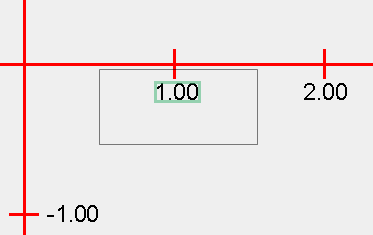
The default grid unit is 100, and the major tic spacing is set to 1. With these settings, we can expect the first vertical label to the right of the y-axis to be horizontally centered on the x-coordinate 100 pixels to the right of the y-axis. A rectangle drawn from a half unit to the left and right of the major tic and from the x-axis to a half unit below the x-axis will completely contain the target label and not overlap any other label. If, within that area, we find the smallest rectangle containing every pixel with the expected font color, we will have found the label’s bounding rectangle.
Following is an annotated listing of this method.
1 2 3 4 5 6 7 8 9 10 11 12 13 14 15 16 17 18 19 20 21 22 23 24 25 26 27 28 29 30 31 32 33 34 | private ImageRect getActTextRect() { LinePropertySet axes = profile.getLinePropertySet( axesSet ); LinePropertySet ticMajor = profile.getLinePropertySet( ticMajorSet ); GraphPropertySet graph = profile.getMainWindow(); Color textColor = graph.getFGColor(); ticMajor.setSpacing( 1 ); BufferedImage image = testGUI.getImage(); assertNotEquals( textColor, axes.getColor() ); assertNotEquals( textColor, ticMajor.getColor() ); double yAxisXco = image.getWidth() / 2; double xAxisYco = image.getHeight() / 2; double gridUnit = profile.getGridUnit(); double halfUnit = gridUnit / 2; double topY = xAxisYco; double leftX = yAxisXco + halfUnit; double width = gridUnit; double height = halfUnit; int color = getRGB( textColor ); Rectangle2D rect = new Rectangle2D.Double( leftX, topY, width, height ); LineSegment lineSeg = LineSegment.ofRect( rect, image, color ); Rectangle2D resultRect = lineSeg.getBounds(); assertNotNull( resultRect ); ImageRect result = new ImageRect( image, resultRect ); return result; } |
- Lines 3-7: From the working profile, get the encapsulated LinePropertySetAxes, LinePropertySetTicMajor, and GraphPropertySetMW objects.
- Line 8: Get the expected text color.
- Line 9: Set the major tic spacing to 1.
- Line 10: Refresh the feedback panel and get an image of it.
- Lines 12,13: Sanity check; make sure the text color differs from the line colors.
- Lines 15-18: Get the x-coordinate of the y-axis, the y-coordinate of the x-axis, and the grid unit; for convenience, calculate the value of one-half the grid unit.
- Lines 20-23: Calculate the properties of a rectangle with:
- An upper-left corner with an x-coordinate one-half unit to the right of the y-axis and a y-coordinate equal to the y-coordinate of the x-axis.
- A width of one unit.
- A height of one-half unit.
- Line 25: Get the integer value of the expected text color.
- Lines 26-28: From the image, get the LineSegment within the calculated rectangle that encapsulates the text color.
- Line 29: Get the bounds of the LineSegment.
- Line 30: Sanity check; ensure a rectangle encapsulating the text color was found.
- Line 31: Encapsulate the bounding rectangle in an ImageRect.
- Line 33: Return the ImageRect.
🟦 private Rectangle2D getExpTextRect( BufferedImage image )
Given the currently configured test data, this method calculates the expected bounds of the label “1.00” when drawn in the given image. An annotated listing follows. See also The TextLayout Facility.
1 2 3 4 5 6 7 8 9 10 11 12 13 14 15 16 17 | private Rectangle2D getExpTextRect( BufferedImage image ) { GraphPropertySet window = profile.getMainWindow(); String name = window.getFontName(); int size = (int)window.getFontSize(); int style = window.isBold() ? Font.BOLD : 0; style |= window.isItalic() ? Font.ITALIC : 0; Font font = new Font( name, style, size ); Graphics2D gtx = image.createGraphics(); gtx.setFont( font ); FontRenderContext frc = gtx.getFontRenderContext(); TextLayout layout = new TextLayout( "1.00", font, frc ); Rectangle2D rect = layout.getBounds(); gtx.dispose(); return rect; } |
- Lines 3-7: Get the font properties from the working profile.
- Line 8: Instantiate a font.
- Lines 9,10: Get a graphics context from the image and set the font.
- Lines 11,12: Get a TextLayout object encapsulating the string “1.00.”
- Line 13: Get the bounding rectangle from the TextLayout object.
- Line 15: Dispose the graphic context.
- Line 16: Return the bounding rectangle.
⬛ ProfileEditorFeedbackTest @Before- and @After- Methods
Find a discussion of our JUnit test’s setup and teardown methods below.
🟦 @BeforeAll public static void beforeAll()
🟦 @AfterAll public static void afterAll()
The beforeAll method is executed once, before any test method is invoked. It initializes the baseProfile and obtains the ProfileEditorFeedbackTestGUI singleton. See also initBaseProfile. The afterAll method is invoked once, after all testing is complete. It returns the ProfileManager to its initial state and disposes all top-level windows. The afterAll method is needed mainly for tests run in test suites, so tests after the first will execute with the correct initial conditions. The code for these methods follows.
@Test
public void testAxes()
{
    LinePropertySet propSet     =
        profile.getLinePropertySet( axesSet );
    validateAxes();

    propSet.setColor( altLineColor );
    propSet.setStroke( altStroke );
    validateAxes();
}
🟦 @BeforeEach public void beforeEach()
This method is executed immediately before every test method is invoked. It returns the ProfileManager and working Profile to their initial configurations. Here’s the code.
@BeforeEach
public void beforeEach()
{
    baseProfile.apply();
    profile.reset();
}
⬛ ProfileEditorFeedbackTest Public Methods
The following sections will discuss the principal test methods in the ProfileEditorFeedbacktTest class.
🟦 public void testAxes()
This method verifies that the axes in the grid managed by the ProfileEditorFeedback object are correctly displayed when grid properties change. First, it verifies that the axes are displayed correctly under the default profile configuration. Then, it changes the axes’ color and stroke, updates the feedback panel, and verifies that the axes are correctly displayed under the new configuration. The code for this method follows. See also validateAxes.
@Test
public void testAxes()
{
    LinePropertySet propSet     =
        profile.getLinePropertySet( axesSet );
    validateAxes();

    propSet.setColor( altLineColor );
    propSet.setStroke( altStroke );
    validateAxes();
}
🟦 public void testLines( String propSetName )
This parameterized method runs once for the LinePropertySetGridLines, LinePropertySetTicMajor, and LinePropertySetTicMinor objects encapsulated in the working profile. It enables drawing for the given property set. Since the default for line drawing is disabled, only the given line category will be drawn when the feedback panel is refreshed. It verifies that the lines are correctly drawn under the default profile configuration. Then, it changes the grid unit, line color, line stroke, line spacing, and line length properties, refreshes the feedback panel and verifies that the lines are correctly displayed under the new configuration. The code for this method follows. See also LineEvaluator.validateVertical() and LineEvaluator.validateHorizontal().
@ParameterizedTest
@ValueSource( strings= {
    "LinePropertySetGridLines",
    "LinePropertySetTicMajor",
    "LinePropertySetTicMinor"
})
public void testLines( String propSetName )
{
    LinePropertySet propSet     =
        profile.getLinePropertySet( propSetName );
    LineEvaluator  evalA   = new LineEvaluator( propSetName );
    evalA.validateVertical();
    evalA.validateHorizontal();

    profile.setGridUnit( altGridUnit );
    propSet.setColor( altLineColor );
    propSet.setStroke( altStroke );
    propSet.setSpacing( altSpacing );
    if ( propSet.hasLength() )
        propSet.setLength( altLength );
    LineEvaluator  evalB   = new LineEvaluator( propSetName );
    evalB.validateVertical();
    evalB.validateHorizontal();
}
🟦 public void testGridColor()
This test method verifies that the grid is drawn in the correct color under the default profile configuration. Then, it changes the grid color, refreshes the feedback panel, and verifies that the grid color is correctly displayed under the new configuration. For testing, it uses the pixel with an x-coordinate halfway between the left side of the grid and the y-axis (width/4) and a y-coordinate halfway between the top of the grid and the x-axis (height/4). The code for this method follows.
@Test
public void testGridColor()
{
    GraphPropertySet    props   = profile.getMainWindow();
    BufferedImage       image   = testGUI.getImage();
    int                 xco     = image.getWidth() / 4;
    int                 yco     = image.getHeight() / 4;
    int                 actRGB  = image.getRGB( xco, yco ) & 0xFFFFFF;
    int                 expRGB  = getRGB( props.getBGColor() );
    assertEquals( actRGB, expRGB );

    expRGB = getRGB( altBGColor );
    props.setBGColor( altBGColor );
    image= testGUI.getImage();
    actRGB = image.getRGB( xco, yco ) & 0xFFFFFF;
    assertEquals( expRGB, actRGB );
}
🟦 public void testFontSize()
This test method verifies that a change to a Profile’s font size is reflected in the labels drawn in the feedback panel. It doesn’t attempt to test every label. Instead, it tests the first label on the x-axis to the right of the y-axis. It draws the feedback panel under default conditions and takes a snapshot of the target label. Then, it changes to a larger font size, refreshes the feedback panel, takes a snapshot of the same label drawn under the new configuration, and verifies that the text in the second snapshot has a larger footprint than the text in the first. The annotated code for this method follows. See also getActTextRect(), getExpTextRect(), and ImageRect.withinBounds().
1 2 3 4 5 6 7 8 9 10 11 12 13 14 15 16 17 18 19 20 21 22 23 24 25 26 | @Test public void testFontSize() { assertTrue( defFontSize < altFontSize ); GraphPropertySet graph = profile.getMainWindow(); LinePropertySet majorTic = profile.getLinePropertySet( ticMajorSet ); majorTic.setSpacing( 1 ); majorTic.setDraw( true ); graph.setFontDraw( true ); BufferedImage image = testGUI.getImage(); ImageRect imgAAct = getActTextRect(); Rectangle2D rectAExp = getExpTextRect( image ); assertTrue( imgAAct.withinBounds( rectAExp ) ); graph.setFontSize( altFontSize ); image = testGUI.getImage(); ImageRect rectBAct = getActTextRect(); Rectangle2D rectBExp = getExpTextRect( image ); assertTrue( rectBAct.withinBounds( rectBExp ) ); assertTrue( imgAAct.getWidth() < rectBAct.getWidth() ); assertTrue( imgAAct.getHeight() < rectBAct.getHeight() ); } |
- Line 4: Sanity check; this test requires the alternate font size to be larger than the default font size.
- Lines 6-8: Get the GraphPropertySetMW and the LinePropertySetTicMajor objects encapsulated in the working profile.
- Line 9: Set the major tic spacing to one. This helps to prevent overlapping labels when the font size is increased.
- Line 10: Enable drawing for the major tics. This is for the benefit of test monitors who may wish to confirm that labels for vertical tics are centered under the corresponding tic mark.
- Line 11: Enable drawing for labels.
- Line 13: Refresh the feedback panel under test and get its image.
- Line 14: Calculate the bounds of the target label in the image.
- Line 15: Calculate the expected bounds of the target label.
- Line 16: Verify that the width and height of the expected text bounds are within two pixels of the width and height of the actual text bounds.
- Lines 18,19: Change the font size, refresh the feedback panel under test, and get its image.
- Lines 20,21: Get the target label’s actual and expected text bounds.
- Line 22: Verify that the dimensions of the actual text bounds are within two pixels of the expected text bounds.
- Lines 24,25: Verify that the text bounds for the label drawn at the default font size are smaller than those drawn at the larger text size.
🟦 public void testFontName()
The test method testFontName follows the same general pattern as testFontSize. It turns on label and major tic drawing and sets the major tic spacing to one. It refreshes the feedback panel, obtains a snapshot of one label, and validates it against the expected snapshot. Then, it changes the font name, refreshes the display, and takes a second snapshot of the same label. It verifies that the actual label display is congruent with the expected display. As a final test, it verifies that the label displayed using the default properties differs from that displayed using the alternate properties. See also getActTextRect(), getExpTextRect(), and ImageRect.withinBounds(). Here is the code for this method.
@Test
public void testFontName()
{
    GraphPropertySet    graph       = profile.getMainWindow();
    LinePropertySet     majorTic    =
        profile.getLinePropertySet( ticMajorSet );
    majorTic.setSpacing( 1 );
    majorTic.setDraw( true );
    graph.setFontDraw( true );

    BufferedImage       image       = testGUI.getImage();
    ImageRect           rectAAct    = getActTextRect();
    Rectangle2D         rectAExp    = getExpTextRect( image );
    assertTrue( rectAAct.withinBounds( rectAExp ) );

    graph.setFontName( altFontName );
    image   = testGUI.getImage();
    ImageRect           rectBAct    = getActTextRect();
    Rectangle2D         rectBExp    = getExpTextRect( image );
    assertTrue( rectBAct.withinBounds( rectBExp ) );

    assertNotEquals( rectAAct, rectBAct );
}
🟦 public void testFontColor()
The testFontColor method enables label and major tic drawing and sets the major tic spacing to 1, as in the previous tests. It refreshes the display and verifies that labels are displayed in the default color. Then, it changes the color, refreshes the display, and verifies that labels are displayed in the new color. The implementation of this method is shown below.
@Test
public void testFontColor()
{
    GraphPropertySet    graph   = profile.getMainWindow();
    LinePropertySet     majorTic    =
        profile.getLinePropertySet( ticMajorSet );
    majorTic.setSpacing( 1 );
    majorTic.setDraw( true );
    graph.setFontDraw( true );

    // If the following operation succeeds it means that labels
    // are displayed in the default color.
    ImageRect   rectA   = getActTextRect();
    assertNotNull( rectA );

    graph.setFGColor( altFGColor );
    // If the following operation succeeds it means that labels
    // are displayed in the new color.
    ImageRect   rectB   = getActTextRect();
    assertNotNull( rectB );
}
🟦 public void testFontBold()
🟦 public void testFontItalic()
These methods set the major tic and font draw properties as previously discussed. They set the bold or italic values to false, refresh the display, obtain the resulting image, and compare the actual label display to the expected display. Then, they change the bold or italic property to true and repeat the procedure. The testFontBold method counts the number of pixels displayed in the two images and verifies that the count is higher when text is displayed in bold. The testFontItalic method compares the footprint of the two images and verifies that they are different. The code for testFontBold is shown below. The implementation for testFontItalic is an exercise for the student; the solution is in the GitHub repository. See also getActTextRect(), getExpTextRect(), and ImageRect.withinBounds().
@Test
public void testFontBold()
{
    GraphPropertySet    graph   = profile.getMainWindow();
    int                 rgb     = getRGB( graph.getFGColor() );
    LinePropertySet     majorTic    =
        profile.getLinePropertySet( ticMajorSet );
    majorTic.setSpacing( 1 );
    majorTic.setDraw( true );

    graph.setBold( false );
    graph.setFontDraw( true );
    BufferedImage   image       = testGUI.getImage();
    ImageRect       imageAAct   = getActTextRect();
    Rectangle2D     rectAExp    = getExpTextRect( image );
    assertTrue( imageAAct.withinBounds( rectAExp ) );
    double      countA      = imageAAct.count( rgb );

    graph.setBold( true );
    ImageRect   rectB       = getActTextRect();
    image = testGUI.getImage();
    ImageRect   imageBAct   = getActTextRect();
    Rectangle2D rectBExp    = getExpTextRect( image );
    assertTrue( imageBAct.withinBounds( rectBExp ) );
    double      countB      = rectB.count( rgb );

    // Verify that the plain text bounding box contains fewer
    // pixels of the text color than the bold text bounding box.
    assertTrue( countA < countB );
}
🟦 public void testGridUnit( String propSet )
This parameterized test runs once for LinePropertySetGridLines and once for LinePropertySetTicMajor. For each property set, it verifies that the vertical line to the right of the y-axis is displayed correctly, given both default and alternate properties. The first line of the method is an explicit invocation of beforeEach because, as we’ve seen, beforeEach is not automatically invoked between executions of parameterized tests. The code is shown below. See also LineEvaluator.validateVertical().
@ParameterizedTest
@ValueSource(
    strings= {"LinePropertySetGridLines", "LinePropertySetTicMajor"}
)
public void testGridUnit( String propSet )
{
    beforeEach();
    LineEvaluator   lineEvalA   = new LineEvaluator( propSet );
    lineEvalA.validateVertical();

    profile.setGridUnit( altGridUnit );
    LineEvaluator   lineEvalB   = new LineEvaluator( propSet );
    lineEvalB.validateVertical();
}
Summary
On this page, we implemented the JUnit test for the ProfileEditorFeedback class, including the support class ProfileEditorFeedbackTestGUI. On the next page, we will develop the FontEditorDialog class, a key element in implementing the ProfileEditor.