In this lesson we will write JUnit tests for the FontEditor facility we developed on the previous page. As part of the test we are going to want to look into the FontEditor’s feedback window and see if the selected text color is present. So we’ll begin with a discussion of how to use Java to capture window graphics.
GitHub repository: Cartesian Plane Part 15
Previous lesson: Cartesian Plane Lesson 15 Page 7: The FontEditor Class
Capturing Screen Images
We want to verify that the text in the feedback window is the correct color. We can do this by capturing the image of a component from the screen. We’ll explore two ways to do this. One way is to trick a component’s paint (Graphics) method into drawing a picture in a memory buffer, instead of on the screen. This is the way we’ll be doing it in our JUnit test. Another way is to use Robot to do a screen capture. The first strategy can only address a single window (and its child windows) in a GUI. The Robot strategy can capture any portion of the screen. Both mechanisms require use of a BufferedImage, so let’s start with a discussion of that.
■ The BufferedImage Class
Recall that the screen on a monitor is similar to a Cartesian plane. The width and height of a screen is determined by its resolution. The resolution of the screen that I am staring at right now is 1900 x 1200, meaning that it’s divided into a grid of 1,200 rows (the height), of 1,900 columns (the width) each. At any integral pair of coordinates there is a pixel at which I can store a 32-bit integer which determines the color of the given pixel. A BufferedImage is the software analog* of a screen. It’s a two-dimensional array of integers, where each integer represents a color.
*Note: The distinction between a hardware monitor and its “software analog” is a huge one. A monitor is an engineering marvel, with at least one dedicated processor and its own memory, incorporating all the magic engineers have learned over the last 50+ years to bring you an extraordinarily clear, crisp picture of unmatched quality. A BufferedImage is a dumb integer array.
To instantiate a new BufferedImage give it the desired width, height and type; the type indicates which color model to use. I use BufferedImage.TYPE_INT_ARGB, because that´s the default in Java.
    BufferedImage image =
        new BufferedImage( width, height, BufferedImage.TYPE_INT_ARGB );
To see what other types are available, see the list of constants on the BufferedImage reference page.

After instantiating a BufferedImage object you can get a graphics context from it (type Graphics2D): Graphics2D gtx = image.createGraphics();
You can now use the graphics context to draw in the buffered image, just like you would draw in a window. Class BufferedImageDemo1, from the project sandbox, provides an example.
1 2 3 4 5 6 7 8 9 10 11 12 13 14 15 16 17 18 19 20 21 22 23 24 25 26 27 28 29 30 31 32 33 34 35 36 37 38 39 40 41 42 43 44 45 46 47 48 49 50 51 52 53 54 55 56 57 58 59 60 61 62 63 64 65 66 | public class BufferedImageDemo1 { private static final int margin = 10; private static final Color bgColor = Color.YELLOW; private final int width; private final int height; private final BufferedImage image; private final Graphics2D gtx; public BufferedImageDemo1( int widthIn, int heightIn ) { this.width = widthIn + 2 * margin; this.height = heightIn + 2 * margin; image = new BufferedImage( width, height, BufferedImage.TYPE_INT_ARGB ); gtx = image.createGraphics(); gtx.setColor( bgColor ); gtx.fillRect( 0, 0, width, height ); gtx.setStroke( new BasicStroke( 5 ) ); gtx.setColor( Color.BLUE ); gtx.drawLine( margin, margin, width - margin, height - margin ); gtx.drawLine( width - margin, margin, margin, height - margin ); gtx.setStroke( new BasicStroke( 3 ) ); gtx.setColor( Color.GREEN ); gtx.drawLine( width / 2, margin, width / 2, height - margin ); gtx.drawLine( margin, height / 2, width - margin, height / 2 ); Rectangle rect = new Rectangle( 0, 0, width / 3, height / 3 ); centerRect( rect ); gtx.setColor( Color.MAGENTA ); gtx.fill( rect ); Rectangle oval = new Rectangle( 0, 0, width / 4, height / 4 ); centerRect( oval ); gtx.setColor( Color.ORANGE ); gtx.fillOval( oval.x, oval.y, oval.width, oval.height ); gtx.dispose(); } public BufferedImage getImage() { return image; } private void centerRect( Rectangle rect ) { int rWidth = rect.width; int rHeight = rect.height; int cXco = width / 2; int cYco = height / 2; int xco = cXco - rWidth / 2; int yco = cYco - rHeight / 2; rect.x = xco; rect.y = yco; } } |
Once you have the BufferedImage you can do things like examine it to find out what colors it contains (we’ll do this in the FontEditor unit test). If you wish to display the image in a window, use one of the drawImage overloads provided by the Graphics2D class; I typically use drawImage(BufferedImage image, int xco, int yco, ImageObserver observer), using this for observer. The DemoPanel nested class from project sandbox application BufferedImageShowDemo1 gives an example.
1 2 3 4 5 6 7 8 9 10 11 12 13 14 15 16 17 18 19 20 21 22 23 24 25 26 27 28 29 30 | private class DemoPanel extends JPanel { private static final Color bgColor = Color.LIGHT_GRAY; private final BufferedImage image; public DemoPanel() { BufferedImageDemo1 demo = new BufferedImageDemo1( width, height ); image = demo.getImage(); setPreferredSize( new Dimension( width + 100, height + 100 ) ); } @Override public void paintComponent( Graphics gtx ) { Color color = gtx.getColor(); /* --- save original color --- */ gtx.setColor( bgColor ); int width = getWidth(); int height = getHeight(); gtx.fillRect( 0, 0, width, height ); /* --- restore original color */ gtx.setColor( color ); int xco = width / 2 - image.getWidth() / 2; int yco = height / 2 - image.getHeight() / 2; gtx.drawImage( image, xco, yco, this ); } } |

■ Capturing a Window with a BufferedImage
Now that we know something about buffered images, using one to capture the graphics in a window is pretty straightforward. Application GraphicsCaptureDemo1 from the project sandbox shows how to do this. Here’s a sketch of how the GUI was, in part created; the annotated code for capturing the graphics follows, below.
public class GraphicsCaptureDemo1
{
    /**
     * The panel containing the graphics to copy. This comes directly
     * from <em>FontEditor.getPanel()</em>.
     */
    private JPanel      copyFromPanel;
    ...
    private void buildCopyFromFrame()
    {
        JFrame  frame       = new JFrame( "Image to Copy" );

        Border  border  = BorderFactory.createEmptyBorder( 5, 5, 5, 5 );
        copyFromPanel = new FontEditor().getPanel();
        copyFromPanel.setBorder( border );

        frame.setLocation( 200, 200 );
        frame.setContentPane( copyFromPanel );
        frame.pack();
        frame.setVisible( true );
    }
    // ...
}
1 2 3 4 5 6 7 8 9 10 11 12 13 14 15 16 17 18 19 20 21 22 23 24 | private void makeCopy( String strWidth, String strHeight ) { int width = 50; int height = 50; try { width = Integer.parseInt( strWidth ); height = Integer.parseInt( strHeight ); } catch ( NumberFormatException exc ) { System.err.println( "Error: " + exc.getMessage() ); } BufferedImage image = new BufferedImage( width, height, BufferedImage.TYPE_INT_ARGB ); Graphics2D gtx = image.createGraphics(); gtx.fillRect( 0, 0, width, height ); copyFromPanel.paint( gtx ); copyToPanel.setImage( image ); copyToPanel.repaint(); gtx.dispose(); } |
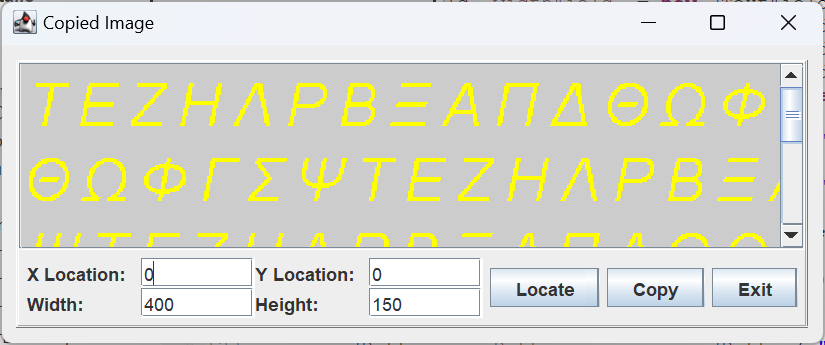
- Line 1: The user of the sample application enters the desired width and height of the captured area into text boxes (see above figure).
- Lines 3-13: Using the given input, establishes the actual width and height of the BufferedImage to be created. The try/catch blocks prevent the application from crashing if the operator makes a data entry error. Note that a simpler alternative to this logic would be width = copyFromPanel.getWidth(), height = copyFromPanel.getHeight().
- Lines 15,16: Creates the BufferedImage.
- Line 17: Gets a graphics context from the buffered image.
- Line 20: Calls the FontEditor panel’s paint method, passing the graphics context from the BufferedImage.
- Lines 21,22: Sets the image in a separate panel for display, and tells that panel to repaint itself.
■ Using Robot to do a Screen Capture
GraphicsCaptureDemo2 from the project sandbox shows how use Robot to do a screen capture. For Robot the source of the capture is the entire screen, not a single window, so the application allows the operator to set the x- and y-coordinates of the capture, in addition to the width and height. Pushing the Location button prints the coordinates and dimensions of each of the application’s windows (and only the application’s windows) to the activity log. If you experiment with this application you’ll notice that the Robot’s capture has some minor imperfections; I have not investigated why this is, or how to improve the process; we won’t be using this facility in the project anyway. Here’s the code from the application that does the capture; all the interesting stuff is in the makeCopy method.
1 2 3 4 5 6 7 8 9 10 11 12 13 14 15 16 17 18 19 20 21 22 23 24 25 26 27 28 29 30 31 32 33 34 35 36 37 38 39 40 41 42 43 44 45 46 47 48 49 50 51 52 53 54 55 56 57 58 59 60 61 62 | public class GraphicsCaptureDemo2 { private JPanel copyToPanel; private Robot robot; ... public static void main(String[] args) { GraphicsCaptureDemo2 demo = new GraphicsCaptureDemo2(); SwingUtilities.invokeLater( () -> demo.buildAll() ); } private void buildAll() { try { robot = new Robot(); } catch ( AWTException exc ) { exc.printStackTrace(); System.err.println( "Failed to instantiate rogot" ); System.exit( 1 ); } // ... } // ... private void makeCopy( JTextField strXco, JTextField strYco, JTextField strWidth, JTextField strHeight ) { int xco = getIntVal( strXco, 0 ); int yco = getIntVal( strYco, 0 ); int width = getIntVal( strWidth, 0 ); int height = getIntVal( strHeight, 0 ); Rectangle rect = new Rectangle( xco, yco, width, height ); BufferedImage image = robot.createScreenCapture( rect ); copyToPanel.setImage( image ); copyToPanel.repaint(); } private int getIntVal( JTextField textField, int defValue ) { int val = defValue; String text = textField.getText(); try { val = Integer.parseInt( text ); } catch ( NumberFormatException exc ) { String msg = "\"" + text + "\" is not a valid integer"; log.append( msg, "\"color: red; font-style: italic;\"" ); textField.setText( "## ERROR" ); } return val; } // ... } |
The FontEditor Unit Test
Our tests for the FontEditor class fall into the following categories:
- Test the getters for all the editor’s embedded components, the toggle buttons, combo box, etc.
- Verify the composition of the default GUI panel (via getPanel).
- Tests for getSelectedFont
- Tests for the property getters.
- Verify that changes to properties are reflected in the feedback window.
- Verify that the color button starts the color selector
Let’s start by talking about the facilities we’ve developed to assist in testing individual features of the FontEditor.
■ Infrastructure: Fields and Helper Methods
To support these activities we’re going to need the ability to start the color chooser in a new thread, and to find the JColorChooser, OK and Cancel button components. Let’s start by making some notes about our instance variables, and before-each and after-each methods.
1 2 3 4 5 6 7 8 9 10 11 12 13 14 15 16 17 18 19 20 21 22 23 24 25 26 27 28 29 30 31 32 33 34 35 36 37 38 39 40 | class FontEditorTest { private FontEditor defaultEditor; private JComboBox<String> nameCombo; private JCheckBox boldToggle; private JCheckBox italicToggle; private JSpinner sizeEditor; private JLabel feedback; private ColorEditor colorEditor; private JTextField colorText; private JButton colorButton; private JColorChooser chooser; private JDialog chooserDialog; private JButton chooserOKButton; @BeforeEach public void beforeEach() throws Exception { GUIUtils.schedEDTAndWait( () -> { defaultEditor = new FontEditor(); nameCombo = defaultEditor.getNameCombo(); boldToggle = defaultEditor.getBoldToggle(); italicToggle = defaultEditor.getItalicToggle(); sizeEditor = defaultEditor.getSizeEditor(); feedback = defaultEditor.getFeedback(); colorEditor = defaultEditor.getColorEditor(); colorText = colorEditor.getTextEditor(); colorButton = colorEditor.getColorButton(); }); } @AfterEach public void afterEach() throws Exception { ComponentFinder.disposeAll(); } ... } |
- Line 3: A FontEditor object, created in the before-each method for the convenience of the test utilities.
- Lines 5-10: The GUI components encapsulated directly in the FontEditor object, for monitoring and modifying the font name, font style, font size and text color properties. These fields are set to values extracted from the defaultEditor object by the before-each method.
- Lines 11,12: The text field for editing the text color, and the color button for starting the ColorSelector. These fields are set to values extracted from the colorEditor object by the before-each method.
- Lines 14-16: The JColorChooser, JDialog and OK button components encapsulated in the ColorSelector associated with the colorEditor object. These fields are set by the showColorSelector() method.
𝅇 Validating Font Properties
The properties related to fonts are italic, bold, size, name and text color. Four of these are bound in a Font object, but text color is not. To facilitate testing/validation of font properties I’ve implemented a small, nested class that combines all five of these properties. It looks like this:
1 2 3 4 5 6 7 8 9 10 11 12 13 14 15 16 17 18 19 20 21 22 23 24 25 26 27 28 29 30 31 32 33 34 35 36 37 38 39 40 41 42 43 44 45 46 47 48 49 50 51 52 53 54 55 56 57 58 59 60 | private class FontProfile { public final Font font; public final Color textColor; public FontProfile() { textColor = colorEditor.getColor().orElse( null ); String name = (String)nameCombo.getSelectedItem(); int size = (int)sizeEditor.getValue(); int bold = boldToggle.isSelected() ? Font.BOLD : 0; int italic = italicToggle.isSelected() ? Font.ITALIC : 0; int style = bold | italic; font = new Font( name, style, size ); } @Override public int hashCode() { int hash = Objects.hash( font, textColor ); return hash; } @Override public boolean equals( Object obj ) { boolean result = false; if ( this == obj ) result = true; else if ( obj == null ) result = false; else if ( !(obj instanceof FontProfile ) ) result = false; else { FontProfile that = (FontProfile)obj; result = Objects.equals( this.font, that.font ) && Objects.equals( this.textColor, that.textColor ); } return result; } public boolean matches( FontEditor that ) { boolean result = that == null; if ( !result ) { Font thatFont = that.getSelectedFont().orElse( null ); Color thatColor = that.getColor().orElse( null ); result = Objects.equals( this.font, thatFont ) && Objects.equals( this.textColor, thatColor ); } return result; } } |
- The constructor initializes itself directly from the GUI components.
- The equals( Object ) method is textbook. One question you may have is: does the Font class override equals? Yes it does. If you have two distinct Font objects with the same values for the bold, italic, size and name properties, equals(Object) will find them to be equivalent.
- The hash() method is overridden because equals(Object) has been overridden; that’s the rule.
- The matches(FontEditor) method is a convenience method that tests a FontProfile object against the properties encapsulated in a FontEditor object.
𝅇 The assertFound Method
This method helps to simplify the test for getPanel(). Given the panel returned by FontEditor.getPanel(), and a component returned by one of the embedded component getters (for example getNameCombo() or getBoldToggle()), it verifies that the panel contains the component:
private void assertFound( JPanel panel, JComponent comp )
{
    assertNotNull(
        ComponentFinder.find( panel, c -> c == comp )
    );
}
𝅇 The showColorSelector Method
The showColorSelector method starts the color selector by pressing the Color button in the font editor panel. It assumes that it is not invoked on the EDT, and explicitly schedules an EDT operation to do this. Once the color selector dialog is started, it obtains the necessary dialog components, as we’ve seen in many similar methods. Here’s the showColorSelector method itself; if you want to see its helper methods they are in the GitHub repository.
private void showColorSelector()
{
    assertFalse( SwingUtilities.isEventDispatchThread() );
    SwingUtilities.invokeLater( () -> colorButton.doClick() );
    Utils.pause( 250 );
    GUIUtils.schedEDTAndWait( () -> {
        getChooserDialog();
        getChooser();
        getChooserOKButton();
    });
}
𝅇 The testTogglePropertyEDT Method
This method is useful for testing the Boolean property getters (isBold, isItalic) and the toggle button getters (getBoldToggle, getItalicToggle). For parameters it has two suppliers: one to obtain a toggle button from the FontEditor, and one to fetch the associated property value, for example: testTogglePropertyEDT(
() -> defaultEditor.getBoldToggle(),
() -> defaultEditor.isBold()
)
The helper method verifies that the current value of the toggle button matches the value returned by the property getter, then it flips the value of the toggle button and verifies that the property getter returns the new value. Here’s the code for this method, and an example of its use.
1 2 3 4 5 6 7 8 9 10 11 12 13 14 15 16 17 18 19 20 21 22 23 24 | @Test public void testIsBold() { GUIUtils.schedEDTAndWait( () -> testTogglePropertyEDT( () -> defaultEditor.getBoldToggle(), () -> defaultEditor.isBold() ) ); } private void testTogglePropertyEDT( Supplier<JToggleButton> buttonSupplier, BooleanSupplier propertySupplier ) { JToggleButton button = buttonSupplier.get(); assertNotNull( button ); boolean currValue = button.isSelected(); assertEquals( currValue, propertySupplier.getAsBoolean() ); button.setSelected( !currValue ); assertEquals( !currValue, propertySupplier.getAsBoolean() ); } |
- Lines 4-9: A test method schedules an invocation of testTogglePropertyEDT on the EDT.
- Line 6: The first Supplier passed to testTogglePropertyEDT. From the default FontEditor it returns the bold toggle; it’s essentially equivalent to:
JToggleButton button = defaultEditor.getBoldToggle(); - Line 7: The second Supplier passed to testTogglePropertyEDT. From the default FontEditor it returns current value of the bold property. It’s essentially equivalent to:
boolean bold = defaultEditor.isBold(); - Lines 13,14: Supplier parameters corresponding to the arguments passed on lines 6 and 7.
- Line 17: Obtains the target toggle button from the FontEditor.
- Line 18: Sanity check: makes sure a valid value is returned by the Supplier.
- Line 19: Determines the current state of the toggle button.
- Line 20: Verifies that the property value returned by the FontEditor matches the state of the toggle button.
- Line 22: Toggles the state of the toggle button.
- Line 23: Verifies that the new state of the toggle button matches the current value of the property reflected in the FontEditor.
𝅇 Verifying Text Color in the Feedback Window
This task will be executed by the method assertFeedbackContains(int iColor). It’s going to use the first strategy for capturing a window’s graphics as discussed above, in Capturing a Window with a BufferedImage: it creates a buffered image, then passes its graphics context to the feedback component’s paint method. Once we have the contents of the window in the buffered image, we can examine it to verify that it contains the text color that we expect. But in doing this we encounter a couple of issues.
The first issue is establishing the dimensions of the buffered image. The best way to do that is to examine the feedback component. That will give us a couple of lines of code that look like this: int width = feedback.getWidth();;
int height = feedback.getHeight()
The problem with this is that the feedback window may not have been realized. A component is realized when it has determined the state it will be in when displayed, mostly its position and dimensions, but also anything that it may inherit from ancestors in its window hierarchy. Until a window has be realized we can not trust the values returned by getWidth and getHeight. The best way to ensure a component is fully realized is to add it to a JPanel configured with a layout manager, add the panel to a window hierarchy rooted in a top-level window (a JFrame or JDialog) and then pack the top-level window. If we invoke getPanel in the FontEditor we will get a JPanel containing the feedback window. Now we can add the panel to a JFrame, and pack the frame. We’ll have a helper method to do this:
private void realizeGUI()
{
// Assume this method is called from the EDT
assertTrue( SwingUtilities.isEventDispatchThread() );
JFrame frame = new JFrame();
frame.setContentPane( defaultEditor.getPanel() );
frame.pack();
frame.dispose();
}This code must be executed on the EDT. We’re going to assume that the method will be called from test code that is already running on the EDT, and we have an assertion to verify this. Note that after the frame is packed we no longer need it, so we immediately dispose it.
Another issue is making sure that we have really validated the text color when we interrogate the buffered image. Suppose we expect the text color to be black. If all we do is make sure that the buffered image contains the color black, the test will always pass, because the window’s border is black. To eliminate this issue, we’ll just run our unit test with many different colors:
@ParameterizedTest
@ValueSource( ints = {
0xFF0000, // red
0x00FF00, // green
0x0000FF, // blue
0xFFFF00, // yellow
0xFF00FF // magenta
})
public void testFeedbackColor( int iColor )
{ ... }Now we can get to the assertFeedbackContains method. Here is the annotated code:
1 2 3 4 5 6 7 8 9 10 11 12 13 14 15 16 17 18 19 20 21 22 23 24 25 26 27 28 29 30 31 32 33 34 35 36 37 38 | private static Point nextPoint( Point point, int maxWidth ) { if ( ++point.x == maxWidth ) { point.x = 0; ++point.y; } return point; } private void assertFeedbackContains( int iColor ) { // Assume this method is called from the EDT assertTrue( SwingUtilities.isEventDispatchThread() ); realizeGUI(); int width = feedback.getWidth(); int height = feedback.getHeight(); // Verify that the feedback window has been realized assertTrue( width > 0 ); assertTrue( height > 0 ) int type = BufferedImage.TYPE_INT_ARGB; BufferedImage buff = new BufferedImage( width, height, type ); Graphics2D gtx = buff.createGraphics(); feedback.paint( gtx ); int result = Stream.iterate( new Point( 0, 0 ), p -> p.y < height, p -> nextPoint( p, width ) ) .mapToInt( p -> buff.getRGB( p.x, p.y ) ) .map( i -> i & 0xffffff ) .filter( i -> i == iColor ) .findFirst() .orElse( 0xffffffff ); assertEquals( iColor, result ); } |
- Lines 1-9: This is a method to help us traverse the buffered image. Parameter point is assumed to be a valid coordinate-pair in the context of the buffered image; maxWidth is the width of the image. To get the next point, we increment the x component of point; if the incremented value exceeds the width of the image, we go to column 0 of the next row (increment the y-coordinate and set x to 0).
- Line 14: Verifies our expectation that this method has been invoked on the EDT.
- Line 15: Realizes the GUI, ensuring that the feedback window has determined its width and height.
- Lines 16,17: Gets the width and height of the feedback window.
- Lines 19,20: Sanity check; verifies that the width and height have reasonable values.
- Line 21: Establishes the color model we want to use in the BufferedImage; we chose Java’s default color model. We made this a separate step for aesthetic reasons; it makes the instantiation on the next line more readable.
- Line 22: Instantiates the BufferedImage.
- Line 23: Gets the graphics context needed to draw to the image.
- Line 24: Tells the feedback window to draw itself on the buffered image.
- Lines 26-31: Iterates over the values stored in the BufferedImage. Recall that this overload of the iterate method, Stream.iterate(T seed, Predicate<T> hasNext, UnaryOperator<T> next), requires three arguments:
- Line 28: The first argument to the iterate method; sets the seed to (x,y) coordinates (0,0).
- Line 29: The second argument to the iterate method; the predicate will force the iteration to terminate when the last row of the buffered image has been traversed.
- Line 30: The third argument to the iterate method; calculates the next point in the BufferedImage traversal.
- Line 32: Maps the BufferedImage coordinates to the integer stored at the given coordinates; recall that this is an integer in the ARGB color model.
- Line 33: Strips the alpha component (the A in ARGB) from the given color.
- Line 34: Removes from the stream any color that we’re not interested in. The only color we’re interested in is the one specified by the iColor parameter.
- Line 35: Finds the first element of the stream that passes the filter. This effectively terminates the stream as soon as we find an element matching iColor. Recall that findFirst returns an Optional that will be empty if no such element was found.
- Line 36: Returns the value stored in the Optional, or
0xffffffffif the Optional is empty. Note that the or-else value has the alpha bits set. The integers in our stream all have the alpha bits stripped (line 33), so this value is guaranteed not to match any integer from the stream. - Line 37: Asserts that the expected color was found.
Most of the test methods in this class have been broken into at least two parts. The first part is very short, and schedules the second part to run on the EDT; the second part is where all the interesting work is done. Here’s an example:
@Test
public void testGetSize()
{
GUIUtils.schedEDTAndWait( () -> testGetSizeEDT() );
}
private void testGetSizeEDT()
{
int currSize = (int)sizeEditor.getValue();
int actSize = defaultEditor.getSize().orElse( -1 );
assertEquals( currSize, actSize );
int expSize = (int)sizeEditor.getNextValue();
sizeEditor.setValue( expSize );
assertEquals( expSize, defaultEditor.getSize().orElse( -1 ) );
}■ Validating the Embedded Component Getters
The component getters, e.g. getNameCombo() and getBoldToggle(), are validated via one of the following tests:
- testGetNameCombo
- testGetBoldToggle
- testGetItalicToggle
- testGetSizeEditor
- testGetColorEditor
- testGetFeedback
These are all fairly simple, verifying that the method being tested returns a non-null value. The tests for getBoldToggle and getItalicToggle are a little more thorough than the others, taking advantage of the testTogglePropertyEDT method discussed above. Here are the test methods for testGetBoldToggle and testGetNameCombo; the complete code can be found in the GitHub repository.
@Test
public void testGetBoldToggle()
{
GUIUtils.schedEDTAndWait( () ->
    testTogglePropertyEDT(
        () -> defaultEditor.getBoldToggle(),
        () -> defaultEditor.isBold()
    )
);
}
@Test
public void testGetNameCombo()
{
GUIUtils.schedEDTAndWait( () ->
assertNotNull( defaultEditor.getNameCombo() )
);
}■ Validating the getPanel() Method
Validating this method is an exercise in making sure that the JPanel returned by FontEditor.getPanel() contains all the components returned individually by the component getters. Recall that the individual components are all fetched in the before-each method, at the start of every test; see Infrastructure: Fields and Helper Methods, above; see also helper method assertFound. The test method looks like this:
@Test
public void testGetPanel()
{
GUIUtils.schedEDTAndWait( () -> testGetPanelEDT() );
}
private void testGetPanelEDT()
{
// Make sure getPanel returns a JPanel containing all
// the expected components.
JPanel panel = defaultEditor.getPanel();
assertFound( panel, nameCombo );
assertFound( panel, boldToggle );
assertFound( panel, italicToggle );
assertFound( panel, sizeEditor );
assertFound( panel, nameCombo );
assertFound( panel, feedback );
assertFound( panel, colorEditor.getColorButton() );
assertFound( panel, colorEditor.getTextEditor() );
}■ Testing getSelectedFont
To test getSelectedFont, first verify that it returns a font that matches all the current GUI settings; if the bold toggle is selected, FontEditor.isBold() should return true. Then change every setting, and verify that the returned font matches all the changed settings. See also Validating Font Properties, above.
@Test
public void testGetSelectedFont()
{
GUIUtils.schedEDTAndWait( () -> testGetSelectedFontEDT() );
}
private void testGetSelectedFontEDT()
{
// Does getSelectedFont return a value that matches
// the current component settings?
FontProfile profile = new FontProfile();
assertTrue( profile.matches( defaultEditor ) );
// Select new property values for selected font,
// then validate against getSelectedFont()
int numItems = nameCombo.getItemCount();
int currItem = nameCombo.getSelectedIndex();
int selectItem = (currItem + 1) % numItems;
nameCombo.setSelectedIndex( selectItem );
int expSize = (int)sizeEditor.getNextValue();
sizeEditor.setValue( expSize );
boldToggle.doClick();
italicToggle.doClick();
profile = new FontProfile();
assertTrue( profile.matches( defaultEditor ) );
}■ Validating the Property Getters
Tests for the property getters under “positive” circumstances; i.e., when the property has a valid value; all follow a similar strategy:
- Get the value of a GUI component, such as the toggle button for bold.
- Verify that the associated property getter, isBold(), for example, matches the value of the GUI component.
- Change the value of the component.
- Verify that the property getter returns the new value.
We have one “negative” test, a test for getColor when the color property has been given an invalid value. (Note that the combo box and toggle buttons can’t be set to invalid values, so there are no negative tests for those properties. And, if you recall the discussion of number spinners, we haven’t found a way to enter an invalid value for that property, either.) The property getter test methods are:
- testGetName
- testGetSize
- testIsBold
- testIsItalic
- testGetColor
- testGetColorGoWrong
Here is the code for getColor, isBold and testGetColorGoWrong. The remaining tests are similar, and can be found in the GitHub repository. See also helper method testTogglePropertyEDT, above.
1 2 3 4 5 6 7 8 9 10 11 12 13 14 15 16 17 18 19 20 21 22 23 24 25 26 27 28 29 30 31 32 33 34 35 36 37 38 39 40 41 42 43 44 45 46 47 48 49 | @Test public void testIsBold() { GUIUtils.schedEDTAndWait( () -> testTogglePropertyEDT( () -> defaultEditor.getBoldToggle(), () -> defaultEditor.isBold() ) ); } @Test public void testGetColor() { GUIUtils.schedEDTAndWait( () -> testGetColorEDT() ); } private void testGetColorEDT() { int iExpColor = Integer.decode( colorText.getText() ); Color currColor = defaultEditor.getColor().orElse( null ); assertNotNull( currColor ); int iCurrColor = currColor.getRGB() & 0x00FFFFFF; assertEquals( iExpColor, iCurrColor ); int iNewColor = iExpColor ^ 0xFF; String sNewColor = "" + iNewColor; colorText.setText( sNewColor ); colorText.postActionEvent(); Color actColor = defaultEditor.getColor().orElse( null ); assertNotNull( actColor ); int iActColor = actColor.getRGB() & 0x00FFFFFF; assertEquals( iNewColor, iActColor ); } @Test public void testGetColorGoWrong() { GUIUtils.schedEDTAndWait( () -> testGetColorGoWrongEDT() ); } private void testGetColorGoWrongEDT() { // set color to an invalid value; verify FontEditor // responds accordingly. colorText.setText( "Q" ); colorText.postActionEvent(); assertFalse( defaultEditor.getColor().isPresent() ); } |
■ Verifying Properties in the Feedback Window
We’ll divide this task into two different tests. Test method testFeedbackFontProperties will verify that current component values are reflected in the feedback window, and testFeedbackColor will validate the text color.
To test the font properties, we will create a Font object from the current component values, and then test it against the Font object stored in the feedback window component. Then we’ll change all the properties and repeat the test. See also Validating Font Properties, above. The code, with notes, looks like this:
1 2 3 4 5 6 7 8 9 10 11 12 13 14 15 16 17 18 19 20 21 22 23 24 25 26 27 28 29 30 31 32 33 | @Test public void testFeedbackFontProperties() { GUIUtils.schedEDTAndWait( () -> testFeedbackFontPropertiesEDT() ); } private void testFeedbackFontPropertiesEDT() { // Make sure current property values // are reflected in feedback window FontProfile profile = new FontProfile(); Font expFont = profile.font; Font actFont = feedback.getFont(); assertEquals( expFont, actFont ); // Select new property values for selected font, // then validate against getSelectedFont() int numItems = nameCombo.getItemCount(); int currItem = nameCombo.getSelectedIndex(); int selectItem = (currItem + 1) % numItems; nameCombo.setSelectedIndex( selectItem ); int expSize = (int)sizeEditor.getNextValue(); sizeEditor.setValue( expSize ); boldToggle.doClick(); italicToggle.doClick(); // Make sure property changes are reflected in feedback window profile = new FontProfile(); expFont = profile.font; actFont = feedback.getFont(); assertEquals( expFont, actFont ); } |
- Line 11: Creates a FontProfile object. Recall that this will directly interrogate the GUI components and use their values to instantiate the Font.
- Lines 12,13: Gets the font created by the font profile (the expected value) and the font stored in the feedback component (the actual value).
- Line 14: Verifies that the expected and actual values are the same.
- Lines 18-21: Changes the selected name in the font-name combo box:
- Line 18: Gets the index of the currently selected item.
- Line 19: Gets the total number of items in the combo box.
- Line 20: Calculates the index of the “next” item in the list. If the currently selected item is last in the list, the next item will be at index 0.
- Line 21: Selects the new item in the list.
- Line 23: Gets the “next” integer in the list managed by the spinner component. The way we’ve set up the component, if the current value stored in the component is n, the next value will be n + 1.
- Line 24: Sets the new size in the spinner component.
- Line 25: Toggles the bold option.
- Line 26: Toggles the italic option.
- Line 29: Gets a new FontProfile object. This will create a new Font object from the current values of the GUI components.
- Line 30: Gets the font object from the new FontProfile instance (the expected value).
- Line 31: Gets the font from the feedback component (the actual value).
- Line 32: Verifies that the expected and actual values match.
To test the text color property we’ll run a sequence of tests. Each test will create a unique color value (as a integer) and change the text color via the color editor. Then we’ll make sure that the feedback window contains that color. See also Verifying Text Color in the Feedback Window, above. The code for this test follows.
1 2 3 4 5 6 7 8 9 10 11 12 13 14 15 16 17 18 19 | @ParameterizedTest @ValueSource( ints = { 0xFF0000, // red 0x00FF00, // green 0x0000FF, // blue 0xFFFF00, // yellow 0xFF00FF // magenta }) public void testFeedbackColor( int iColor ) { GUIUtils.schedEDTAndWait( () -> testFeedbackColorEDT( iColor ) ); } public void testFeedbackColorEDT( int iColor ) { colorText.setText( String.valueOf( iColor ) ); colorText.postActionEvent(); assertFeedbackContains( iColor ); } |
■ Negative Testing for the Color Editor
For this test we will enter an invalid value in the color editor and… see what happens. Mostly we care that it doesn’t crash. We must also verify that FontEditor.getColor() returns an empty Optional. The code is pretty straightforward:
@Test
public void testGetColorGoWrong()
{
    GUIUtils.schedEDTAndWait( () -> testGetColorGoWrongEDT() );
}

private void testGetColorGoWrongEDT()
{
    // set color to an invalid value; verify FontEditor
    // responds accordingly.
    colorText.setText( "Q" );
    colorText.postActionEvent();
    assertFalse( defaultEditor.getColor().isPresent() );
}
■ Testing the Color Button
The general strategy here is to:
- Start the color selector by pushing the color button;
- Select a color in the color selector, making sure that the selected color is different from the current color maintained by the font editor;
- Dismiss the color selector with OK; and
- Verify that the new color is now returned by FontEditor.getColor().
Along the way we have to deal with some timing issues*:
- The method to start the color selector has to be called outside the EDT.
- Most of the manipulation of the color selector has to be executed on the EDT.
- After pushing the color selector’s OK button we have to give the dialog a chance to close, and the FontEditor a chance to be updated.
The way we’ll handle the timing is:
- Call the showColorSelector() method from the test thread (i.e., not from the EDT). Recall that this method will push the color button, then pause while the color selector is made visible.
- Schedule a task on the EDT that will execute the test up to and including pushing the color selector’s OK button. We assume that, once that task is complete, all the events associated with closing the selector dialog will have been processed to completion.
- Schedule a second task on the EDT to get to call FontEditor.getColor(), and verify that it returns the selected color.
The code for testing the color button follows.
@Test
public void testColorButton()
{
    showColorSelector();
    GUIUtils.schedEDTAndWait( () -> testColorButtonEDT() );
    GUIUtils.schedEDTAndWait( () -> {
        Color   expColor    = chooser.getColor();
        Color   actColor    = defaultEditor.getColor().orElse( null );
        assertEquals( expColor, actColor );
    });
}

private void testColorButtonEDT()
{
    assertTrue( chooserDialog.isVisible() );
    Color   currColor   = defaultEditor.getColor().orElse( null );
    assertNotNull( currColor );
    int     currRGB     = currColor.getRGB() & 0xffffff;
    int     uniqueRGB   = currRGB ^ 0xff;
    Color   uniqueColor = new Color( uniqueRGB );
    chooser.setColor( uniqueColor );
    chooserOKButton.doClick();
}*Note: Here’s a quick discussion about thread synchronization in the color button test. You may skip it if you wish. In this discussion test thread refers to the thread that JUnit started to execute our test driver; EDT of course refers to the Event Dispatch Thread.
- Our test method, testColorButton(), calls showColorSelector(), from the test thread.
-
Method showColorSelector():
- Schedules colorButton.doClick() to execute on the EDT using SwingUtilities.invokeLater(). We can’t use SwingUtilities.invokeAndWait() here because doClick() is going to start the color selector and not return until the color selector is dismissed. If we tried to use invokeAndWait() here the selector dialog would appear on the screen and stay there, either for all eternity, or until someone notices that our test driver is no longer running and kills it.
- Because we used invokeLater the test thread pauses to give the doClick() task a chance to execute on the EDT.
- Method showColorSelector() schedules a new task to execute on the EDT; the new task obtains some of the selector dialog’s components, notably its OK button. This task doesn’t execute any blocking operations, so it can be called using invokeAndWait()
- When showColorSelector() completes we go back to testColorButton(), executing on the EDT.
-
Method testColorButton() schedules testColorButtonEDT() to execute on the EDT using invokeAndWait().
Let’s take stock of our current state. The testColorButton() method has just executed the line of code:
GUIUtils.schedEDTAndWait( () -> testColorButtonEDT() );
The test thread is now suspended, awaiting the completion of testColorButtonEDT().Method testColorButtonEDT() is executing on the EDT:
assertTrue( chooserDialog.isVisible() );
Color   currColor   = defaultEditor.getColor().orElse( null );
assertNotNull( currColor );
int     currRGB     = currColor.getRGB() & 0xffffff;
int     uniqueRGB   = currRGB ^ 0xff;
Color   uniqueColor = new Color( uniqueRGB );
chooser.setColor( uniqueColor );
...
The last thing it does is call the OK button’s doClick() method:
chooserOKButton.doClick();
Note that this does not immediately close the dialog. In an effort to emulate an operator physically clicking the button, the doClick() method formulates a new button click event and adds it to the EDT’s event queue. When doClick() returns:
- The doClick() method has finished executing;
- The color selector dialog is still being displayed; and
-
There is an event
in the EDT’s event queue
waiting to be processed.
- The documentation for invokeAndWait() says: “This call blocks until all pending AWT events have been processed… .” In other words that new event created by doClick() is in the event queue so invokeAndWait() isn’t ready to return.
- With testColorButton still suspended, the EDT begins processing the new event. Note that this may cause still more events to be added to the event queue; presumably invokeAndWait() will not return until they have all been processed.
- After processing all events in the queue, the dialog will be closed, FontEditor will have been updated, and invokeAndWait() returns to testColorButton() which continues running in the test thread.
-
Method testColorButton()
schedules another, simpler task
(one that doesn’t
spawn any new events)
to execute on the EDT:
assertTrue( chooserDialog.isVisible() );
GUIUtils.schedEDTAndWait( () -> {
    Color expColor = chooser.getColor();
    Color actColor = defaultEditor.getColor().orElse( null );
    assertEquals( expColor, actColor );
});
When the new task is complete, the test method is finished.