In this lesson we’re going to implement a menu for our Cartesian plane GUI, and two components to control its configuration. The two components are:
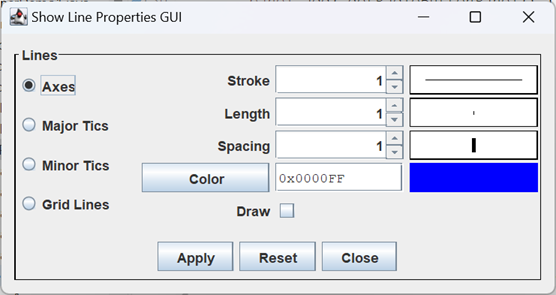
- The LinePropertiesPanel, a subclass of JPanel which is used to control the configuration of the line elements of our Cartesian plane: Axes, Major Tics, Minor Tics, and Grid Lines. The properties under management are the stroke (line width), length, spacing, color and the boolean draw property (for example, if draw is false for Grid Lines the grid lines will not be drawn). Since it’s implemented as a JPanel it can easily be incorporated into a dialog or frame.

- The GraphPanel, also a subclass of JPanel so that it can be embedded in any dialog or frame. This component divides the Cartesian plane GUI into five regions, main window, top-margin, right-margin, bottom-margin and left-margin. For each part it allows the operator to configure the font-style, -size and -color (the foreground color), and the background color.
To tackle these tasks we will have to learn how to use JRadioButton and JMenuItem components, and we’ll write some custom components of our own. Along the way we’ll learn a new testing technique.
Page 2: Radio Buttons and Button Groups
Page 3: Menus
Page 4: Custom Controls
Page 5: Custom Controls, Testing: Analysis
Page 6: Custom Controls, Testing
Page 7: Class LinePropertySet
Page 8: Constructing the LinePropertiesPanel
Page 9: Completing the LinePropertiesPanel
Page 10: LPPTestDialog: a Utility for Testing the Line Properties Panel GUI
Page 11: Functional Testing of the Line Properties Panel GUI
Page 12: Visual Testing of the Line Properties Panel GUI
Page 13: The Graph Properties Panel
Page 14: Class MessagePane
Page 15: About Dialog
Page 16: The Application Menu Bar
GitHub repository: Cartesian Plane Part 16
Previous lesson: Cartesian Plane Lesson 15 Page 1: GUI Development, Introduction
Refactoring
We’re making two modest changes to previously released code, in the CPConstants and PropertyManager classes. The changes are all related to font properties.
CPConstants
In our original version of the properties facility we had one set of properties for fonts:
- CPConstants.LABEL_FONT_COLOR_PN
- CPConstants.LABEL_FONT_NAME_PN
- CPConstants.LABEL_FONT_SIZE_PN
- CPConstants.LABEL_FONT_STYLE_PN
- CPConstants.LABEL_FONT_DRAW_PN
We are going to modify this so that there are distinct fonts for each area of the Cartesian plane graphics window; the following table lists the area and the abbreviation used for properties for that area in CPConstants:
- Main Window: CPConstants.MW_…
- Top Margin: CPConstants.MW_MARGIN_TOP_…
- Top Margin: CPConstants.MW_MARGIN_LEFT_…
- Top Margin: CPConstants.MW_MARGIN_RIGHT_…
- Top Margin: CPConstants.MW_MARGIN_BOTTOM_…
For each area we are adding a set of font properties, for example MW_FONT_COLOR_PN, MW_FONT_SIZE_PN, etc. The individual font properties are:
- Name: …FONT_COLOR_PN
- Name: …FONT_NAME_PN
- Name: …FONT_SIZE_PN
- Name: …FONT_STYLE_PN
- Name: …FONT_DRAW_PN
Of course, each property has to have a name (_PN) and a default value (_DV), for example MW_FONT_SIZE_PN, MW_FONT_SIZE_DV. Note that, thanks to the way we implemented the PropertyManager class, the only changes we have to make are to the CPConstants class. The new declarations for the main window follow, below. All the new declarations can be found in the GitHub repository.
1 2 3 4 5 6 7 8 9 10 11 12 13 14 15 16 17 18 19 20 21 22 23 24 25 26 27 28 29 | public class CPConstants { // ... /** Main window font color property name */ public static final String MW_FONT_COLOR_PN = "mwFontColor"; /** Main window font color default value: int. */ public static final String MW_FONT_COLOR_DV = "0x000000"; /** Main window font name property name */ public static final String MW_FONT_NAME_PN = "mwFontName"; /** Main window font color default value: String. */ public static final String MW_FONT_NAME_DV = "Dialog"; /** Main window font size property name */ public static final String MW_FONT_SIZE_PN = "mwFontSize"; /** Main window font color default value: int. */ public static final String MW_FONT_SIZE_DV = "10"; /** Main window font style property name */ public static final String MW_FONT_STYLE_PN = "mwFontStyle"; /** * Label font style default value: String. * One of the Font class constants: * BOLD, ITALIC or PLAIN */ public static final String MW_FONT_STYLE_DV = "PLAIN"; /** Main window font draw property name */ public static final String MW_FONT_DRAW_PN = "mwFontDraw"; /** Main window font draw default value: boolean. */ public static final String MW_FONT_DRAW_DV = "true"; // ... } |
PropertyManager
In the original PropertyManager code we allowed a font style to be one of:
- Null
- PLAIN
- ITALIC
- BOLD
Anything not in the above list caused an exception to be thrown. One problem with this strategy was that it didn’t allow a font style to be both bold and italic. Now we allow the following case-insensitive options:
- Null: translates to PLAIN
- Any string containing BOLD: the encoded style will indicate that the font is bold.
- Any string containing ITALIC: the encoded style will indicate that the font is italic.
- Anything else: ignored
Examples:
- “”: translates to PLAIN
- “MOUSE”: translates to PLAIN
- “bold”: translates to BOLD
- “BOLD”: translates to BOLD
- “BOLD ITALIC”: translates to BOLD and ITALIC
- “italic BOLD”: translates to BOLD and ITALIC
- “italicBOLD”: translates to BOLD and ITALIC
- “italic mouse BOLD”: translates to BOLD and ITALIC
Here’s the revised code:
1 2 3 4 5 6 7 8 9 10 11 12 13 14 | public Integer asFontStyle( String propName ) { int iVal = Font.PLAIN; String sVal = propertyMap.get( propName ); if ( sVal != null ) { String csVal = sVal.toUpperCase(); if ( csVal.contains( "BOLD" ) ) iVal |= Font.BOLD; if ( csVal.contains( "ITALIC" ) ) iVal |= Font.ITALIC; } return iVal; } |