On this page, we will develop a panel that the operator can use to add and delete variable names and edit their values. The main component that we will use for this task is the JTable, which we discussed on the previous page. We will also have to design our own subclasses of DefaultTableModel and DefaultTableCellRenderer.
GitHub repository: Cartesian Plane Part 17
Previous lesson: Cartesian Plane Lesson 17 Page 11: Formatting and Validating Data, the JTable Component
Variable Panel
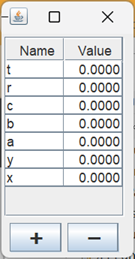
The VariablePanel is where users will enter variable name/value pairs. The panel will be populated anytime an Equation is opened or created (see Equation.getVar(String name), Equation.getVars()). Changes made to the value of a variable are immediately stored in the open Equation (see Equation.setVar(String name, double val)). Variable names cannot be modified, but variables can be added and deleted (see Equation.setVar(String name, double val), Equation.removeVar(String name)). You can display and interact with a sample VariablePanel by executing the application ShowVariablePanel in the project’s …sandbox.app package.
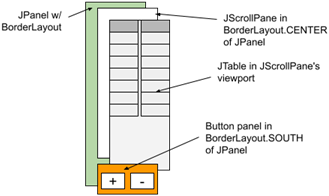
GUI Composition
The composition of the VariablePanel GUI begins with a JPanel with a BorderLayout (this panel will be nested in the Outer Panel in the CPFrame content pane; see Introduction on page 1). The center portion of the BorderLayout consists of a JScrollPane with a JTable as its viewport view. The south portion of the JPanel contains another JPanel with a FlowLayout and two JButtons.
Class VariablePanel
⏹ Class and Instance Fields
Below is an annotated list of the class and instance variables used by the VariablePanel class.
1 2 3 4 5 6 7 8 9 10 11 12 13 14 15 16 17 18 | public class VariablePanel extends JPanel { private static final String lineSep = System.lineSeparator(); private static final String prompt = "Enter [name] or [name,value]"; private static final PropertyManager pMgr = PropertyManager.INSTANCE; private final Object[] headers = { "Name", "Value" }; private final Vector<Object> vHeader = new Vector<>( Arrays.asList( headers ) ); private final LocalTableModel model = new LocalTableModel(); private final JTable table = new JTable( model ); private int dPrecision = 4; private Equation equation; |
- Lines 3,4: The platform-specific line separator, for use in the toString() method.
- Lines 5,6: The prompt to use when asking the operator to enter a new variable name/value pair.
- Lines 7,8: Convenient declaration of the PropertyManager singleton.
- Line 10: The array of column headers for our JTable.
- Lines 11,12: The set of table column headers represented as a Vector<Object>. It is only used during a delete operation when we have to employ the DefaultTableModel.setDataVector(Vector<Vector<?>> data, Vector<?> headers) method. See Delete Logic below. See also JTableDemo4 in the project’s …sandbox.jtable package.
- Line 14: The TableModel used by our JTable. See also LocalTableModel, below.
- Line 15: The JTable used in our GUI.
- Line 17: Records the number of decimal places used to format a floating-point number. It is used in the LocalTableModel.setValue method. It is set in a PropertyChangeListener when the PropertyManager VP_DPRECISION_PN property changes; see VariablePanel Constructor below. The VP_DPRECISION_PN property can be changed from the ParameterPanel.
- Line 18: The currently open Equation; null if no Equation is open. See also the load method.
⏹ Add Logic
When the operator pushes the button with the plus sign, the method addAction(ActionEvent evt) is invoked. At this time, the operator is prompted to enter a new variable name/value pair; if the operation is not canceled and the name and value are valid, the table is updated with the new pair; subsequently, the currently open equation is updated when the table’s TableModelListener is invoked. The TableModelListener is added to the table’s model in the configureTableModel method which is invoked from the VariablePanel constructor. The add operation is similar to the add logic we previously saw in the JTable demos in the project’s …sandbox.jtable :
- Using a JOptionPane dialog, prompt the operator to enter a variable name and optional value. The name must be a unique, valid identifier, and the value, if present, must be a valid floating-point number; if the value is not present, it defaults to 0. If the name and the value are present, they must be separated by at least one space and/or comma. Examples of valid input include “v”, “v 0”, “v,0”, “v, 0” and “v , , , 0”. At this time:
- If the operator pushes the cancel button, the operation is silently abandoned.
- An error message is displayed, and the operation is abandoned if the operator enters invalid data.
- A new data row is formulated (type Object[]) and inserted into the table:
- If a row is selected in the table, the new row is inserted before the selected row.
- If no row is selected, the new row is added at the end of the table.
- The new name/value pair is added to the current Equation.
Here is a sketch of the addAction method and its helper methods; the complete code can be found in the GitHub repository.
private void addAction( ActionEvent evt )
{
    int     position    = table.getSelectedRow();
    if ( position < 0 )
        position = table.getRowCount();
    Object[]    row = getNewRow();
    if ( row != null )
        model.insertRow( position, row );
}

private Object[] getNewRow()
{
    String      input   = JOptionPane.showInputDialog( prompt );
    Object[]    row     = null;
    if ( input != null )
    {
        try
        {
            row = parseInput( input );
        }
        catch ( IllegalArgumentException exc )
        {
            // display error message via JOptionPane
        }
    }
    return row;
}

private Object[] parseInput( String input )
    throws IllegalArgumentException
{
    // 1. Parse the input; if the wrong number of tokens is
    //    present, throw an IllegalArgumentException
    // 2. Validate the name and value; if invalid, throw
    //    an IllegalArgumentException
    // 3. Create and return the new row:
    //        Object[] row = new Object[]{ name, value };
    //        return row;
}
⏹ Delete Logic
When the operator pushes the button with the minus sign, the method deleteAction(ActionEvent evt) is invoked. This method deletes all selected rows from the table. Subsequently, the currently open equation is updated when the table’s TableModelListener is invoked. The process is similar to that shown in the JTable demos in the project sandbox.
The strategy we’ve taken for deleting multiple rows from a table entails invoking DefaultTableModel.setDataVector(Vector<Vector>data, Vector headers), which poses a problem for us. Application RenderingDemo2A in the project’s …sandbox.jtable illustrates the problem. If you run this application you’ll see a JTable with a column of integers that are formatted with group separators (3,423,000, for example). This is accomplished by adding a TableCellRenderer to column 1 of the table. Pushing the Update button causes DefaultTableModel.setDataVector to be called, after which column 1 has been replaced by a new column without the TableCellRenderer, and the integer formatting has disappeared. The solution to this, as demonstrated by RenderingDemo2B in the application sandbox, is to reinstall the TableCellRenderer after calling setDataVector. An annotated listing of the deleteAction method follows.
1 2 3 4 5 6 7 8 9 10 11 12 13 14 15 16 17 18 19 | private void deleteAction( ActionEvent evt ) { int[] selected = table.getSelectedRows(); int currInx = 0; Vector<Vector> data = model.getDataVector(); Iterator<Vector> iter = data.iterator(); while ( iter.hasNext() ) { Vector<?> next = iter.next(); if ( Arrays.binarySearch( selected, currInx++ ) >= 0 ) { String name = (String)next.get( 0 ); equation.removeVar( name ); iter.remove(); } } model.setDataVector( data, vHeader ); configureColumns(); } |
- Line 3: Gets the array of indexes to the table’s selected rows.
- Line 4: We’ll use this variable to traverse all the rows in the table; see line 10.
- Line 5: Gets all the rows from the table.
- Line 6: Gets an iterator to traverse the rows in the table.
- Lines 7-16: Iterates over the rows of the table.
- Line 9: Gets the next row in the iteration.
- Line 10: Checks to see if the index of the row is in the array of selected indexes (line 3).
- Line 12: Gets the variable name from the selected row.
- Line 13: Removes the variable from the currently open Equation.
- Line 14: Removes the selected row from the data vector.
- Line 17: Updates the table’s data model with the updated Vector.
- Line 18: Because the operation on line 17 replaced the table’s columns, the new columns have to be configured like the original ones. See configureColumns below.
⏹ Public Methods
This class has the following public methods.
🟦 public void setDPrecision( int prec )
🟦 public int getDPrecision()
These are the setter and getter for the dPrecision instance variable. If you’re curious, you can find the code for getDPrecision in the GitHub repository. The setDPrecision is a little more interesting. After setting the instance variable, it invokes the fireTableDataChanged() method in the JTable’s data model. This causes all the strings in the table to be recomputed and redisplayed; afterward, all the values in the table will reflect the new decimal point configuration. Here’s the code.
public void setDPrecision( int prec )
{
    dPrecision = prec;
    model.fireTableDataChanged();
}
🟦 public String toString()
This is the overridden toString method. It formulates a string with each name/value pair in the table on a separate line. Here’s the annotated code.
1 2 3 4 5 6 7 8 9 10 | public String toString() { StringBuilder bldr = new StringBuilder(); IntStream.range( 0, model.getRowCount() ) .peek( i -> bldr.append( model.getValueAt( i, 0 ) ) ) .peek( i -> bldr.append( ", " ) ) .peek( i -> bldr.append( model.getValueAt( i, 1 ) ) ) .forEach( i -> bldr.append( lineSep ) ); return bldr.toString(); } |
- Line 3: Instantiates a StringBuilder.
- Line 4: Iterates over the integers from one up to but not including the number of rows in the table.
- Line 5: Gets the name from the ith row of the table and appends it to the StringBuilder.
- Line 6: Appends a comma to the StringBuilder.
- Line 7: Gets the value from the ith row of the table and appends it to the StringBuilder.
- Line 8: Appends a line separator to the StringBuilder.
🟦 load Method
The load method takes a new Equation and integrates its name/value pairs into the GUI. Note that the input can be null, meaning that there is no open equation. Here’s the annotated code for this method.
1 2 3 4 5 6 7 8 9 10 11 | public void load( Equation equation ) { this.equation = equation; model.setRowCount( 0 ); if ( equation != null ) { equation.getVars().entrySet().stream() .map( e -> new Object[] { e.getKey(), e.getValue() } ) .forEach( o -> model.addRow( o ) ); } } |
- Line 3: Updates the Equation instance variable.
- Line 4: Removes all the rows from the table’s data model.
- Line 5: Determines whether the name/value pairs table needs to be updated.
- Line 7: Iterates over the map of name/value pairs in the Equation:
- getVars returns the map of variables from the Equation.
- entrySet gets the collection of key/value pairs from the variable map.
- stream iterates over the collection.
- Line 8: Creates a two-element Object array, in which element 0 contains the variable’s name and element 1 contains its value.
- Line 9: Treats the Object array as a row and adds it to the table’s data model.
⏹ GUI Look and Feel
This section is mainly concerned with the GUI’s appearance. In the next section, we’ll discuss the configuration of the table and its data model. While there is some overlap between the two topics, the following discussion is mostly about making the GUI look good.
Here are some of the specific concerns we need to address in this section:
- Determining a reasonable width and height for the JTable.
- Dynamically configuring the enable property of the components in the VariablePanel. For example, if no equation is loaded (property DM_OPEN_EQUATION_PN is false), all the components should be disabled; the delete (minus) button should only be enabled when an equation is loaded, and at least one row in the table has been selected.
The work of GUI configuration is divided between the constructor and the getButtonPanel method. We’ll discuss the getButtonPanel method first.
🟦 getButtonPanel Method
This method builds a JPanel containing the add and delete buttons. It utilizes one helper method. An annotated listing of this method and its helper follows.
1 2 3 4 5 6 7 8 9 10 11 12 13 14 15 16 17 18 19 20 21 22 23 24 25 26 27 28 29 30 31 32 33 | private void openEqChange( JComponent comp ) { boolean hasEquation = pMgr.asBoolean( CPConstants.DM_OPEN_EQUATION_PN ); comp.setEnabled( hasEquation ); } private JPanel getButtonPanel() { JButton plus = new JButton( "\u2795" ); plus.addActionListener( this::addAction ); plus.setEnabled( false ); pMgr.addPropertyChangeListener( CPConstants.DM_OPEN_EQUATION_PN, e -> openEqChange( plus ) ); JButton minus = new JButton( "\u2796" ); minus.addActionListener( this::deleteAction ); minus.setEnabled( false ); pMgr.addPropertyChangeListener( CPConstants.DM_OPEN_EQUATION_PN, e -> minus.setEnabled( false ) ); ListSelectionModel selModel = table.getSelectionModel(); selModel.addListSelectionListener( e -> minus.setEnabled( table.getSelectedRowCount() != 0 ) ); JPanel buttonPanel = new JPanel(); buttonPanel.add( plus ); buttonPanel.add( minus ); return buttonPanel; } |
- Lines 1-6: This method enables a given component when the DM_OPEN_EQUATION_PN property is true and disables it when it is false.
- Line 10: Instantiates the add button. “\u2795” is the Unicode character for a large plus (+) sign.
- Line 11: This line adds a listener to the add button that will invoke the addAction method when the button is pushed.
- Line 12: Gives the add button an initial state of disabled.
- Lines 13-15: Adds a PropertyChangeListener for the DM_OPEN_EQUATION_PN property. When this property changes, the openEqChange method will be invoked, enabling or disabling the add button as necessary.
- Line 17: Instantiates the delete button. “\u2796” is the Unicode character for a large minus (-) sign.
- Line 18: This line adds a listener to the delete button, which invokes the deleteAction method when the button is pushed.
- Line 19: Gives the delete button an initial state of disabled.
- Lines 20-22: This adds a PropertyChangeListener for the DM_OPEN_EQUATION_PN property. The delete button will be disabled any time this property changes. (Note: if the property value changes to false, the button should be disabled because there are no data to delete; when it changes to true, an equation has opened, but there is nothing selected in the table.)
- Line 24: Gets the ListSelectionModel from the GUI’s JTable.
- Lines 25-27: This adds to the ListSelectionModel a listener that will enable the delete button when something in the table is selected and disable it if the selection state has changed to “nothing selected.”
- Lines 28-32: Creates a JPanel, adds the add and delete buttons to it, and returns it to the caller.
🟦 Constructor
The constructor for this class lays out the content of the VariablePanel. Here is the annotated code.
1 2 3 4 5 6 7 8 9 10 11 12 13 14 15 16 17 18 19 20 21 22 23 24 25 26 27 28 29 30 31 | public VariablePanel() { super( new BorderLayout() ); configureTableModel(); configureColumns(); pMgr.addPropertyChangeListener( CPConstants.VP_DPRECISION_PN, e -> { String strValue = e.getNewValue().toString(); int intValue = Integer.parseInt( strValue ); setDPrecision( intValue ); }); Border border = BorderFactory.createEmptyBorder( 3, 3, 0, 3 ); setBorder( border ); JScrollPane scrollPane = new JScrollPane( table ); // temp1 and temp2 are for estimating the dimensions of the panel JLabel temp1 = new JLabel( headers[0].toString() ); JLabel temp2 = new JLabel( headers[1].toString() ); int prefWidth = temp1.getPreferredSize().width + temp2.getPreferredSize().width; int prefHeight = 10 * temp1.getPreferredSize().height; Dimension spSize = new Dimension( prefWidth, prefHeight ); scrollPane.setPreferredSize( spSize ); add( scrollPane, BorderLayout.CENTER ); add( getButtonPanel(), BorderLayout.SOUTH ); load( equation ); } |
- Line 3: Invoke the constructor in the JPanel superclass that will give this VariablePanel a BorderLayout layout manager.
- Line 4,5: Invoke the methods to configure the JTable, its data model, and its column model; we discuss these in the next section.
- Lines 7-11: Install a PropertyChangeListener for the PropertyManager VP_DPRECISION_PN property. When this property changes, the setDPrecision(int prec) method is invoked, changing the table display to reflect the new decimal-precision value. See setDPrecision(int prec) above.
- Lines 13-15: Give this VariablePanel an empty border.
- Line 17: Create a JScrollPane with the JTable as its viewport view.
- Lines 19-26: Gives the JScrollPane a reasonable size:
- Lines 19,20: Create temporary JLabels with the text of the two column headers (“Name”, “Value”).
- Lines 21-23: Calculate the preferred width of the scroll panel. It will be the sum of the preferred widths of the temporary labels.
- Line 24: Calculate the preferred height of the scroll panel to be 10 times the preferred height of a label (enough room for the header row and 9 rows of name/value pairs).
- Line 25: Create an object encapsulating the preferred size of the scroll pane.
- Line 26: Set the preferred size of the scroll pane.
- Line 28: Add the scroll pane to the center of this VariablePanel.
- Line 29: Add the button panel to the bottom of this VariablePanel.
- Line 30: Load the default equation.
⏹ Table and Data Model configuration
As we saw in our JTable demos, we will need two additional classes: one to extend DefaultTableModel for configuring column attributes and one to extend DefaultTableCellRenderer for formatting floating point values.
🟦 LocalTableModel extends DefaultTableModel
LocalTableModel, a subclass of DefaultTableModel, is implemented as a static nested class in VariablePanel. It overrides getColumnClass to set the types of the columns. Column 1 is designated type Double, and all other columns (there’s only one, column 0) are allowed to default. It also overrides isCellEditable, which designates anything in column 0 as non-editable and everything else as editable. Here is the code for LocalTableModel in its entirety.
private static class LocalTableModel extends DefaultTableModel
{
    @Override
    public Class<?> getColumnClass( int col )
    {
        Class<?>    clazz   =
            col == 1 ? Double.class : super.getColumnClass( col );
        return clazz;
    }
    @Override
    public boolean isCellEditable(int row, int col )
    {
        boolean editable    = col != 0;
        return editable;
    }
}
🟦 ValueRenderer extends DefaultTableCellRenderer
ValueRenderer, a subclass of DefaultTableCellRenderer, overrides setValue to format the floating-point values in column 1. It is implemented as an inner class in VariablePanel because it needs access to the dPrecision instance variable in the outer class. Here is the code for ValueRenderer in its entirety. Note that, for example, if dPrecision is 4, the code at line 8 produces the format string “%.4f,” and if value is 3.1, the code at line 9 produces the string “3.1000.”
1 2 3 4 5 6 7 8 9 10 11 12 13 14 15 16 | private class ValueRenderer extends DefaultTableCellRenderer { @Override public void setValue( Object value ) { if ( value != null ) { String format = "%." + dPrecision + "f"; String fmtValue = String.format( format, value ); setText( fmtValue ); setHorizontalAlignment(SwingConstants.RIGHT); } else setText( "" ); } } |
⏹ Final Configuration
That leaves us with two more methods, which complete the configuration of our JTable. As noted earlier, the configureTableModel and configureColumns are initially invoked from the constructor; the configureColumns method is also needed as part of the delete logic.
🟦 Method configureTableModel
This method completes most of the final tweaks for our JTable. (Final tweaking takes place in configureColumns, which is a separate method because both the constructor and the delete logic need it.) The code and notes for this method follow.
1 2 3 4 5 6 7 8 9 10 | private void configureTableModel() { model.setColumnIdentifiers( headers ); table.setAutoResizeMode( JTable.AUTO_RESIZE_ALL_COLUMNS ); table.getTableHeader().setReorderingAllowed( false ); model.addTableModelListener( this::tableChanged ); pMgr.addPropertyChangeListener( CPConstants.DM_OPEN_EQUATION_PN, e -> openEqChange( table ) ); } |
- Line 3: Create the table’s header row.
- Line 4: Make all columns in the table resizable.
- Line 5: Make it impossible for the operator to move columns around.
- Line 6: This line adds a TableModelListener to the table model. A TableModelListener is invoked every time the data in the table changes. This listener will set the DM_MODIFIED_PN property to true. See TableModelListenerDemo1 and TableModelListenerDemo2 in the project’s …sandbox.jtable package.
- Lines 8,9: Adds to the PropertyManager a PropertyChangeListener, which will enable or disable the JTable every time the DM_OPEN_EQUATION_PN property changes; see openEqChange above.
🟦 Method configureColumns
This method sets a CellRenderer on column 1 (the column that contains the floating point values) that formats a value with the correct number of decimal places; see class ValueRenderer above. It looks like this:
private void configureColumns()
{
    TableColumnModel    colModel    = table.getColumnModel();
    TableColumn         column1     = colModel.getColumn( 1 );
    column1.setCellRenderer( new ValueRenderer() );
}
Summary
On this page, we developed ParameterPanel, a panel with a JTable for adding and deleting variables and modifying their values. To edit and display the data we wrote our own subclasses of DefaultTableModel and DefaultTableCellRenderer. On the next page, we’ll develop a JUnit test for the VariablePanel class.