On this page, we will develop a JUnit test suite for the VariablePanel class. To facilitate this, we will write a test class, VariablePanelTestGUI, that allows us to programmatically display and interact with the VariablePanel GUI components. The test GUI will click on table cells, validate the text on cell labels, and interact with cell editors.
Before we start on the test GUI, we’ll talk about more features of the JTable ecosystem that are required for testing.
See Also:
GitHub repository: Cartesian Plane Part 17
Previous lesson: Cartesian Plane Lesson 17 Page 12: Data Organization, GUI, VariablePanel
More About JTables
To test our VariablePanel, we need to learn a few more things about JTables, specifically:
- How to get the editor for a cell;
- How to get the renderer for a cell; and
- How to get the screen coordinates of a cell.
We’ll discuss these topics below.
⏹ Automatically Editing a Cell
Recall that a JTable typically has a single component for editing its cells. If we want to simulate an operator typing data into a cell, we must find that component and configure it to edit the target cell. There are three steps to do this.
- The cell we’re interested in has to be in edit mode. This usually happens when the user clicks or double-clicks on the cell. To do the same thing programmatically, we can call the JTable’s editCellAt(int row, int column) method.
- Once the target cell is in edit mode, we have to get the active TableCellEditor, which we do by calling the table’s getCellEditor() method. This method returns an object responsible for editing a cell but not the specific component used for data entry (the associated JFormattedTextField, for example).
- Finally, we can get the component used for data entry by calling the TableCellEditor’s getTableCellEditorComponent(…) method. To call this method, we need to know:
- The JTable containing the target cell;
- The value of the cell;
- Whether or not the cell should be treated as “selected”; and
- The row and column of the cell.
The test GUI will have a method, editComponentEDT, that will obtain the editor component. Following is an annotated listing of this method.
1 2 3 4 5 6 7 8 9 10 11 12 13 | private JTextField editComponentEDT( int row, int col ) { Object val = table.getValueAt( row, col ); table.editCellAt( row, col ); TableCellEditor editor = table.getCellEditor(); Component comp = editor.getTableCellEditorComponent(table, val, true, row, col); if ( !(comp instanceof JTextField) ) throw new ComponentException( "Invalid editor component." ); return (JTextField)comp; } |
- Line 1: Method declaration; identifies the row and column of the target cell.
- Line 3: Get the value currently stored in the cell; we’ll need this value on line 8.
- Line 5: Put the target cell into editing mode.
- Line 6: Get the TableCellEditor responsible for the target cell.
- Lines 7,8: Get the component used to edit the target cell. The third argument tells the TableCellEditor whether or not the component should be configured as “selected,” which controls how highlighting is used. We don’t care about this argument, and we could just as well have specified false.
- Lines 10,11: Sanity check; in the JTable of the VariablePanel, we always expect the editor component to be a JTextField.
⏹ Obtaining the Renderer for a Cell
The cell renderer is responsible for displaying the contents of a cell when it is not being edited. This is typically a JLabel. We will use the cell renderer to verify that a decimal value displays the correct number of decimal places. For example, if precision is set to four, we will:
- Get the TableCellRenderer responsible for the target cell using the JTable’s getCellRenderer(int row, int col) method. The object returned by this method manages the rendering process but is not the GUI component used for display (a JLabel, for example).
- Get the renderer component (a JLabel) using the getTableCellRendererComponent() method of the TableCellRenderer. To get the component, we will need to know the following:
- The JTable that contains the target cell;
- The value of the target cell;
- Whether or not the cell is to be configured as selected;
- Whether or not the cell is to be configured as having focus and
- The row and column of the target cell.
- Get the text from the renderer component.
- Confirm that there is a decimal point five places before the end of the text.
Our test GUI will use the method getCellRendererComponentEDT to obtain the renderer component for a cell. This method’s listing follows. Note that the values of the Boolean arguments don’t matter to us.
private JLabel getCellRendererComponentEDT( int row, int col )
{
    Object              val      = table.getValueAt( row, col );
    TableCellRenderer   renderer = table.getCellRenderer( row, col );
    Component           comp     =
        renderer.getTableCellRendererComponent(
            table, val, false, false, row, col
        );
    assertNotNull( comp );
    assertTrue( comp instanceof JLabel );
    return (JLabel)comp;
}
⏹ Finding the Screen Coordinates for a Cell
During testing, we will occasionally want to simulate clicking on a cell. To do this, we need the cell’s screen coordinates and dimensions. Before we can get the screen coordinates, we must ensure the cell is visible on the screen. The test GUI will use the method positionMouse() to a) make a given cell visible, b) get the screen coordinates of the cell, and c)position the mouse over it. We use the JTable’s scrollRectToVisible() method to make a cell visible. Here is a listing and notes for this method. See also GetCellRectDemo1 in the project’s …sandbox.jtable package.
1 2 3 4 5 6 7 8 9 10 11 | public void positionMouse( int row, int col ) { Rectangle rect = table.getCellRect( row, col, true ); table.scrollRectToVisible( rect ); Point tableLoc = getLocationOnScreen( table ); int xco = tableLoc.x + rect.x + rect.width / 2; int yco = tableLoc.y + rect.y + rect.height / 2; robot.mouseMove( xco, yco ); } |
- Line 1: The method declaration includes the row and column of the target cell.
- Line 3: Get a rectangle that defines the dimensions of a cell and its coordinates with respect to the table that contains it.
- Line 4: Make the target cell visible on the screen.
- Line 6: Get the screen coordinates of the cell’s JTable. (See also getLocationOnScreen() below.)
- Lines 7,8: Calculate the screen coordinates of the center of the target cell.
- Line 10: Position the mouse over the center of the target cell.
Class VariablePanelTestGUI
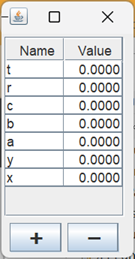
The VariablePanelTestGUI class assists our JUnit tests by displaying the VariabeTestPanel, locating and interacting with its components, and ensuring that the interaction occurs on the EDT where necessary. The paragraphs below discuss the test GUI’s design and implementation.
⏹ Class and Instance Variables
Some notes about the class and instance variables used in the test GUI follow.
1 2 3 4 5 6 7 8 9 10 11 12 13 14 15 16 17 18 19 20 21 22 | public class VariablePanelTestGUI { private static final PropertyManager pMgr = PropertyManager.INSTANCE; private static final String plusLabel = "\u2795"; private static final String minusLabel = "\u2796"; private final VariablePanel varPanel; private final RobotAssistant robotAsst = getRobot(); private final Robot robot = robotAsst.getRobot(); private final JButton addButton; private final JButton delButton; private final JTable table; private Equation equation; private Object adHocObject1; private int adHocInt1; private String adHocString1; // ... } |
- Lines 3,4: This is a convenient variable for referencing the PropertyManager singleton.
- Lines 6,7: These are the labels that go on the add (“+”) and delete (“-“) pushbuttons.
- Line 9: The VariablePanel under test.
- Lines 11,12: RobotAssistant and Robot for simulating operator interaction.
- Lines 13-15: The JButton and JTable components of the VariablePanel.
- Line 16: The currently open equation.
- Lines 18-20: Convenient variables for transient use in lambdas.
⏹ VariablePanelTestGUI Helper Methods
The helper methods used in the test GUI are discussed below.
🟦 private Object getProperty( Supplier<Object> supplier )
Working in the context of the EDT, this method obtains the value of a component’s property. The code follows.
private Object getProperty( Supplier<Object> supplier )
{
    GUIUtils.schedEDTAndWait( () -> adHocObject1 = supplier.get() );
    return adHocObject1;
}
🟦 private JTextField editComponent( int row, int col )
🟦 private JTextField editComponentEDT( int row, int col )
These methods cooperate in obtaining the editor component for a given cell. The editComponent method just calls editComponentEDT() on the EDT. The method editComponentEDT() is discussed above; see Automatically Editing a Cell. A listing of editComponent() follows:
private JTextField editComponent( int row, int col )
{
    GUIUtils.schedEDTAndWait( () ->
        adHocObject1 = editComponentEDT(row, col)
    );
    return (JTextField)adHocObject1;
}
🟦 private JLabel getCellRendererComponentEDT( int row, int col )
Gets the renderer component for a given cell. See Obtaining the Renderer for a Cell above.
🟦 public void positionMouse( int row, int col )
Positions the mouse over a given cell. See Finding the Screen Coordinates for a Cell above.
🟦 private JTable getTable()
🟦 private JButton getButton( String text )
🟦 private RobotAssistant getRobot()
The methods getTable and getButton use ComponentFinder to locate the JTable and JButton components of the VariablePanel. The getRobot method instantiates a RobotAssistant. We’ve seen methods like these many times before. You can find them in the GitHub repository if you want to see them again.
🟦 private void doAddFailProcessingEDT()
Assists in the process of pushing the add button and navigating the result. We discuss it below when we describe the public doAddProcessing utility.
🟦 private int getRowOfEDT( String name )
This method must be called in the context of the EDT. It gets the index of the row containing the given variable name. It returns -1 if the name can’t be found. The listing follows.
private int getRowOfEDT( String name )
{
    int     bound   = table.getRowCount();
    int     row     =
    IntStream.range( 0, bound )
        .filter( i -> name.equals( table.getValueAt( i, 0 ) ) )
        .findFirst().orElse( -1 );

    return row;
}
🟦 private Point getLocationOnScreen( Component comp )
For a given component, get the component’s location on the screen in the context of the EDT.
private Point getLocationOnScreen( Component comp )
{
    Object  obj = getProperty( () -> comp.getLocationOnScreen() );
    assertTrue( obj instanceof Point );
    return (Point)obj;
}
⏹ Constructor and Public Utilities
The public elements of the test GUI are discussed in the following paragraphs.
🟦 Constructor
The constructor for this class assembles and displays the test GUI and locates the VariablePanel’s JTable and JButton components. Here’s the code.
public VariablePanelTestGUI()
{
    JFrame  frame       = new JFrame( "Parameter Panel Test Frame" );
    JPanel  contentPane = new JPanel( new BorderLayout() );
    varPanel = new VariablePanel();
    contentPane.add( varPanel );
    frame.setContentPane( contentPane );
    frame.setLocation( 200, 200 );
    frame.pack();
    frame.setVisible( true );

    addButton = getButton( plusLabel );
    delButton = getButton( minusLabel );
    table = getTable();
}
// ...
private JButton getButton( String text )
{
    Predicate<JComponent>   pred    =
        ComponentFinder.getButtonPredicate( text );
    JComponent              comp    =
        ComponentFinder.find( varPanel, pred );
    assertNotNull( comp );
    assertTrue( comp instanceof JButton );
    return (JButton)comp;
}
🟦 public Map getTableVars()
Returns a map containing all the name/value pairs stored in the JTableof the VariablePanel. The annotated code follows.
1 2 3 4 5 6 7 8 9 10 11 12 13 | public Map<String,Double> getTableVars() { Map<String,Double> map = new HashMap<>(); GUIUtils.schedEDTAndWait( () -> IntStream.range( 0, table.getRowCount() ) .forEach( i -> { String name = (String)table.getValueAt( i, 0 ); Double val = (Double)table.getValueAt( i, 1 ); map.put( name, val ); }) ); return map; } |
- Line 3: Instantiate the target map.
- Lines 4-11: Execute the given code on the EDT.
- Line 5: Generate a stream of integers from 0 through, but not including, the number of rows in the table.
- Lines 6-10: For each integer in the stream:
- Line 7: Get the variable name from the ith value in the JTable.
- Line 8: Get the variable value from the ith value in the JTable.
- Line 9: Add the name/value pair to the map.
- Line 12: Return the map.
🟦 public Map getEquationVars()
Returns a map containing all the name/value pairs stored in the currently open equation. Here’s the code.
public Map<String,Double> getEquationVars()
{
    Map<String,Double>  map =
        equation == null ? null : equation.getVars();

    return map;
}
🟦 public int getDPrecision()
This method gets the precision property from the VariablePanel under test. The code follows.
public int getDPrecision()
{
    Object  obj = getProperty( () -> varPanel.getDPrecision() );
    assertTrue( obj instanceof Integer );
    return (Integer)obj;
}
🟦 public void changeDPrecision( int prec )
These changes the value of the VP_DPRECISION_PN property. The code follows.
public void changeDPrecision( int prec )
{
    GUIUtils.schedEDTAndWait( () ->
        pMgr.setProperty( CPConstants.VP_DPRECISION_PN, prec )
    );
}
🟦 public String panelToString()
This method returns the string produced by the VariablePanel’s toString method. It is available on GitHub.
🟦 public void loadEquation( Equation equation )
Loads the given equation (which may be null) into the VariablePanel and configures the DM_OPEN_EQUATION_PN and DM_MODIFIED_PN properties. The code looks like this.
public void loadEquation( Equation equation )
{
    GUIUtils.schedEDTAndWait( () -> {
        this.equation = equation;
        boolean isOpen  = equation != null;
        varPanel.load( equation );
        pMgr.setProperty( CPConstants.DM_OPEN_EQUATION_PN, isOpen );
        pMgr.setProperty( CPConstants.DM_MODIFIED_PN, false );
    });
}
🟦 public void pushAddButton()
🟦 public void pushDeleteButton()
These methods push the add (+) and delete (-) variable buttons. Here’s the code for the pushAddButton() method; the pushDeleteButton method is directly analogous.
public void pushAddButton()
{
    GUIUtils.schedEDTAndWait( () -> addButton.doClick() );
}
🟦 public void type( int keyCode )
Uses Robot to press and release the given key as shown here:
public void type( int keyCode )
{
    robot.keyPress( keyCode );
    robot.keyRelease( keyCode );
}
🟦 public void doAddProcessing( String text, int keyCode, boolean expectError )
This is the tough one. Pushing the add button will post a modal dialog, so we have to arrange for that to be done in a dedicated thread (we’ve seen several similar operations in previous tests), and some of the operations have to be scheduled on the EDT. On behalf of the test class, this method must support the following operations:
- Push the add button, enter a variable name, and push OK.
- Push the add button, enter a variable name, and push Cancel.
- Push the add button, enter a variable name and value, and push OK.
- Push the add button, enter an invalid variable name, and push OK, then:
- Wait for an error dialog to post, and
- Push the OK button in the error dialog.
- Push the add button, enter an invalid variable name, and push Cancel.
- Push the add button, enter a valid variable name and an invalid value, push OK, then:
- Wait for an error dialog to post, and
- Push the OK button in the error dialog.
This method works in conjunction with the helper method doAddFailProcessingEDT, which must be invoked on the EDT. Here is the annotated listing for these two methods.
1 2 3 4 5 6 7 8 9 10 11 12 13 14 15 16 17 18 19 20 21 22 23 24 25 26 27 28 29 30 31 | public void doAddProcessing( String text, int keyCode, boolean expectError ) { Thread thread = new Thread( () -> pushAddButton() ); thread.start(); Utils.pause( 250 ); robotAsst.paste( text ); type( keyCode ); if ( expectError ) GUIUtils.schedEDTAndWait( () -> doAddFailProcessingEDT() ); Utils.join( thread ); } private void doAddFailProcessingEDT() { String msg = "Failed to find message dialog."; Utils.pause( 500 ); ComponentFinder finder = new ComponentFinder( true, false, true ); Window window = finder.findWindow( c -> true ); assertNotNull( window, msg ); assertTrue( window instanceof JDialog, msg ); Predicate<JComponent> pred = ComponentFinder.getButtonPredicate( "OK" ); JComponent comp = ComponentFinder.find( window, pred ); assertNotNull( comp ); assertTrue( comp instanceof JButton ); JButton button = (JButton)comp; button.doClick(); } |
- Lines 1,2: Method declaration:
- The text parameter is the text to type into the input dialog after pushing the add button.
- The keyCode parameter is the key to type after entering the text. It should be VK_ENTER, which activates the OK button, or VK_ESCAPE, which activates the Cancel button.
- The expectError parameter tells us whether or not to be ready for an error dialog to be posted.
- Lines 4,5: Creates and starts a dedicated thread to push the add button.
- Line 6: Allows time for the input dialog to post.
- Lines 7,8: Paste the text into the input dialog and complete the operation by pushing the given button.
- Lines 9,10: If we expect a failure, process the resulting error dialog.
- Line 11: Wait for the dedicated thread to terminate.
- Line 16: This message accompanies JUnit assertions that will fire if the error dialog doesn’t post in the allotted time; see line 21.
- Line 17: Gives the message dialog time to post. (We can probably cut the allotted time in half to make the test run faster or increase it if we want to watch the progress of the test.)
- Lines 18,19: Instantiates a ComponentFinder that will look for a top-level window that a) can be a JDialog, b) cannot be a JFrame, and c) must be visible.
- Line 21: Verify that we found the error dialog.
- Line 22: Sanity check; verify that we found a JDialog.
- Lines 24,25: Declare a predicate that will look for a JButton with the text OK.
- Line 26: Look for the OK button.
- Line 27: Verify that we found a component.
- Line 28: Sanity check; verify that we found a JButton.
- Lines 29,30: Click the OK button.
🟦 public int getRowOf( String name )
Gets the number of the row that contains the given variable name. Returns -1 if the name can’t be found. As shown below, it just calls getRowOfEDT().
public int getRowOf( String name )
{
    GUIUtils.schedEDTAndWait( () -> adHocInt1 = getRowOfEDT( name ) );
    return adHocInt1;
}
🟦 public void click()
🟦 public void clickOn( JComponent comp )
🟦 public void clickOn( int row, int col )
The click() method uses Robot to press and release the mouse; clickOn(JComponent comp ) positions the mouse over the given component, then calls click(); and clickOn(int row, int col) positions the mouse over the given row and column in the JTable then calls click(). Here’s the code.
public void click()
{
    robot.mousePress( InputEvent.BUTTON1_DOWN_MASK );
    robot.mouseRelease( InputEvent.BUTTON1_DOWN_MASK );
}

public void clickOn( JComponent comp )
{
    Point   location    = getLocationOnScreen( comp );
    robot.mouseMove( location.x, location.y );
    click();
}

public void clickOn( int row, int col )
{
    positionMouse( row, col );
    click();
}
🟦 public boolean isEnabled()
🟦 public boolean isDelEnabled()
The first of these methods returns true if the GUI’s JTable and add button components are enabled; it does not care about the state of the delete button. The second method returns true if the delete button is enabled without consideration of any other components. The listing for these methods follows.
public boolean isEnabled()
{
    boolean tableEnabled    =
        (Boolean)getProperty( () -> table.isEnabled() );
    boolean addEnabled      =
        (Boolean)getProperty( () -> addButton.isEnabled() );
    boolean result  = tableEnabled && addEnabled;
    return result;
}
public boolean isDelEnabled()
{
    boolean result  =
        (Boolean)getProperty( () -> delButton.isEnabled() );
    return result;
}
🟦 public void editValue( int row, String value, int keyCode )
This method changes the value component of the given row and then attempts to commit it by pushing the given key, which should be VK_ENTER or VK_TAB. Here’s the annotated code.
1 2 3 4 5 6 7 8 | public void editValue( int row, String value, int keyCode ) { JTextField textField = editComponent( row, 1 ); GUIUtils.schedEDTAndWait( () -> textField.setText( "" ) ); clickOn( textField ); robotAsst.paste( value ); type( keyCode ); } |
- Line 3: Begin editing column 1 of the given row; obtain the text field used for editing.
- Line 4: Empty the text field.
- Line 5: Move the mouse over the text field and click it.
- Line 9: Enter the given text in the text field.
Class VariablePanelTest
In this page section, we’ll develop VariablePanelTest, the JUnit test class for the VariablePanel. We start by discussing our general test strategy. Then, we’ll examine the class variables, initialization logic, and helper methods. Finally, we will review our public test methods.
⏹ Overall Test Strategy
Here is a summary of the tests we need to consider.
- Does the toString method work? (This is mostly to improve test coverage.)
- Does the getDPrecision method work?
- If we give a variable a new, valid value, is it committed when, and not before, we push the enter or tab key?
- Can we add a variable without specifying a specific value? Does the value default to 0?
- Can we add a variable name/value pair?
- Does the GUI react correctly if we try to add a variable with an invalid name?
- Does the GUI react correctly if we try to add a variable with an invalid value?
- If an item is selected in the JTable, does an add operation add a new item before the selected item?
- If no item is selected in the JTable, does an add operation add a new item to the end of the table?
- Are the JTable and add button components enabled when an equation is open and disabled otherwise?
- Is the delete button enabled only when the JTable is enabled and has an active selection?
- Does a delete operation delete all selected items, leaving non-selected items intact?
⏹ Class and Variables; Object Initialization
The test class has a small number of class variables, a BeforeAll method, and a BeforeEach method. The following annotated listing discusses them.
1 2 3 4 5 6 7 8 9 10 11 12 13 14 15 16 17 18 19 20 21 22 23 24 25 26 27 28 29 30 31 32 | class VariablePanelTest { private static final PropertyManager pMgr = PropertyManager.INSTANCE; private static final int defaultPrec = pMgr.asInt( CPConstants.VP_DPRECISION_PN ); private static final Map<String,Double> defaultPairs = new HashMap<>(); private static VariablePanelTestGUI testGUI; @BeforeAll public static void setUpBeforeClass() throws Exception { "abcdefgh".chars() .forEach( c -> defaultPairs.put( "" + (char)c, (double)(c - 'a') ) ); GUIUtils.schedEDTAndWait( () -> testGUI = new VariablePanelTestGUI() ); } @BeforeEach public void setUp() throws Exception { Equation equation = new Exp4jEquation( defaultPairs, "0" ); testGUI.loadEquation( equation ); testGUI.changeDPrecision( defaultPrec ); } // ... } |
- Lines 3,4: Convenient variable for referencing the PropertyManager instance variable.
- Lines 5,6: The decimal precision when the test class is loaded. It is restored to the PropertyManager in the BeforeEach method so that every test starts with the same known value.
- Lines 7,8: Default map of name/value pairs. It is initialized in the BeforeAll method and never changed. The BeforeEach method creates a new equation at the start of each test and initializes it with this set of name/value pairs so that every test begins with a fixed set of values.
- Line 9: Reference to the test GUI. Created in the BeforeAll method and never changed.
- Lines 11-21: BeforeAll method:
- Line 14: Begins with a string containing all the default variable names. Each default variable name consists of a single character; if a test needs to create a unique variable name, any two-character name is guaranteed not to conflict with the defaults. The characters are streamed via the String.chars() method.
- Lines 15-17: Initializes the defaultPairs map. Each name is a character in the string on line 14, and the associated value is derived from the character’s Unicode value.
- Lines 18-20: Instantiates the test GUI, invoking the test GUI class constructor from the EDT.
- Lines 23-30: BeforeEach method:
- Line 26,27: Creates a new equation using the default set of variables.
- Line 18: Loads the newly created equation.
- Line 19: Restores the default value of the VP_DPRECISION_PN property.
⏹ Helper Methods
We have one helper method, validatePrecision(). It verifies that the displayed decimal precision of a value matches that specified by the VP_DPRECISION_PN property (expDec). It gets the label from row 0, column 1 of the GUI’s JTable, and looks for the position of the decimal point (decPos). If expDec is 0, it verifies that the label contains no decimal point. Otherwise, it verifies that the decimal point is positioned decPos + 1 characters before the end of the displayed value. Here’s the code.
private void validatePrecision()
{
    int     expDec  = pMgr.asInt( CPConstants.VP_DPRECISION_PN );
    String  text    = testGUI.getLabelText( 0, 1 );
    int     decPos  = text.indexOf( "." );
    if ( expDec <= 0 )
        assertEquals( decPos, -1 );
    else
    {
        int len     = text.length();
        int actDec  = len - (decPos + 1);
        assertEquals( expDec, actDec );
    }
}
⏹ Test Methods
Following is a rundown of the public test methods in VariablePanelTest.
🟦 public void testInitialState()
This method tests the state of the VariablePanel immediately after loading a new equation. It verifies that the list of name/value pairs in the equation matches the expected defaults and that the GUI correctly reflects that list. It verifies that the GUI’s JTable and add button components are enabled, and the delete button is not. Here’s the code.
@Test
public void testInitialState()
{
    assertEquals( defaultPairs, testGUI.getTableVars() );
    assertEquals( defaultPairs, testGUI.getEquationVars() );
    assertTrue( testGUI.isEnabled() );
    assertFalse( testGUI.isDelEnabled() );
    validatePrecision();
}
🟦 public void testToString()
This method verifies that the string returned by VariablePanel.toString() contains the names of all the variables in the GUI. Its primary purpose is to increase test coverage. It looks like this:
@Test
public void testToString()
{
    String  result  = testGUI.panelToString();
    defaultPairs.keySet().stream()
        .map( k -> k + "," )
        .forEach( s -> assertTrue( result.contains( s ), s ) );
}
🟦 public void testNoEquation()
This test closes the currently open equation and verifies that the components of the VariablePanel are disabled. It looks like this:
@Test
public void testNoEquation()
{
    testGUI.loadEquation( null );
    assertFalse( testGUI.isEnabled() );
    assertFalse( testGUI.isDelEnabled() );
}
🟦 public void testGetDPrecision()
Validates the VariablePanel’s getDPrecision method. You can find the code in the GitHub repository.
🟦 public void testEditValue( int keyCode )
This parameterized test is run once with a key code of VK_ENTER and once with VK_TAB. It verifies that an operator can edit and commit a valid decimal value for a variable. The annotated code follows.
1 2 3 4 5 6 7 8 9 10 11 12 13 14 | @ParameterizedTest @ValueSource( ints = {KeyEvent.VK_ENTER, KeyEvent.VK_TAB} ) public void testEditValue( int keyCode ) { double newValue = 10; String targetVar = "a"; Map<String,Double> expMap = new HashMap<>( defaultPairs ); int row = testGUI.getRowOf( targetVar ); expMap.put( targetVar, newValue ); testGUI.editValue( row, "" + newValue, keyCode ); assertEquals( expMap, testGUI.getTableVars() ); assertEquals( expMap, testGUI.getEquationVars() ); } |
- Line 5: This will be the new value of the target variable.
- Line 6: This is the name of the target variable.
- Line 7: Make a new map, a copy of the defaultPairs map from this object.
- Line 9: Get the JTable row containing the target variable.
- Line 10: Change the value of the target variable in our map, the copy of the defaultPairs map.
- Line 11: Edit the value in the target row of the VariablePanel JTable, giving it the new value (see line 5) and committing it with the given key code (VK_ENTER or VK_TAB).
- Line 12: Verify that the name/value pairs in expMap match the name/value pairs in the GUIs JTable.
- Line 13: Verify that the name/value pairs in expMap match the name/value pairs in the currently open equation (i.e., verify that the value entered at line 11 was committed at line 12).
🟦 public void testEditInvalidValue()
Attempts to give a variable in the GUI’s JTable an invalid value and verifies that it cannot be committed. Here’s the code.
@Test
public void testEditInvalidValue()
{
    String  targetVar   = "a";

    int     row         = testGUI.getRowOf( targetVar );
    testGUI.editValue( row, "#", KeyEvent.VK_ENTER );
    assertEquals( defaultPairs, testGUI.getTableVars() );
    assertEquals( defaultPairs, testGUI.getEquationVars() );
}
🟦 public void testDelete()
Deletes two variables from the VariablePanel and validates the result. The annotated code follows.
1 2 3 4 5 6 7 8 9 10 11 12 13 14 15 | @Test public void testDelete() { String[] toDelete = { "a", "e" }; assertFalse( testGUI.isDelEnabled() ); testGUI.selectRows( toDelete ); assertTrue( testGUI.isDelEnabled() ); testGUI.pushDeleteButton(); Map<String,Double> expMap = new HashMap<>( defaultPairs ); Stream.of( toDelete ).forEach( expMap::remove ); assertEquals( expMap, testGUI.getTableVars() ); assertEquals( expMap, testGUI.getEquationVars() ); validatePrecision(); } |
- Line 4: The names of the variables to delete are collected in an array.
- Line 5: Verify that the delete button in the GUI is disabled (because no rows in the JTable are selected).
- Line 6: Select the rows containing the target variables.
- Line 7: Verify that the delete button is now enabled.
- Line 8: Push the delete button.
- Line 10: Make a copy of the defaultPairs map.
- Line 11: Remove from the copy the two variables just deleted from the GUI.
- Line 12: Validate the contents of the VariablePanel’s JTable.
- Line 13: Validate the contents of the equation’s variable map.
- Line 14: Verifies that the GUI continues to display the decimal values correctly.
(Note: I added line 14 because, the first time I ran the test, the decimal values were displayed incorrectly.)
🟦 public void testAddNameEnter()
🟦 public void testAddNameCancel()
The first of these methods adds a variable name (but no value) in the add dialog, pushes the OK button, and verifies that the variable was added with a value of 0. The second method enters a variable name into the add dialog, pushes the Cancel button, and verifies that the variable was not added. Here’s the code.
@Test
public void testAddNameEnter()
{
    String  newName = "bb";
    testGUI.doAddProcessing( newName, KeyEvent.VK_ENTER, false );

    Map<String,Double>  expMap  = new HashMap<>( defaultPairs );
    expMap.put( newName, 0d );
    assertEquals( expMap, testGUI.getTableVars() );
    assertEquals( expMap, testGUI.getEquationVars() );
    validatePrecision();
}

@Test
public void testAddCancel()
{
    testGUI.doAddProcessing( "aa", KeyEvent.VK_ESCAPE, false );
    assertEquals( defaultPairs, testGUI.getTableVars() );
    assertEquals( defaultPairs, testGUI.getEquationVars() );
    validatePrecision();
}
🟦 public void testAddNoSelection()
🟦 public void testAddWithSelection( int rowNum )
The testAddNoSelection method adds a valid name/value pair with nothing in the table selected. Then, it verifies that the new pair was added to the end of the table. The testAddWithSelection method is a parameterized method that executes three times. Each time, it selects a different row (including row 0) and verifies that a valid name/value pair can be inserted above the selected row. The code for these methods follows.
@Test
public void testAddNoSelection()
{
    // Add with no row selected. New name/value pair should
    // go to end of table.
    String  newName = "bb";
    testGUI.doAddProcessing( newName, KeyEvent.VK_ENTER, false );

    Map<String,Double>  expMap  = new HashMap<>( defaultPairs );
    expMap.put( newName, 0d );
    assertEquals( expMap, testGUI.getTableVars() );
    assertEquals( expMap, testGUI.getEquationVars() );
    validatePrecision();

    int     newPos  = testGUI.getRowOf( newName );
    assertFalse( newPos < 0 );
    assertEquals( expMap.size() - 1, newPos );
}

@ParameterizedTest
@ValueSource( ints= {0,1,2} )
public void testAddWithSelection( int rowNum )
{
    // Add new variable above selected row
    String  newName = "bb";
    testGUI.selectRows( rowNum );
    testGUI.doAddProcessing( newName, KeyEvent.VK_ENTER, false );
    int     newRow  = testGUI.getRowOf( newName );
    assertEquals( rowNum, newRow );

    Map<String,Double>  expMap  = new HashMap<>( defaultPairs );
    expMap.put( newName, 0d );
    assertEquals( expMap, testGUI.getTableVars() );
    assertEquals( expMap, testGUI.getEquationVars() );
    validatePrecision();
}
🟦 public void testAddInvalidName()
🟦 public void testAddDuplicateName()
🟦 public void testAddInvalidValue()
These methods try to create new name/value pairs with bad data: an invalid name, a duplicate name, and an invalid value. They verify that the attempted operation fails, and that an error dialog is posted. You can find listings for these methods below.
@Test
public void testAddInvalidName()
{
    testGUI.doAddProcessing( "#a", KeyEvent.VK_ENTER, true );
    assertEquals( defaultPairs, testGUI.getTableVars() );
    assertEquals( defaultPairs, testGUI.getEquationVars() );
}

@Test
public void testAddDuplicateName()
{
    testGUI.doAddProcessing( "a", KeyEvent.VK_ENTER, true );
    assertEquals( defaultPairs, testGUI.getTableVars() );
    assertEquals( defaultPairs, testGUI.getEquationVars() );
}

@Test
public void testAddInvalidValue()
{
    testGUI.doAddProcessing( "z,1a", KeyEvent.VK_ENTER, true );
    assertEquals( defaultPairs, testGUI.getTableVars() );
    assertEquals( defaultPairs, testGUI.getEquationVars() );
    validatePrecision();
}
🟦 public void testChangePrecisionNonZero()
🟦 public void testChangePrecisionZero()
These methods change the VP_DPRECISION_PN property in the PropertyManager and verify that the change is reflected in the VariablePanel. The first method changes the property to a non-zero value, being sure to choose a value that is different from the default. The second changes the property’s value to zero. Here’s the code.
@Test
public void testChangePrecisionNonZero()
{
    int newPrecision    = defaultPrec + 1;
    validatePrecision();
    pMgr.setProperty( CPConstants.VP_DPRECISION_PN, newPrecision );
    // sanity check
    int testPrecision   = pMgr.asInt( CPConstants.VP_DPRECISION_PN );
    assertEquals( newPrecision, testPrecision );
    validatePrecision();
}

@Test
public void testChangePrecisionZero()
{
    int newPrecision = 0;
    pMgr.setProperty( CPConstants.VP_DPRECISION_PN, newPrecision );
    // sanity check
    int testPrecision = pMgr.asInt( CPConstants.VP_DPRECISION_PN );
    assertEquals( newPrecision, testPrecision );
    validatePrecision();
}
Summary
On this page, we developed a utility class to assist the test process for the VariablePanel. Then, we used the utility to write a JUnit test for the VariablePanel. On the next page, we will develop and test the NamePanel, a small class that implements a panel for entering the name of an equation.