Our next major task is a JUnit test for the PlotPanel class. From experience, we can predict that we’ll need a utility class that will display the panel, assist us in interacting with its components, and make sure that such interaction takes place on the EDT when required.
A lot of our testing will revolve around the way we use JFormattedTextFields, in particular:
- Are values committed when they’re supposed to be?
- Are values not committed when they’re not supposed to be?
- Are committed values correctly copied to the corresponding fields in the currently open Equation?
- Is the DM_MODIFIED_PN property correctly configured before and after a commit?
- Is committed/uncommitted text displayed in the correct font?
- Is valid/invalid text displayed in the correct color?
- Does the PIListener logic work correctly in the text fields?
Looking ahead, let’s also be aware that our ParameterPanel will contain yet more JFormattedTextFields that will have to be tested in very similar ways, so any utilities we develop for the PlotPanel should be adaptable for testing the ParameterPanel. This page will be dedicated to developing utilities useful for testing panels containing JFormattedTextFields as we use them in our GUI.
GitHub repository: Cartesian Plane Part 17
Previous lesson: Cartesian Plane Lesson 17 Page 6: Data Organization; the PlotPanel GUI
Class FTextFieldTestMgr

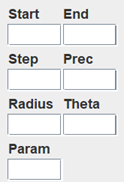
Let’s look ahead a little to our next GUI project, the ParameterPanel. The ParmeterPanel has a lot in common with the PlotPanel. Most of the PlotPanel consists of four JFormattedTextFields, while the entire ParameterPanel consists of seven JFormattedTextfFields. All of the text fields in the PlotPanel are used to store strings, all of which are associated with expressions. Six of the seven text fields in the ParameterPanel are used to store strings, three of which are associated with expressions. As a result, testing for the two panels is going to have a lot in common, including:
- Clicking on a text field.
- Typing into a text field.
- Verifying that invalid data in a text field is displayed in red.
- Verifying that uncommitted text is displayed in italics.
- Verifying that invalid text cannot be committed.
- Verifying that focus cannot be moved from a text field containing invalid text.
- Verifying that committed data is posted to the associated field in the currently open equation.
Consequently, testing for both panels will have many common utilities, so it makes sense for us to put them all in a single place. Our strategy for doing this will be to write the FTextFieldTestMgr class, which will contain all the common code. Later, the tests for each of the panels will have a test GUI class, similar to the CPMenuBarTestDialog class that we used to support testing for the CPMenuBar class. The test GUI classes for the PlotPanel and ParameterPanel tests will each be a subclass of FTextFieldTestMgr.
It turns out the tests for both panels blend nicely, but with one sticking point: all of the text fields in both panels map to string properties in an Equation object except for one, the precision field, which maps to an integer. As we discuss FTextFieldTestMgr, keep an eye out for the occasional bump we’ll encounter when dealing with this property.
Note: This all seems very organized, doesn’t it? But let’s be honest and acknowledge the actual process I followed that gave birth to the FTextFieldTestMgr class.
-
- Write the PlotPanel class.
- Write a test GUI to support testing of the PlotPanel class.
- Write and execute the PlotPanel unit test.
- Write the ParameterPanel class.
- Begin writing a test GUI to support testing of the ParameterPanel class.
- Copy utilities from the PlotPanel test GUI to the ParameterPanel test GUI.
- Copy more utilities from the PlotPanel test GUI to the ParameterPanel test GUI.
- Realize that I’m copying an awful lot of code from one test GUI to the other.
- Realize that the correct way to do this is to back up and put all that common code into a single class to support testing of both panels.
⏹ Data Organization
Each text field in our GUI is adjacent to a unique, descriptive label and associated with a property in an Equation object. Our FTextFieldTestMgr will have two maps: one connects a label to a JFormattedTextField, and the other connects the same label to a string supplier that reads the associated property from the Equation.

FTextFieldTestMgr will have a put method that a subclass can use to populate each map. Here’s the code from FTextFieldTestMgr that does that. Note that fieldID refers to the label on a text field, for example, y=, x=, start, and step.
public class FTextFieldTestMgr
{
    // ...
    private final Map<String,JFormattedTextField> textFieldMap =
        new HashMap<>();
    private final Map<String,Supplier<String>>    supplierMap  =
        new HashMap<>();
    // ...
    public void
    putTextField( String fieldID, JFormattedTextField textField )
    {
        textFieldMap.put( fieldID, textField );
    }
    public void
    putSupplier( String fieldID, Supplier<String> supplier )
    {
        supplierMap.put( fieldID, supplier );
    }
    // ...
}
Some of the sample code from the subclasses that populate the maps looks something like this:
From PlotPanelTestGUI:putSupplier( "y=", () -> getEquation().getYExpression() );
putTextField( "y=", yEqualsTextField );
From ParameterPanelTestGUI:putSupplier( "Radius", () -> getEquation().getRadiusName() );
putTextField( "Radius", radiusTextField );
⏹ Object State
We’ve examined the Map instance variables above. Here is an annotated listing of the remaining class and instance variables, the constructor, and initialization methods.
1 2 3 4 5 6 7 8 9 10 11 12 13 14 15 16 17 18 19 20 21 22 23 24 25 26 27 28 29 30 31 32 33 34 35 | public class FTextFieldTestMgr { private static final char PII = '\u03c0'; private static final PropertyManager pmgr = PropertyManager.INSTANCE; // ... private final RobotAssistant robotAsst; private final Robot robot; private Equation equation = null; private Object adHocObject1; public FTextFieldTestMgr() { robotAsst = makeRobot(); robot = robotAsst.getRobot(); robot.setAutoDelay( 100 ); } // ... private RobotAssistant makeRobot() { RobotAssistant robot = null; try { robot = new RobotAssistant(); } catch ( AWTException exc ) { exc.printStackTrace(); System.exit( 1 ); } return robot; } } |
- Line 3: Unicode value for the Greek letter pi.
- Lines 4,5: Declaration of PropertyManager singleton for simplifying code to access the PropertyManager.
- lines 7,8: RobotAssistant for performing paste operations, and Robot for operations not encapsulated in RobotAssistant*.
- Line 10: The currently open equation.
- Line 11: Convenient instance variable for temporary use in lambdas that need an alternative to a local variable.
- Lines 13-18: Constructor to complete Robot initialization.
- Lines 20-34: Method to instantiate RobotAssistant; mainly convenient for handling the inherent checked exception.
*Note: We should think about encapsulating more Robot-related utilities in RobotAssistent.
⏹ Obtaining Properties from the Text Fields
To get properties from a text field, we have a generalized helper method that treats everything as an Object and interrogates the text field in the context of the EDT. Then, we have methods that use the generalized method to get specific properties, such as font and foreground color. A listing of these methods follows.
private Object getProperty( Supplier<Object> supplier )
{
    GUIUtils.schedEDTAndWait( () -> adHocObject1 = supplier.get() );
    return adHocObject1;
}
private Color getColor( JTextField textField )
{
    Object  obj = getProperty( () -> textField.getForeground() );
    assertTrue( obj instanceof Color );
    return (Color)obj;
}
private String getText( JTextField textField )
{
    Object  obj = getProperty( () -> textField.getText() );
    assertTrue( obj instanceof String );
    return (String)obj;
}
private Font getFont( JTextField textField )
{
    Object  obj = getProperty( () -> textField.getFont() );
    assertTrue( obj instanceof Font );
    return (Font)obj;
}
⏹ More Helper Methods: type( int… keyCodes ), getFocusedTextField()
The type method uses Robot to press the given sequence of key codes and release them in reverse order. The initial key codes are expected to be modifiers (shift, control, alt, etc.), and the last key code is a non-modifier. For example, type(VK_CONTROL, VK_ALT, VK_C) would be equivalent to the operator typing control-alt-C. The code below uses a Deque to create a stack of integers. Deque stands for “double-ended queue.” For our purposes, a Deque isn’t very different from a List. For more information about Deques, see Deque Implementations in the Oracle Java tutorial and Deque Data Structure on the Programiz website.
The getFocusedTextField method searches all the text fields in the textFieldMap for the one with the focus. If none of the text fields has focus, it returns null. The code for these methods can be found below.
private void type( int... keyCodes )
{
    Deque<Integer>  stack   = new ArrayDeque<>();
    Arrays.stream( keyCodes )
        .peek( i -> stack.push( i ) )
        .forEach( robot::keyPress);
    while ( !stack.isEmpty() )
        robot.keyRelease( stack.pop() );
}

private JFormattedTextField getFocusedTextField()
{
    GUIUtils.schedEDTAndWait( () -> {
        adHocObject1 = textFieldMap.values().stream()
            .filter( t -> t.isFocusOwner() )
            .findFirst().orElse( null );
    });
    return (JFormattedTextField)adHocObject1;
}
⏹ Public Methods
The JUnit test classes use the methods discussed below to interrogate the currently open equation, and the encapsulated GUI.
🟦 public boolean isEnabled()
🟦 public boolean isNotEnabled()
These methods return true if every text field in the textFieldMap is enabled (isEnabled) or disabled (isNotEnabled). The annotated code for isEnabled follows; the code for isNotEnabled can be found in the GitHub repository.
1 2 3 4 5 6 7 8 9 10 11 | public boolean isEnabled() { Optional<?> notEnabled = textFieldMap .values() .stream() .filter( tf -> !tf.isEnabled() ) .findFirst(); boolean result = notEnabled.isEmpty(); return result; } |
- Line 3: At the end of the streaming operation, if at least one text field is disabled, the first one found will be contained in the Optional variable notEnabled.
- Lines 3,4: Gets the collection of all values in the textFieldMap.
- Line 5: Streams the collection obtained on line 4.
- Line 6: Filters out all text fields that are enabled.
- Line 7: Locates the first text field that is not enabled.
- Line 9: If the notEnabled variable is empty, it must be true that all text fields were enabled.
🟦 public void putTextField(String fieldID, JFormattedTextField textField)
🟦 public void putSupplier( String fieldID, Supplier supplier )
These methods add entries to the textFieldMap and supplierMap, respectively. See Data Organization above.
🟦 public void click( JComponent comp )
This method uses Robot to click on a given component. To do this, it:
- Locates the upper-left-hand coordinates of the component on the screen (comp.getLocationOnScreen()).
- Gets the size of the component.
- Computes the coordinates of the center of the component.
- Moves the mouse and presses and releases mouse button 1.
Here’s the code for this method.
private void click( JComponent comp )
{
    Point       pos     = comp.getLocationOnScreen();
    Dimension   size    = comp.getSize();
    pos.x += size.width / 2;
    pos.y += size.height / 2;
    robot.mouseMove( pos.x, pos.y );
    robot.mousePress( InputEvent.BUTTON1_DOWN_MASK );
    robot.mouseRelease( InputEvent.BUTTON1_DOWN_MASK );
}
🟦 public void click( String fieldID )
Uses Robot to click on the text field indicated by the given field identifier (y=, x=, Start, Radius, etc.). Here’s the code.
public void click( String fieldID )
{
    JFormattedTextField textField   = textFieldMap.get( fieldID );
    assertNotNull( textField );
    click( textField );
}
🟦 public void type( int keyCode )
🟦 public void typeCtrlP()
The type method uses Robot to press and release the given key. The typeCtrlP method types ^P. The code is in the GitHub repository.
🟦 public int positionAtPI()
This method looks for the pi substring in the text of the text field that holds the keyboard focus. If found, it positions the text field’s caret immediately after the substring. The position where pi was found is returned; if pi is not found, a negative number is returned. The code follows; note that care is taken to execute on the EDT when required.
public int positionAtPI()
{
    JFormattedTextField textField   = getFocusedTextField();
    assertNotNull( textField );
    String  text        = getText( textField ).toLowerCase();
    int     caretPos    = text.indexOf( "pi" );
    if ( caretPos >= 0 )
        GUIUtils.schedEDTAndWait( () -> {
            textField.setCaretPosition( caretPos + 2 );
        });
    return caretPos;
}
🟦 public Equation newEquation()
This method instantiates a new Exp4jEquation. The data model properties (DM_MODIFIED_PN, etc.) are set to values that would be expected if File/New were selected from the CartesianPlane menu bar. The instantiated Equation is returned. Here’s the code.
public Equation newEquation()
{
    equation = new Exp4jEquation();
    equation.setRangeStart( "1" );
    equation.setRangeEnd( "2" );
    pmgr.setProperty( CPConstants.DM_MODIFIED_PN, false );
    pmgr.setProperty( CPConstants.DM_OPEN_EQUATION_PN, true );
    pmgr.setProperty( CPConstants.DM_OPEN_FILE_PN, false );
    return equation;
}
🟦 public void enterText( String fieldID, String expression )
🟦 public void paste( String str )
The enterText method clears the text field with the given ID, pastes the given expression, and then presses Enter, committing the text. The paste method uses RobotAssistant to paste the given string, presumably into a text field. Here’s the code for these methods.
public void enterText( String fieldID, String text )
{
    JFormattedTextField textField   = textFieldMap.get( fieldID );
    click( textField );
    clearText( fieldID );
    paste( text );
    type( KeyEvent.VK_ENTER );
}
public void paste( String str )
{
    robotAsst.paste( str );
}
🟦 public boolean isChangedTextFont( String fieldID )
🟦 public boolean isValidTextColor( String fieldID )
The method isChangedTextFont returns true if the font of the indicated text field is ITALIC, indicating that the text has not been committed since the last time it was changed. The method isValidTextColor returns true if the color of the text of the indicated text field indicates that the text represents a valid value (if the text is invalid it is displayed as red). See also PlotPanel Class and Instance Variables on the previous page. The code for isValidTextColor follows; the complete code can be found in the GitHub repository.
public boolean isValidTextColor( String fieldID )
{
    JTextField  textField   = textFieldMap.get( fieldID );
    Color       foreground  = getColor( textField );
    boolean     result      = !foreground.equals( Color.RED );
    return result;
}
🟦 public void clearText( String fieldID )
🟦 public String getText( String fieldID )
The clearText method clears the text in the text field with the given ID; getText returns the text of the text field with the given ID. You can find the code in the GitHub repository.
🟦 public String getEqProperty( String fieldID )
The method looks in the Equation object and finds the property for the given field ID. For example, if the fieldID is y= the method will return the value of equation.getYExpression(). See also Data Organization above, where supplierMap is initialized using expressions such as this one: supplierMap.put( "y=", () -> getEquation().getYExpression() );
The code for this method follows.
public String getEqProperty( String fieldID )
{
    Supplier<String>    getter = supplierMap.get( fieldID );
    assertNotNull( getter );
    String              prop    = getter.get();

    return prop;
}
🟦 public boolean isCommitted( String fieldID )
This method returns true if the indicated text field has been committed. It determines whether the text field has been committed by comparing its text and value for equality. If it determines that the text field has been committed, it verifies that its value matches the corresponding expression stored in the currently open Equation. Note that, if necessary, the value property is converted to a String. Here’s the code.
public boolean isCommitted( String fieldID )
{
        String      text        = getText( fieldID );
        Object      value       = getValue( fieldID );
        String      strValue    = value.toString();
        boolean     committed   = text.equals( value.toString() );
        // if committed, make sure equation matches text field value
        if ( committed )
        {
            Supplier<String>    getter  = supplierMap.get( fieldID );
            assertNotNull( getter );
            assertEquals( strValue, getter.get() );
        }
        return committed;
}
🟦 public JFormattedTextField getFocusedField()
🟦 public Object getValue( String fieldID )
The getFocusedField method returns the text field that currently holds the keyboard focus (null if none); getValue returns the value property of the indicated text field; see also getFocusedTextField above. The code for these methods follows.
public JFormattedTextField getFocusedField()
{
    JFormattedTextField textField   = getFocusedTextField();
    return textField;
}
public Object getValue( String fieldID )
{
    JFormattedTextField textField   = textFieldMap.get( fieldID );
    Object              value       =
        getProperty( () -> textField.getValue() );
    return value;
}
🟦 String calculateExpPIResult( String input )
Given a string that may or may not contain the substring pi, calculate the expected result if π were substituted for pi. If the input string does not contain pi the expected result is the same as the original string. The method calculates the position of the substring pi. If present, all the characters up to the substring are copied into a buffer, then π is copied into the buffer, then the characters after the substring are copied. Here’s the code.
private String calculateExpPIResult( String input )
{
    String  expRes  = input;
    int     piPos   = input.toLowerCase().indexOf( "pi" );
    if ( piPos >= 0 )
    {
        StringBuilder   bldr    = new StringBuilder();
        bldr.append( input.substring( 0, piPos ) )
            .append( PII )
            .append( input.substring( piPos + 2 ) );
        expRes = bldr.toString();
    }
    return expRes;
}
🟦 public boolean isDMModified()
🟦 public void setDMModified( boolean state )
🟦 public Equation getEquation()
These methods get and set the DM_MODIFIED_PN property and return the currently open equation, respectively. The code is in the GitHub repository.
Summary
On this page, we developed a set of utilities that can be used to test panels containing JFormattedTextfields as we use them in this application. They include facilities to click on a text field, type into a text field, commit the value of a text field, and interrogate a text field’s properties. On the next page, we will use them to develop a JUnit test class for the PlotPanel.