Looking ahead, our ProfileEditor GUI will have a button that posts a dialog to edit font properties (font name, font size, bold, etc.). To see what this will look like, run the application ShowProfileEditorDialog in the app package of the project sandbox. Click the Edit button to start the Profile editor, then click the Edit Font button to start the FontEditor dialog.

We already have the FontEditor, but it needs to be incorporated into a dialog. There are several strategies we could use to do this:
- The dialog can be wholly encapsulated within the FontEditor class, possibly as an inner class. Then, when our application needs the dialog, it can obtain one from a FontEditor instance:
    FontEditor fontEditor = new FontEditor();
JDialog dialog = fontEditor.getDialog(); - The dialog can be wholly encapsulated within the application that needs it:
    FontEditor editor = new FontEditor();
    JDialog    dialog = new JDialog();
    JPanel     pane   = new JPanel( new BorderLayout() );
    pane.add( editor.getPanel(), BorderLayout.CENTER );
    // ...
dialog.setContentPane( pane ); - The dialog can be encapsulated in a top-level class:
FontEditorDialog dialog = new FontEditorDialog();
The second is the least flexible of the three options because it can only be used in one class. If two applications need a FontEditor dialog, the dialog must be fully implemented in both. Options one and three each have their advantages. The dialog in option one would have direct access to the instance variables declared in the FontEditor, which would be very convenient. Paradoxically, the benefit of option three is that the dialog would not have direct access to the FontEditor’s instance variables; the dialog would have access only to the FontEditor’s public API, an object-oriented approach that makes the interface between the dialog and the editor cleaner, easier to test, and easier to maintain. Our implementation strategy will be based on option three, encapsulating the dialog in a top-level class.
We’ll begin with an overview of the requirements for the dialog.
GitHub repository: Cartesian Plane Lesson 18
Previous page: Cartesian Plane Lesson 18 Page 12: ProfileEditorFeedback JUnit Test
Class FontEditorDialog
Requirements
A FontEditorDialog object will be instantiated with a Profile object. The object will encapsulate a FontEditor with which it shares the GraphPropertySetMW encapsulated in a Profile: public FontEditorDialog( Window parent, GraphPropertySet propSet )
A FontEditor will be created internally and populated with data from the GraphPropertySetMW.
After instantiation, the dialog will not monitor activity in the FontEditor. Changes to component values in the FontEditor GUI will not immediately update the ProfileEditor’s ProfileEditorFeedback window (the feedback window in the FontEditor GUI will be updated in real-time, but this is a responsibility of the FontEditor class). The dialog is only responsible for reacting to actions initiated by one of its control buttons, OK, Reset, and Cancel, as shown here:
- OK: values maintained in the FontEditor will be transferred to the GraphPropertySet with which the dialog was instantiated. The dialog will close with the status JOptionPane.OK_OPTION.
- Reset: property values from the encapsulated GraphPropertySet will be transferred to the FontEditor GUI, restoring it to the state it was in when the dialog was posted. The GraphPropertySet itself will not be modified, and the dialog will remain open,
- Cancel: values in the FontEditor will be ignored; the encapsulated GraphPropertySet will not be modified. The dialog will close with the status JOptionPane.CANCEL_OPTION.
GUI Construction
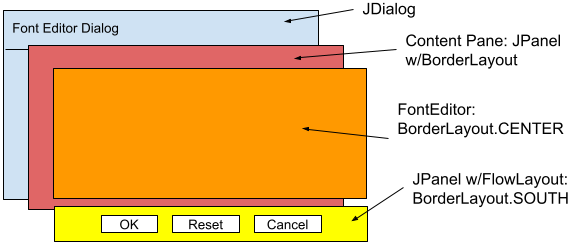
Our GUI configuration is simple: a JDialog with a JPanel/BorderLayout for a content pane. A FontEditor occupies the center of the content pane, and a control panel occupies the south. The control panel is a JPanel with a default FlowLayout containing three JButtons.
Implementation
This section discusses the implementation details of the FontEditorDialog class, including its infrastructure, helper methods, constructor, and public API.
⬛ Infrastructure
Below is an annotated listing of the FontEditorDialog class’s fields.
1 2 3 4 5 6 7 8 9 10 11 12 | public class FontEditorDialog extends JDialog { public static final String DIALOG_TITLE = "Font Editor"; public static final String OK_LABEL = "OK"; public static final String CANCEL_LABEL = "Cancel"; public static final String RESET_LABEL = "Reset"; private final GraphPropertySet propSet; private final FontEditor editor; private int result; // ... } |
- Lines 3-6: These strings serve as both the text of various components and their component names, for example:
    JButton okButton = new JButton( OK_LABEL );
    okButton.setName( OK_LABEL );
Giving the components unique component names simplifies testing by making it easy to locate a component in the GUI, for example:String name = FontEditorDialog.OK_LABEL;;
Predicate pred = c -> name.equals( c.getName() );
JComponent pane = (JComponent)dialog.getContentPane();
JComponent comp = ComponentFinder.find( pane, pred )- Line 3: The dialog title.
- Line 4: The text/component name of the OK button.
- Line 5: The text/component name of the Cancel button.
- Line 6: The text/component name of the Reset button.
- Line 8: The property set encapsulated by the dialog.
- Line 9: The FontEditor encapsulated by the dialog.
- Line 10: The most recent status of the dialog. The value of this field is set when the dialog’s OK or Cancel button is pressed; see getButtonPanel. It is returned by the showDialog method after the dialog is closed.
⬛ Private Methods
Here is a discussion of the FontEditorDialog class’s private methods.
🟦 private void apply()
This method transfers the property values from the FontEditor to the encapsulated GraphPropertySet. A listing of the apply method follows.
private void apply()
{
    propSet.setFGColor( editor.getColor().orElse( Color.BLACK ) );
    propSet.setFontName( editor.getName() );
    propSet.setFontSize( editor.getSize().orElse( 10 ) );
    propSet.setBold( editor.isBold() );
    propSet.setItalic( editor.isItalic() );
}
🟦 private void close( int result )
This method sets the status of the dialog, JOptionPane.OK_OPTION or JOptionPane.CANCEL_OPTION. It is invoked when the OK or Cancel buttons are selected (see getButtonPanel). If the result is OK_OPTION, changes to the component values of the FontEditor are applied to the encapsulated GraphPropertySet. The dialog is closed. Here’s the implementation of this method.
private void close( int result )
{
    if ( result == JOptionPane.OK_OPTION )
        apply();
    this.result = result;
    setVisible( false );
}
🟦 private void reset( ActionEvent evt )
This method invokes the FontEditorDialog’s public reset() method, which transfers property values from the encapsulated GraphPropertySet to the FontEditor. It is called when the Reset button is pressed (see getButtonPanel). It looks like this:
private void reset( ActionEvent evt )
{
    reset();
}
🟦 private JPanel getButtonPanel()
This method creates the control panel with the OK, Reset, and Cancel buttons. Here is an annotated listing.
1 2 3 4 5 6 7 8 9 10 11 12 13 14 15 16 17 18 19 20 21 22 23 | private JPanel getButtonPanel() { JPanel panel = new JPanel(); JButton okButton = new JButton( OK_LABEL ); JButton resetButton = new JButton( RESET_LABEL ); JButton canButton = new JButton( CANCEL_LABEL ); okButton.setName( OK_LABEL ); resetButton.setName( RESET_LABEL ); canButton.setName( CANCEL_LABEL ); okButton.addActionListener( e -> close( JOptionPane.OK_OPTION ) ); resetButton.addActionListener( this::reset ); canButton.addActionListener( e -> close( JOptionPane.CANCEL_OPTION ) ); panel.add( okButton ); panel.add( resetButton ); panel.add( canButton ); return panel; } |
- Line 3: Create a JPanel with a default FlowLayout.
- Lines 5-7: Create the OK, Reset, and Cancel buttons.
- Lines 8-10: Set the component names of the three buttons; their names are the same as their text.
- Line 12: Add an ActionListener to the OK button, which will call the close method, passing a status of OK_OPTION.
- Line 13: Add an ActionListener to the Reset button, which will call the reset(ActionEvent) method.
- Lines 14-16: Add an ActionListener to the Cancel button, which will call the close method, passing a status of CANCEL_OPTION.
- Lines 18-22: Add the buttons to the panel and return the panel.
⬛ Constructor
As shown below, the FontEditorDialog class has a single constructor, which must be called on the EDT. The caller passes a top-level window parent, which may be null, and the GraphPropertySet containing the font properties to share with the FontEditor. It invokes the constructor in the superclass that sets the dialog’s parent, title, and modality. Its content pane is a JPanel with a BorderLayout. It creates a FontEditor and places its GUI in the center of the content pane, and it adds a JPanel containing the control buttons to the bottom of the JPanel. Here’s the code.
public FontEditorDialog( Window parent, GraphPropertySet propSet )
{
    super( parent, DIALOG_TITLE, ModalityType.APPLICATION_MODAL );
    this.propSet = propSet;
    this.editor = new FontEditor();

    JPanel  contentPane = new JPanel( new BorderLayout() );
    JPanel  editorPanel = editor.getPanel();
    contentPane.add( editorPanel, BorderLayout.CENTER );
    contentPane.add( getButtonPanel(), BorderLayout.SOUTH );
    setContentPane(contentPane);
    pack();
}
⬛ Public Methods
Here is a discussion of the FontEditorDialog class’s public methods.
🟦 public GraphPropertySet getPropertySet()
This method is a simple getter for the encapsulated GraphPropertySet: return propSet;
🟦 public int showDialog()
The showDialog method refreshes the FontEditor GUI and posts the FontEditorDialog. After the operator closes the dialog, it returns the dialog status, JOptionPane.OK_OPTION or JOptionPane.CANCEL_OPTION. See also reset(ActionEvent). Here’s the code for this method.
public int showDialog()
{
    reset( null );
    setVisible( true );
    return result;
}
🟦 public void reset()
The reset method forces the FontEditor GUI to be refreshed from the encapsulated GraphPropertySet. See also reset(ActionEvent). The code follows.
public void reset()
{
    editor.setColor( propSet.getFGColor() );
    editor.setName( propSet.getFontName() );
    editor.setSize( (int)propSet.getFontSize() );
    editor.setBold( propSet.isBold() );
    editor.setItalic( propSet.isItalic() );
}
Summary
Above, we developed the FontEditorDialog, a dialog that encapsulates the FontEditor. This dialog will be helpful when we develop the ProfileEditor. But first, we need to write FontEditorDialogTest, a JUnit test for the FontEditorDialog. As part of that effort, we will develop a support class, FontEditorDialogTestGUI, to manage the GUI during testing.