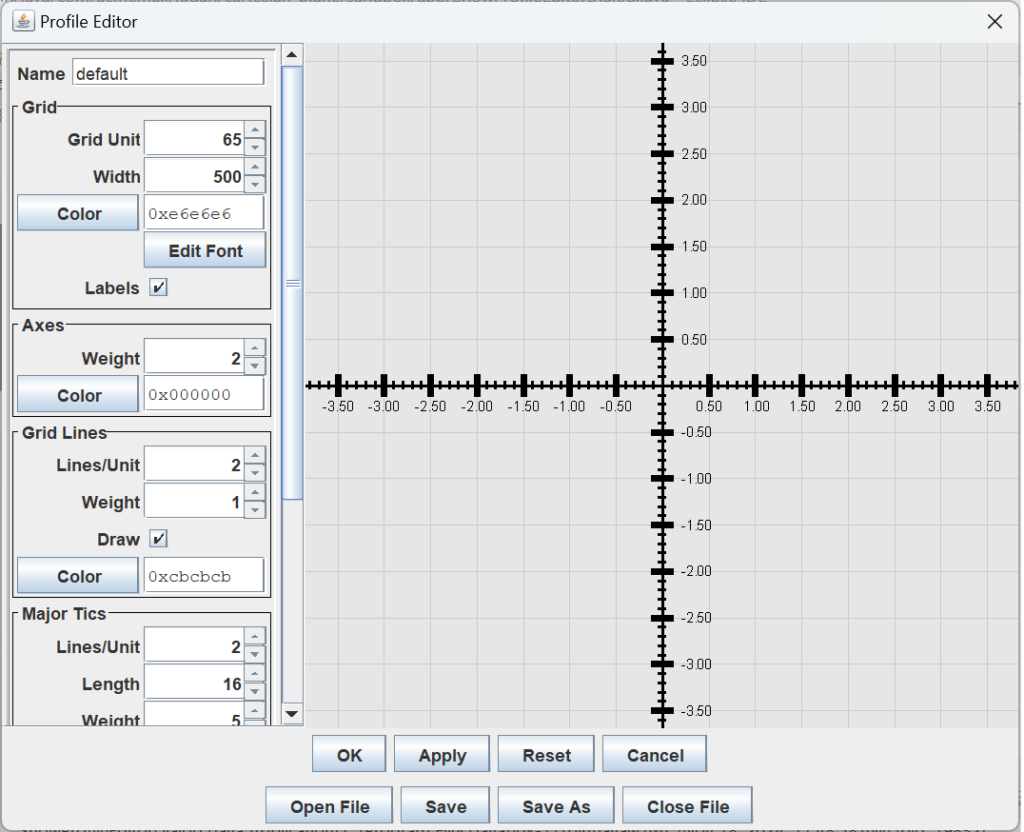
On this page, we’ll incorporate the ProfileEditor into a modal dialog that can be displayed whenever we decide our Profile needs editing. This task requires little more than creating a dialog that contains a suitable editor (class ProfileEditor, already written and tested) and a feedback window (class ProfileEditorFeedback, also written and tested). We’ll start by describing the GUI architecture.
GitHub repository: Cartesian Plane Lesson 18
Previous lesson: Cartesian Plane Lesson 18 Page 17: ProfileEditor JUnit Tests
The ProfileEditorDialog Class
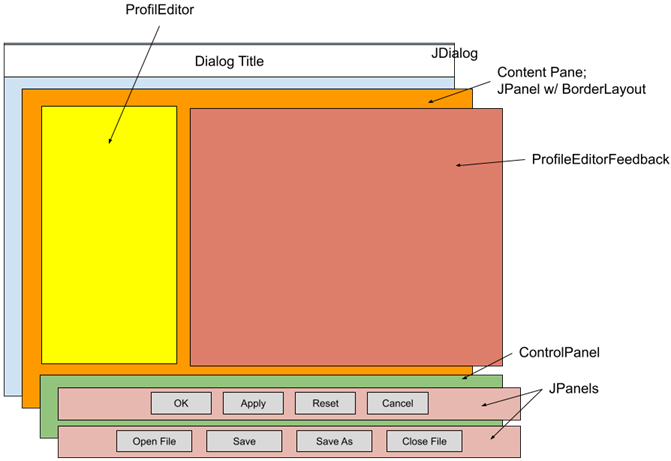
GUI Composition
Our dialog’s content pane has a BorderLayout with a ProfileEditor in the West, a ProfileEditorFeedback panel in the Center, and a control panel with two subpanels of four JButtons each in the South.
Implementation Strategy
The GUI layout is pretty simple. The ProflileEditor and ProfileEditorFeedback panels go into the West and Center positions of the content pane without modification.
editor = new ProfileEditor( profile );
canvas = editor.getFeedBack();

JPanel      contentPane     = new JPanel( new BorderLayout() );
contentPane.add( BorderLayout.CENTER, canvas );
contentPane.add( BorderLayout.WEST, editor );
contentPane.add( BorderLayout.SOUTH, getControlPanel() );
In the South position, the control panel has a BoxLayout in a Y_AXIS orientation. Each of its two components is a JPanel with a FlowLayout containing four JButtons. The top row of buttons controls the dialog and its interface with the PropertyManager:
- Pushing the OK button writes the content of the ProfileEditor to the PropertyManager and closes the dialog with a status of JOptionPane.OK_OPTION (see close(int) below).
- Pushing the Cancel button closes the dialog, discarding any edits made in the ProfileEditor and returning a status of JOptionPane.CANCEL_OPTION (see close(int) below).
- Pressing the Apply button writes the content of the ProfileEditor to the PropertyManager without closing the dialog.
- Pressing the Reset button refreshes the ProfileEditor as shown here:
- If a file is currently open, the ProfileEditor will be refreshed from the currently open file.
- If no file is open, the ProfileEditor will be refreshed from the PropertyManager.
The second row of buttons controls the interface between the dialog and the ProfileFileManager:
- Pushing the Save As buttons writes the Profile encapsulated in the ProfileEditor to a file of the operator’s choice.
- Pushing the Save button:
- If a file is open, the encapsulated Profile is written to the open file.
- If no file is open, the behavior is equivalent to pushing the Save As button.
- If the Open File button is pushed, we will open a file of the operator’s choice and display its contents in the ProfileEdior.
- The currently open file is closed if the Close File button is pushed.
ProfileEditorDialog Implementation
Below are the implementation details of the ProfileEditorDialog class. We’ll start with the infrastructure and then discuss the constructor and public methods.
ProfileEditorDialog Infrastructure
In this section, we’ll talk about the private elements of the implementation.
⬛ Fields
Following is a listing of the ProfileEditorDialog’s fields: dialogTitle is the dialog’s title, canvas is the ProfileEditorFeedback panel, editor is the ProfileEditor, and fileManager is the ProfileFileManager. The result field records the status returned to the caller when the dialog is closed (see showDialog below); it is set by the close method from values passed by ActionListeners for the OK and Cancel buttons (see getOKCancelPanel below).
public class ProfileEditorDialog extends JDialog
{
    private static final String dialogTitle     = "Profile Editor";
    private final JComponent         canvas;
    private final ProfileEditor      editor;
    private final ProfileFileManager fileMgr    =
        new ProfileFileManager();
    private int result  = JOptionPane.CANCEL_OPTION;
    // ...
}
⬛ Private Methods
As shown below, the ProfileEditorDialog has several private methods.
🟦 private void resetProfile()
The resetProfile method is invoked when the dialog’s Reset button is pushed. If a file is open, it refreshes the ProfileEditor’s Profile from the file. Otherwise, the Profile is refreshed from the PropertyManager. Here’s the code.
private void resetProfile()
{
    Profile profile = editor.getProfile();
    File    file    = fileMgr.getCurrFile();
    if ( file != null )
        fileMgr.open( file, profile );
    else
        profile.reset();
    editor.reset();
}
🟦 private void close( int result )
The close method sets this.result to the given result; it is invoked when one of the OK or Cancel buttons is pushed. If the result is OK_OPTION, it invokes the ProfileEditor’s apply method. Otherwise, it invokes the ProfileEditor’s reset method. Finally, it closes the dialog. See also showDialog. Here’s the code.
private void close( int result )
{
    this.result = result;
    if ( result == JOptionPane.OK_OPTION )
        editor.apply();
    else
        editor.reset();
    setVisible( false );
}
🟦 private JPanel getOKCancelPanel()
This method configures the first row of buttons in the control panel. Following is an annotated listing.
1 2 3 4 5 6 7 8 9 10 11 12 13 14 15 16 17 18 19 20 | private JPanel getOKCancelPanel() { JPanel panel = new JPanel(); JButton okay = new JButton( "OK" ); JButton apply = new JButton( "Apply" ); JButton reset = new JButton( "Reset" ); JButton cancel = new JButton( "Cancel" ); okay.addActionListener( e -> close( JOptionPane.OK_OPTION ) ); cancel.addActionListener( e -> close( JOptionPane.CANCEL_OPTION ) ); apply.addActionListener( e -> editor.apply() ); reset.addActionListener( e -> resetProfile() ); panel.add( okay ); panel.add( apply ); panel.add( reset ); panel.add( cancel ); return panel; } |
- Lines 3: Instantiate the JPanel with the default FlowLayout.
- Lines 4-7: Instantiate the JButtons.
- Lines 9-13: Add ActionListeners to the JButtons:
- Line 9: When activated, the OK button will call the close method passing JOptionPane.OK_OPTION.
- Line 10: When activated, the Cancel button will call the close method passing JOptionPane.CANCEL_OPTION.
- Line 11: When activated, the Apply button will call the ProfileEditor’s apply method.
- Line 12: When activated, the Reset button will call the resetProfile() method.
- Lines 14-17: Add the buttons to the JPanel.
- Line 19: Return the JPanel.
🟦 private JPanel getOpenSavePanel()
This method configures the second row of buttons in the control panel as follows:
- Open: calls ProfileFileManager.open(Profile), passing the Profile from the ProfileEditor. It then calls ProfileEditor.reset(), which transfers the content of the opened file to the ProfileEditor GUI.
- Save: calls ProfileFileManager.save(Profile), passing the Profile from the ProfileEditor.
- Save As: calls ProfileFileManager.saveAs(Profile), passing the Profile from the ProfileEditor.
- Close: calls ProfileFileManager.close().
Here’s the code for this method.
private JPanel getOpenSavePanel()
{
    JPanel      panel   = new JPanel();
    JButton     open    = new JButton( "Open File" );
    JButton     save    = new JButton( "Save" );
    JButton     saveAs  = new JButton( "Save As" );
    JButton     close   = new JButton( "Close File" );

    open.addActionListener( e -> {
        Profile profile = editor.getProfile();
        if ( fileMgr.open( profile ) != null )
            editor.reset();
    });
    save.addActionListener( e ->
        fileMgr.save( editor.getProfile() )
    );
    saveAs.addActionListener( e -> {
        fileMgr.saveAs( editor.getProfile() );
    });
    close.addActionListener( e -> fileMgr.close() );

    panel.add( open );
    panel.add( save );
    panel.add( saveAs );
    panel.add( close );

    return panel;
}
🟦 private JPanel getControlPanel()
The getControlPanel method configures a JPanel with a BoxLayout in a Y_AXIS configuration and two rows of buttons, as shown here:
private JPanel getControlPanel()
{
    JPanel      panel   = new JPanel();
    BoxLayout   layout  = new BoxLayout( panel, BoxLayout.Y_AXIS );
    panel.setLayout( layout );
    panel.add( getOKCancelPanel() );
    panel.add( getOpenSavePanel() );
    return panel;
}
ProfileEditorDialog Public Elements
This section will discuss the details of the ProfileEditorDialog constructor and public methods.
⬛ Constructor
The ProfileEditorDialog has one constructor that initializes the class’s fields and constructs the GUI. The caller passes the parent window (typically the Cartesian plane application’s main frame) and the current Profile. It must be invoked in the context of the EDT. In the following listing, lines 15-22, we can see that we add a WindowListener to the dialog, ensuring that the ProfileEditor is updated every time the dialog becomes visible.
1 2 3 4 5 6 7 8 9 10 11 12 13 14 15 16 17 18 19 20 21 22 23 24 25 26 27 28 | public ProfileEditorDialog( Window parent, Profile profile ) { super( parent, dialogTitle, ModalityType.APPLICATION_MODAL ); editor = new ProfileEditor( profile ); canvas = editor.getFeedBack(); JPanel contentPane = new JPanel( new BorderLayout() ); contentPane.add( BorderLayout.CENTER, canvas ); contentPane.add( BorderLayout.WEST, editor ); contentPane.add( BorderLayout.SOUTH, getControlPanel() ); // Make sure editor's profile is updated every time // this dialog becomes visible. WindowListener listener = new WindowAdapter() { @Override public void windowOpened( WindowEvent evt ) { editor.reset(); } }; addWindowListener( listener ); setContentPane( contentPane ); pack(); GUIUtils.center( this ); } |
⬛ Public Methods
As shown below, the ProfileEditorDialog has two public methods.
🟦 public int showDialog()
The showDialog method posts the dialog, waits until it is closed, and returns the result established in the close method. It looks like this.
public int showDialog()
{
    setVisible( true );
    return result;
}
🟦 public ProfileEditor getProfileEditor()
🟦 public ProfileFileManager getFileManager()
As shown below, these methods are simple getters for the ProfileEditor and ProfileFileManager elements of the dialog.
public ProfileEditor getProfileEditor()
{
    return editor;
}
public ProfileFileManager getFileManager()
{
    return fileMgr;
}
Summary
We implemented a modal dialog on this page incorporating the ProfileEditor and ProfileEditorFeedback window. Our next task is to write a JUnit test for it, starting with a test GUI to manage the dialog under test.